
You have double NAT when two devices on your side of the connection both translate addresses: usually an ISP gateway and your own router. Most browsing keeps working, which is why the problem hides for months. It surfaces when a game reports a strict NAT type, a port forward never answers, or a VPN tunnel refuses to stay up.

To fix double NAT, confirm that both routers hand out private WAN addresses, then leave only one device routing: put the ISP gateway in bridge mode if your own router should run the home network, or put your router in access-point mode if the ISP gateway should stay in charge. Before you change anything, you need to know whether the second translation layer sits in your home or inside your ISP’s network. Carrier-grade NAT looks similar from your desk, and no setting on your hardware removes it.
PacketTools builds its free, no-sign-in diagnostics from nearly three decades of production network work. The checks below use the same approach engineers rely on to verify VPNs and analyze routing. Once you’ve run them, you can identify the extra layer, pick the right mode, and prove the change worked.
Why Do Two Routing Layers Cause Problems?
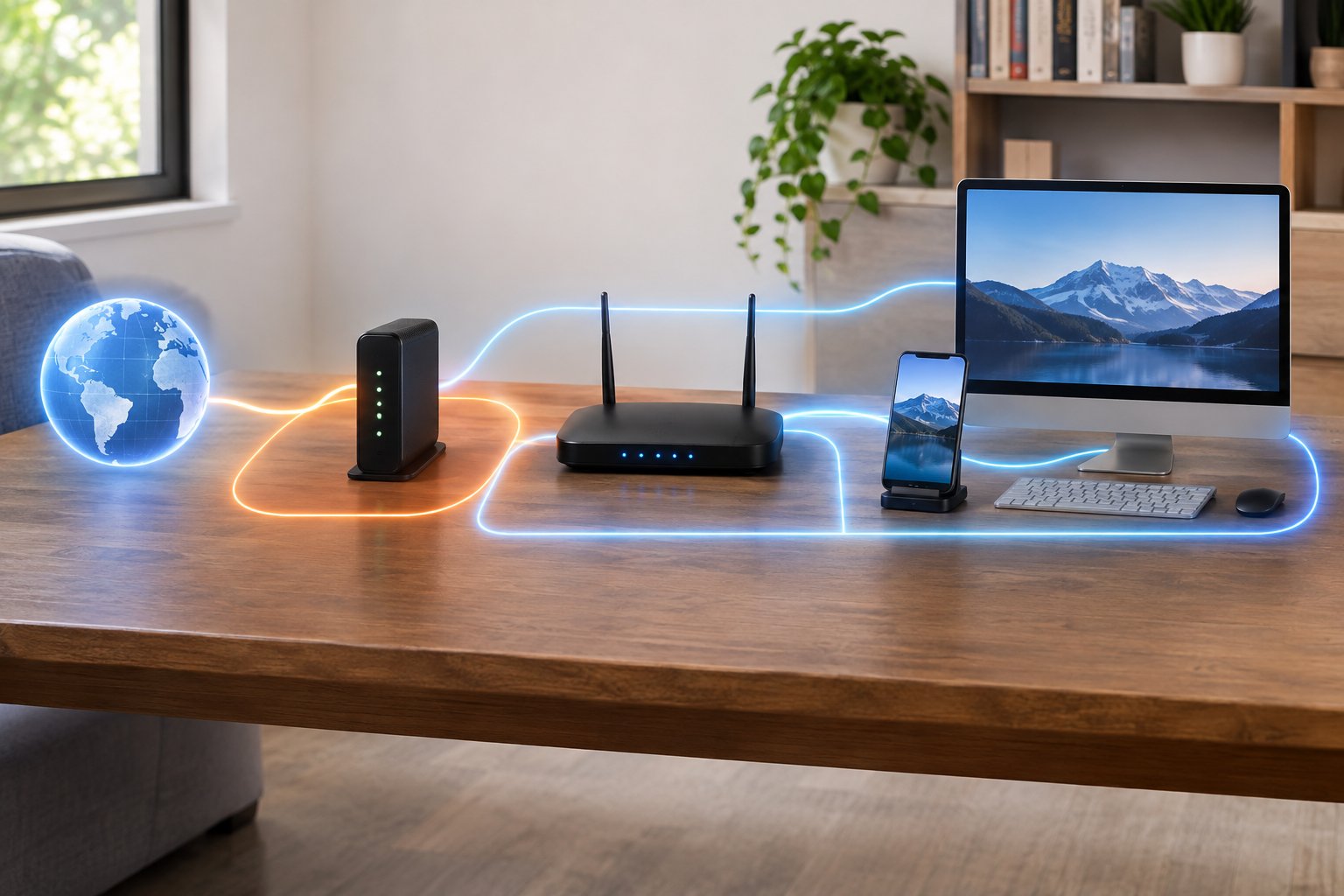
Two routing layers split your home into two private networks, and inbound traffic has to cross two translation tables before it reaches a device. Outbound traffic copes fine. The trouble shows up with unsolicited inbound connections, with automatic port mapping, and with devices that need to find each other across the boundary.
How Network Address Translation Works Across Two Routers
Network address translation (NAT) lets many devices on a private network share one public address. Your router rewrites each outgoing packet’s source to its WAN address and remembers the mapping so replies find their way back to the right laptop or phone.
When a second router sits behind the first, the process repeats. Your PC at 192.168.1.20 talks to your router, which rewrites the packet to its own WAN address, say 192.168.0.2. The ISP gateway rewrites it again to the real public IP. NETGEAR describes the result plainly: because each device performs NAT, your network is split into two different private networks.
Replies to traffic you started return without trouble because both tables hold a mapping. A new connection from the internet has no mapping on the outer device, so the gateway drops it before your router ever sees it.
Why a Modem Alone Does Not Create Another NAT Layer
A pure modem converts the cable, fiber, or DSL signal into Ethernet and passes your router a public address. It does no translation, so a modem plus one router is a normal single-NAT setup.
The confusion starts with combo units. Many ISP “modems” are gateways: a modem, router, firewall, DHCP server, and Wi-Fi radio in one box. Plug your own router into one of those in default mode and you have two NAT layers.
A quick test helps. If your router’s WAN status page shows a public address, the box upstream is acting as a modem. If it shows an address from 10.x, 172.16 to 172.31, or 192.168.x, the upstream box is routing. Your router IP address gets you into the admin page where that WAN field lives.
When Gaming, VPNs, and Device Discovery Are Affected
Double NAT hurts inbound and peer-to-peer traffic. NETGEAR lists online games, VPN connections, port forwarding and triggering, and secure websites that use SSL among the affected areas. In practice, these are the cases you’ll hit:
- Online gaming: consoles report Moderate or Strict NAT, and party chat or peer-hosted matches fail. Xbox shows “Double NAT detected” under Network settings.
- VPN connections: older protocols such as PPTP and IPsec without NAT traversal struggle. Hosting a VPN server at home fails outright without matching forwards on both devices.
- UPnP: your router opens ports on itself, but the gateway upstream never hears the request.
- Device discovery: a printer on the gateway’s Wi-Fi and a laptop on your router’s Wi-Fi sit in separate subnets, so casting and printing break.
Raw speed is rarely the issue. Google says the extra translation might cause a very small delay, of the order of milliseconds. If throughput drops, look at an underpowered router or heavy QoS processing first.
How Can You Confirm Two Local NAT Layers?
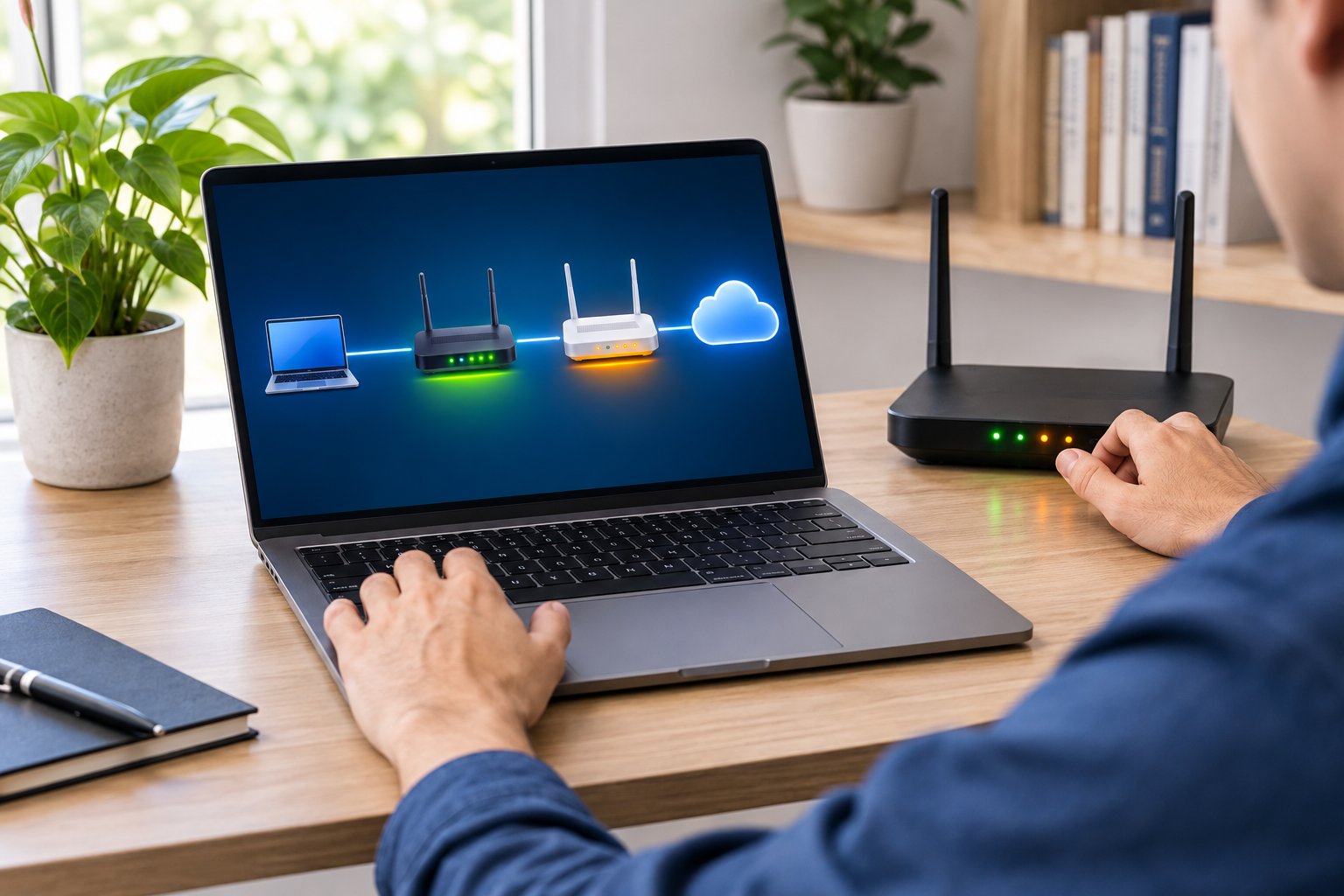
You confirm local double NAT when your router’s WAN address is private and the device above it is a box you can log into. Two checks give you the evidence: a WAN-versus-public address comparison and a short traceroute. The address range tells you whether the extra layer is yours or your ISP’s.
Compare Both Routers’ WAN Addresses With Your Public IP Address
Start at the router your computer uses as its default gateway. Log in and read the WAN or Internet IPv4 field, then do the same on the ISP gateway if you have one. After that, load PacketTools What Is My IP from the same network to check your IP address as the internet sees it.
| What you see | What it means |
|---|---|
| Router WAN matches the public IP | Single NAT, no fix needed |
| Router WAN is 10.x, 172.16–31.x, or 192.168.x | Another local device is routing |
| Router WAN is 100.64.x to 100.127.x | Your ISP runs carrier-grade NAT |
| Gateway WAN matches public IP, router WAN is private | Classic local double NAT |
If the gateway’s WAN field matches the public address and your router’s WAN is private, you’ve found the extra layer and it sits in your house. Write down both addresses now, because you’ll compare against them after the fix.
Run Traceroute Locally and Treat Private Hops as Clues
Traceroute shows each router your packets cross. Run tracert -d 8.8.8.8 on Windows or traceroute -n 8.8.8.8 on macOS and Linux, and read only the first two or three hops. The steps for how to trace a route are the same on any OS.
Two private hops in a row, such as 192.168.1.1 then 192.168.0.1, point to two local routers. Intermedia notes that a private IP address on a second hop indicates double NAT.
Treat the trace as a clue and use the WAN comparison as proof. Many gateways rate-limit or drop the replies traceroute depends on, so a row of asterisks proves nothing. Count only addresses that print. Run it from your own machine as well, since a browser-based traceroute starts from a remote server and never sees your inside hops.
Distinguish Local Double NAT From ISP CGNAT
Local double NAT and carrier-grade NAT (CGNAT) use the same mechanism in different places, and only the local kind is yours to fix. CGNAT lets an Internet Service Provider (ISP) put many customers behind one shared public address.
The range gives it away. A WAN address in 100.64.0.0 – 100.127.255.255 is the shared space reserved for CGNAT. Read the second octet carefully: 100.128.x.x is ordinary public space.
You can have both at once. If your router shows 192.168.0.2 and the gateway’s WAN shows 100.72.x.x, bridging removes the local layer, but the carrier layer stays. Inbound port forwarding then stays impossible until the ISP changes your service, because you can’t log into a CGNAT device to add a rule.
Should You Use Bridge Mode or Access-Point Mode?
Use bridge mode on the ISP gateway when your own router has the features you want, and use access-point mode on your router when the ISP gateway must keep routing. Both leave one NAT layer. They differ in which box owns the firewall, DHCP, Wi-Fi controls, and QoS, and both can lock you out of an admin page if you skip preparation.
Before Changing Modes: Protect Admin Access and Plan a Rollback
Mode changes move IP addresses around, so the page you’re logged into often disappears mid-change. Prepare first:
- Back up both configurations from each device’s admin page and save the files off the network.
- Record logins and addresses: gateway IP, router IP, admin passwords, Wi-Fi names, and any PPPoE or VLAN details the ISP uses.
- Use a wired laptop connected to the device you’re changing. Wi-Fi settings may vanish when the mode flips.
- Know the bridged address. Many gateways remain reachable at a fixed management IP such as 192.168.100.1. Check the manual before you lose the normal one.
- Find the reset button and know what a factory reset restores, since that’s your rollback if everything else fails.
- Check ISP requirements. Some providers must enable bridge mode from their side, and voice or TV service may depend on the gateway routing.
Pick a maintenance window. Expect every device to need a new DHCP lease, and if a device gets stuck, a stale lease or an IP address conflict is the usual reason.
Use Gateway Bridge Mode When Your Own Router Should Control the Network
Bridge mode turns the ISP gateway into a modem. TP-Link describes it as a setting that disables your modem’s routing, so a single device manages your network. Your router then receives the public IP on its WAN port and handles everything inside.
Choose this when you bought a router or mesh system for its firewall rules, VPN server, parental controls, or QoS. It’s also the cleanest path for port forwarding, because rules live on the device that holds the public address.
Expect the gateway’s Wi-Fi and spare LAN ports to stop working in full bridge mode. Anything plugged into the gateway moves to your router. After enabling it, power-cycle the gateway first, then your router, so the router requests a fresh WAN lease.
Use Access-Point Mode When the ISP Gateway Should Remain in Charge
Access-point mode leaves the ISP gateway as the only router and turns your router into a Wi-Fi radio plus switch. NAT and DHCP turn off on your router, and every device lands in the gateway’s subnet.
Choose this when the ISP won’t allow bridging, when voice or TV service needs the gateway routing, or when you only added the second router for coverage. Cable it from a LAN port on the gateway, and with many models the router’s WAN port no longer matters in AP mode. Once AP mode is on, set the router’s management address to a static IP in the gateway’s range, outside its DHCP pool, so you can still reach its admin page.
You lose the router’s own firewall, guest network, and QoS. Google warns that bridging its Wifi units disables features such as Family Wi-Fi, priority device, and Guest Wi-Fi, and mesh systems lose the mesh entirely when the primary unit isn’t routing.
Check Passthrough Behavior Before Treating It as Bridge Mode
IP passthrough, also called DMZplus or software bridge, hands the public IP to one downstream device while the gateway keeps its other ports and Wi-Fi working. Nextiva states that gateways in passthrough mode will not cause Double NAT for the device receiving the address.
The gateway still runs NAT for anything else plugged into it. Intermedia notes that in passthrough, network address translation is not disabled on the modem/router. So a console on the gateway’s Wi-Fi still sits behind a separate NAT from your router’s clients.
Verify it the same way you diagnosed the problem: your router’s WAN field must show the public address. If it shows a private one, passthrough isn’t active, or it’s bound to the wrong MAC address.
Compare Firewall, DHCP, Wi-Fi, QoS, and Cabling Tradeoffs
| Factor | Gateway bridge mode | Router access-point mode |
|---|---|---|
| Device doing NAT | Your router | ISP gateway |
| Firewall | Your router’s | Gateway’s |
| DHCP server | Your router | Gateway |
| Wi-Fi | Your router; gateway radio off | Both radios, gateway settings rule |
| QoS and parental controls | Your router’s features | Gateway’s features only |
| Cabling | Gateway LAN to router WAN | Gateway LAN to router LAN |
| ISP help needed | Sometimes | Rarely |
If you go with access-point mode, give both radios the same SSID and password so clients roam between them. With bridge mode, confirm DHCP reservations, since your router now runs the only DHCP server and old reservations from the gateway don’t carry over.
What if You Cannot Remove the Upstream NAT Layer?
When the ISP locks bridge mode and access-point mode won’t suit you, workarounds can make inbound traffic reach the inner router. They help only with local double NAT. Behind CGNAT, none of them work, because the outer device belongs to the carrier.
Forward Ports Through Both Routers Only When You Control Both
Port forwarding through two layers takes two matching rules. On the gateway, forward the port to your router’s WAN address. On your router, forward the same port to the device. Give the router’s WAN a reserved address on the gateway, because a changed lease breaks the first rule without warning.
This works for a game server, a camera recorder, or a self-hosted VPN on a fixed port. It doesn’t help UPnP, which only opens ports on your router, so consoles that rely on it still report a strict type. Expect to maintain two rule sets every time you add a service.
Understand DMZ Host Exposure Before Using It as a Workaround
A DMZ host setting on the gateway sends every unsolicited inbound packet to one address. Point it at your router’s WAN IP and the router’s own firewall and forwards take over, which behaves close to a single-NAT setup.
Point it at a PC or console instead and that device sits on the internet with no gateway filtering at all. Only target a device with its own firewall, and your router is the right choice. Expect anything plugged directly into the gateway to stay behind the gateway’s NAT.
Ask Your ISP About Public IPv4, IPv6, or Remote-Access Alternatives
When the outer layer is CGNAT, your options sit with the ISP. Ask for a public IPv4 address, saying “public” and not just “static,” since support staff often treat them as one request. Some providers charge for it; others offer it on business plans.
IPv6 sidesteps NAT for services that support it, so check whether your ISP and router both have it enabled. For remote access to home devices, an outbound tunnel or a VPN hosted on a cloud server avoids the need for inbound ports entirely.
How Do You Verify the Change Worked?
The change worked when your router’s WAN address matches your public IP and the services that failed before now connect from outside. Address checks prove the topology; external tests prove the services.
Recheck WAN Addressing With PacketTools What Is My IP
Reopen your router’s status page and compare its WAN IPv4 to what PacketTools What Is My IP shows. PacketTools doesn’t log the IP or query, so you can repeat the test freely.
A match confirms one NAT layer. If the router still shows a private address, the bridge didn’t take; power-cycle the gateway, then the router, and check again. A 100.64 to 100.127 address means you’ve reached CGNAT.
Confirm the Intended Gateway and DHCP Setup
Run ipconfig on Windows or ip route on Linux from a client. In bridge mode, the default gateway should be your router’s LAN IP. In access-point mode, it should be the ISP gateway’s.
Check that only one device hands out leases. Two active DHCP servers cause clients to bounce between subnets. If a machine reports that the default gateway is not available or keeps a 169.254 address, release and renew its lease, and review DHCP versus static IP assignments for anything you hard-coded under the old scheme.
Retest Gaming, VPNs, and Remote Access From Outside the Network
Run each test that failed before. On a console, rerun the network test and confirm the NAT type improved and the Xbox warning is gone.
For port forwarding and remote access, test from outside: disconnect a phone from Wi-Fi and use cellular data to reach your camera, VPN, or server. Testing from inside proves little, since many routers don’t loop traffic back to their own public address.
Separate Remaining Connectivity Problems From NAT
If services still fail with one NAT layer confirmed, the cause lies elsewhere. Common culprits:
- A host firewall on the target device blocking the port
- The ISP filtering inbound ports such as 25 or 80
- UPnP turned off on the router
- Wi-Fi interference or a weak signal
Work through them with a structured network troubleshooting pass: ping, traceroute, and DNS lookup, one layer at a time.
Keep One Local NAT Layer Where Practical
A home network runs best with exactly one device translating addresses. Confirm double NAT by comparing your router’s WAN IP with your public IP. Use traceroute as a supporting clue, and read the range to separate your own extra router from carrier-grade NAT.
Bridge the ISP gateway when your router should own the firewall, DHCP, and QoS. Switch your router to access-point mode when the gateway must stay in charge. Back up both configurations and keep a wired path to each admin page before you flip either switch.
If bridging is off the table, matched port forwards or a DMZ pointed at your router cover local double NAT only. For CGNAT, ask the ISP for a public IPv4 address or use IPv6. Whichever route you take, recheck the WAN address afterward and test services from a cellular connection.
Leave a Reply