
Windows shows this message when your PC can no longer talk to the router it uses as its exit point to other networks. To fix “default gateway is not available,” first prove whether your PC can reach the gateway at all (ping its address from ipconfig /all), then repair the layer that fails: cabling or Wi-Fi, the DHCP lease or static IPv4 settings, the network adapter driver and power settings, and only then a TCP/IP, Winsock, or full network reset.
The error looks like an internet outage, but the cause sits much closer: the hop between your adapter and the router. Gateway reachability, DNS, and upstream internet connectivity fail in different ways. Testing each one separately keeps you from flushing DNS caches when the real fault is a sleeping Wi-Fi card.
PacketTools approaches this the way production engineers do: isolate the failing layer, change one thing, and verify it. The goal is a stable connection that survives a reboot, plus clear evidence if the fault turns out to be upstream.
Is the Failure at the Gateway, DNS, or Internet Connection?
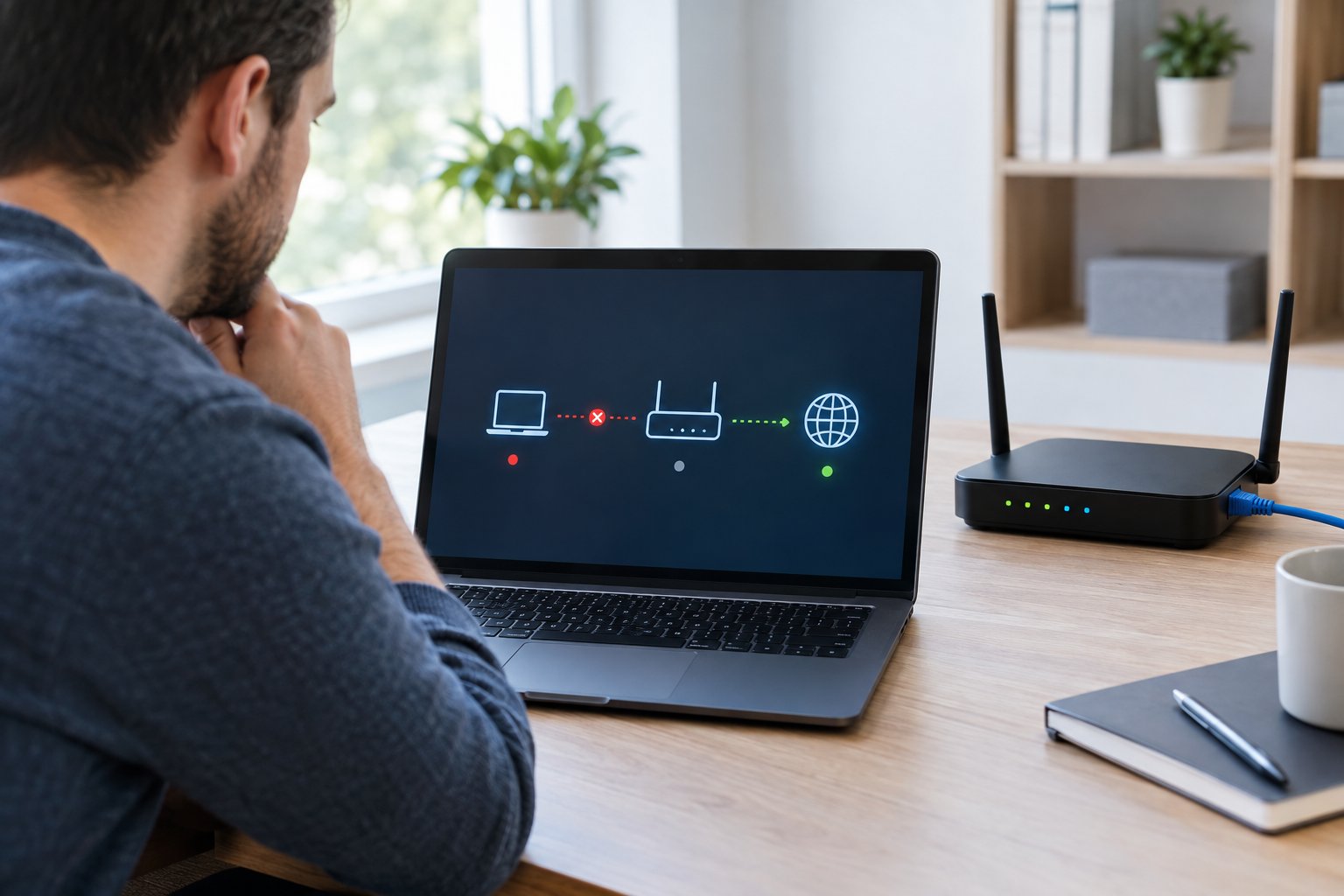
The failing layer is whichever test breaks first when you work outward from your adapter: link, gateway ping, external IP ping, then name resolution. Physical checks and a wired comparison tell you whether the problem belongs to this PC. Then ipconfig /all, route print, and three targeted pings pin down the exact layer.
Check Cables, Compare Other Devices, and Test Ethernet
Start with the physical path. Reseat the Ethernet cable at both ends and look for link lights on the NIC and the switch or router port. If you use a dock or USB adapter, try the built-in port or a different cable.
Next, compare other devices on the same network:
- Other devices work, this PC fails: the fault is local to your PC (adapter, driver, IP settings, or software).
- Every device fails: the router, modem, or ISP is the problem, and resetting Windows won’t help.
- Wi-Fi fails but Ethernet works on the same PC: suspect the wireless adapter, its driver, power saving, or radio conditions.
Plugging the laptop into the router with a cable is the fastest split you can make. If Wi-Fi shows as connected yet nothing loads, the symptoms overlap with Wi-Fi connected but no internet, and a wired test separates a radio problem from a configuration one.
Read ipconfig /all and route print for the Active Adapter
Open Command Prompt and run ipconfig /all. Find the adapter you are using (Wi-Fi or Ethernet) and check these fields:
| Field | Healthy example | Warning sign |
|---|---|---|
| IPv4 Address | 192.168.1.42 (Preferred) | 169.254.x.x or “(Duplicate)” |
| Subnet Mask | 255.255.255.0 | Mask that doesn’t match the router’s LAN |
| Default Gateway | 192.168.1.1 | Blank, or in a different subnet |
| DHCP Enabled | Yes (on most home and office LANs) | “No” when you expected DHCP |
| DNS Servers | 192.168.1.1 or your org’s resolvers | Leftover VPN or unreachable addresses |
A 169.254 address means DHCP never answered. That case overlaps with Ethernet doesn’t have a valid IP configuration. A blank gateway with a static address means someone left the gateway field empty.
Then run route print -4 and look at the Active Routes for 0.0.0.0 with a mask of 0.0.0.0. You want one default route that points at your real gateway through your physical adapter’s interface IP:
0.0.0.0 0.0.0.0 192.168.1.1 192.168.1.42 35
If you see two default routes, compare their metrics. A VPN or virtual adapter with a lower metric wins, and traffic goes nowhere. If there is no 0.0.0.0 route at all, Windows has no exit path.
Test the Gateway, an External IP, and DNS Separately
Run three tests in order, ideally while the problem is happening:
ping 192.168.1.1(use the gateway fromipconfig /all)ping 1.1.1.1(an external IP, no DNS involved)nslookup packettools.com
Read the results as a chain. If step 1 times out, the problem is local: adapter, cable, Wi-Fi, IP settings, or security software. If step 1 succeeds and step 2 fails, your PC reaches the router but the router or ISP isn’t forwarding traffic. If both pings work and only step 3 fails, you have a DNS problem. It is not a gateway problem, and you can troubleshoot DNS issues directly.
Intermittent drops need a continuous test. Run ping -t 192.168.1.1 and watch for timeouts at the moment pages stop loading. Steady replies with occasional bursts of “Request timed out” point to the adapter or power management.
Run the Windows Network Troubleshooter and Interpret Its Findings
In Windows 11, open Settings > System > Troubleshoot > Other troubleshooters and run the network troubleshooter, or right-click the network icon and choose Diagnose network problems. The “default gateway is not available” text is itself a finding from this tool.
Treat its verdict as a label, not a root cause. Use it to confirm which adapter Windows blames, then return to your ping results. If the troubleshooter “fixes” the problem and it comes back minutes later, something keeps reintroducing the fault. One Surface Pro 8 owner reported Ethernet that connected for a few minutes and then dropped again after each repair. That pattern points at drivers or power behavior, and repeated troubleshooter runs won’t cure it.
How Do You Correct IP Address and DHCP Problems?
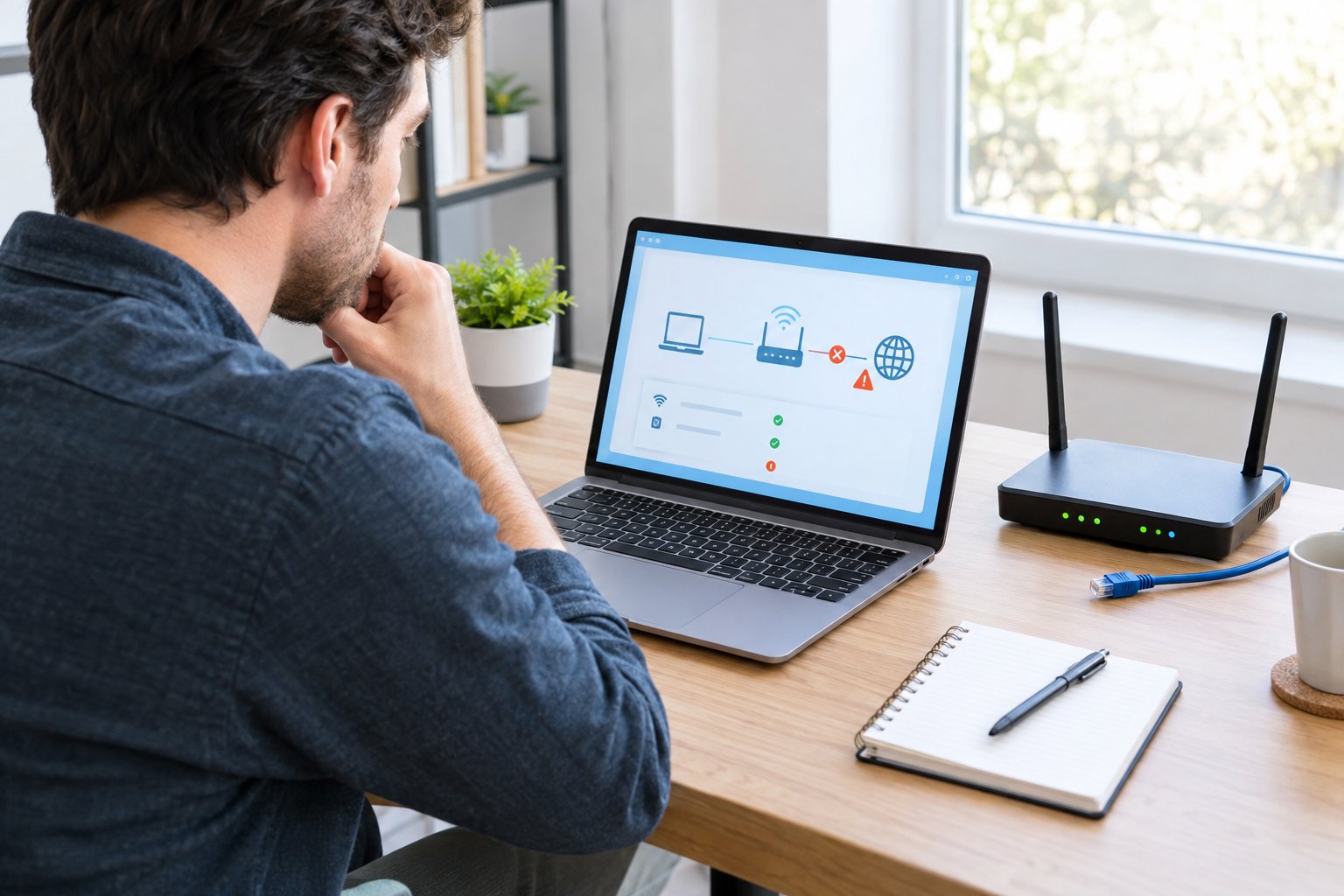
IP and DHCP faults are fixed by making sure the adapter gets a valid address, mask, and gateway from one place: DHCP or a correct static entry. You’ll confirm which mode the adapter uses, renew a stale lease, check the DHCP Client service, and validate any manual settings against the real subnet.
Check DHCP or Static Settings in IPv4 Properties
Press Win + R, type ncpa.cpl, and open Network Connections. You can also reach it from Network and Sharing Center > Change adapter settings. Right-click your active adapter, choose Properties, then double-click Internet Protocol Version 4 (TCP/IPv4).
On most home and small-office networks, both options should be set to automatic: Obtain an IP address automatically and Obtain DNS server address automatically. If you find manual values you didn’t set, they may be leftovers from an old network or a previous troubleshooting attempt. Write them down before switching to automatic, in case they were intentional.
Business networks sometimes require fixed addresses for printers, servers, or firewalled workstations. The trade-offs are covered in DHCP vs static IP. Change a static workstation to DHCP only if you know the network expects it.
Renew a DHCP Lease with ipconfig /release and ipconfig /renew
A stale or broken lease leaves you with an address the router no longer recognizes. In an elevated Command Prompt, run:
ipconfig /release
ipconfig /renew
Watch the output. A successful renew prints the adapter with a fresh IPv4 address, mask, and Default Gateway. Afterward, run ipconfig /all again and check the Lease Obtained time.
If /renew hangs and then reports it couldn’t contact the DHCP server, the request isn’t getting an answer. That matches the symptoms of a DHCP lookup failed error. Note that /release drops connectivity immediately, so don’t run it over a remote session you depend on.
Check the DHCP Client Service and DHCP Server
Windows needs the DHCP Client service running to request an address. Microsoft’s client checklist includes confirming the service is started with the net start command, looking for DHCP Client. You can also open services.msc and confirm DHCP Client is Running with startup type Automatic.
The same checklist calls for confirming no firewall blocks UDP ports 67 and 68 on the client. Those ports carry DHCP traffic, so third-party firewalls with aggressive rules can stop leases cold.
On the server side, a full DHCP scope or a router with a misbehaving DHCP service hands out nothing. Look for devices with static addresses inside the DHCP pool; they cause duplicates, the classic IP address conflict. On corporate networks, check whether other clients on your VLAN get addresses. If none do, the scope or DHCP relay belongs to your network team.
Validate Static Addresses, Subnets, and Default Routes
If your adapter must stay static, every field has to line up with the network. Use this example from a 192.168.1.0/24 LAN:
- IP address: 192.168.1.50 (unused, outside the DHCP pool)
- Subnet mask: 255.255.255.0
- Default gateway: 192.168.1.1
- DNS servers: your router or organization’s resolvers
The gateway must sit inside the same subnet as your IP. A host at 192.168.1.50 /24 can’t use 192.168.0.1 as a gateway. Windows will accept the entry, and nothing will route.
After saving, run route print -4 and confirm a single 0.0.0.0 route through that gateway. If you find a stale persistent route under Persistent Routes, remove it with route delete 0.0.0.0 mask 0.0.0.0 <wrong-gateway> and let the adapter’s gateway setting supply the route.
Could the Network Adapter Be Dropping the Connection?
Yes, and an adapter fault is the most likely cause when gateway pings fail on one PC while every other device stays online. Toggling the adapter clears temporary state, a driver change fixes buggy firmware interaction, and power settings stop Windows from parking the NIC.
Disable and Re-enable the Affected Adapter
In ncpa.cpl, right-click the active adapter, choose Disable, wait about ten seconds, then choose Enable. On Windows 11 you can do the same under Settings > Network & internet > Advanced network settings.
This forces the adapter to reinitialize, renegotiate the link or Wi-Fi association, and request a new lease. If the connection returns, keep ping -t running against the gateway for a while. A fix that holds for hours suggests a one-off glitch. A drop within minutes sends you to drivers and power management.
Update, Roll Back, or Reinstall the Network Adapter Driver
Open Device Manager, expand Network adapters, and right-click your adapter. Pick the action that matches your history:
- Problem started after a driver or Windows update: open Properties > Driver and choose Roll Back Driver if it’s available.
- Old driver, no recent change: install the current driver from the PC or chipset maker. Windows Update’s generic driver isn’t always the best match. The steps to update network drivers apply to both Wi-Fi and Ethernet.
- Corrupted install: choose Uninstall device, tick the option to remove the driver if offered, and restart so Windows reinstalls it.
Download the replacement driver before uninstalling. Without a working adapter, you’ll need another PC or a USB transfer to get it.
Adjust Power Management When Disconnects Follow Sleep or Idle Time
If the gateway disappears after the laptop wakes or sits idle, Windows is probably powering down the NIC. In Device Manager, open the adapter’s Properties > Power Management and clear Allow the computer to turn off this device to save power.
For Wi-Fi, also check Control Panel > Power Options > Change plan settings > Change advanced power settings > Wireless Adapter Settings > Power Saving Mode. Set both On battery and Plugged in to Maximum Performance. Some adapters expose extra options on the Advanced tab (names like Energy Efficient Ethernet or Green Ethernet); disabling them often stops wired dropouts on docks.
When Should You Reset Windows Networking or Isolate Software Conflicts?
Reset the network stack only after IP settings, the lease, and the adapter check out yet gateway pings still fail. Resets wipe configuration, so you want them targeted. Software conflicts from VPNs and security suites should be ruled out before the broadest reset.
Reset TCP/IP and Winsock After Recording Existing Settings
First save your current state: run ipconfig /all > %USERPROFILE%Desktopipconfig-before.txt and route print > %USERPROFILE%Desktoproutes-before.txt. Screenshot any static IPv4 or DNS settings. A TCP/IP reset returns adapters to defaults, and those notes let you rebuild a static configuration.
Then, in an elevated Command Prompt:
netsh winsock reset
netsh int ip reset
Restart the PC. The Winsock reset repairs the socket catalog that apps use, while the IP reset rewrites TCP/IP registry settings. Microsoft’s own repair order places these commands, along with ipconfig and driver removal, ahead of Network reset, which is why you run them first.
Flush DNS Only When Name Resolution Is Failing
ipconfig /flushdns clears cached name lookups. It does nothing for gateway reachability. Run it when your earlier tests showed ping 1.1.1.1 succeeding while nslookup or browsers fail by name.
If flushing doesn’t help, check which resolvers the adapter uses in ipconfig /all. Unreachable or VPN-assigned DNS servers produce errors like DNS server not responding, which you can fix by correcting the DNS entries without touching the gateway.
Check VPN, Virtual Adapter, and Security Software Conflicts
VPN clients, Hyper-V switches, WSL, and virtualization tools add virtual adapters and routes. Look back at route print: a second 0.0.0.0 route through a virtual interface, or an interface metric lower than your physical NIC, will steal traffic.
Test in this order:
- Disconnect the VPN and quit its client, then retest the gateway ping.
- In
ncpa.cpl, temporarily disable unused virtual adapters (VPN TAP/Wintun adapters, vEthernet switches). - Temporarily turn off third-party antivirus web protection or firewall, then retest.
If connectivity returns, update or reinstall that product instead of leaving protection off. Re-enable security software as soon as the test is done.
Use a Clean Boot or Full Network Reset as Later Steps
A clean boot isolates background software you can’t easily identify. Run msconfig, tick Hide all Microsoft services on the Services tab, click Disable all, disable startup apps in Task Manager, and restart. If the gateway stays reachable, re-enable services in groups until the fault returns.
Network reset is the last software step. It removes installed network adapters and their settings, then reinstalls them with defaults after restart. On Windows 11 it lives under Settings > Network & internet > Advanced network settings > Network reset. Expect to reinstall VPN clients and virtual switches afterward; the PacketTools walkthrough to reset network settings covers what to record first.
How Do You Verify Recovery and Identify Upstream Faults?
You confirm a real fix by repeating the same layer tests after a restart and checking the public side from outside your network. Any remaining failure then has evidence attached, which makes it fast to hand off.
Retest Local Connectivity and Check Whether the Fix Survives a Restart
Repeat the chain: ipconfig /all, route print -4, then gateway ping, external IP ping, and nslookup. Save the output next to your “before” files and compare them line by line.
Then restart, let the PC sleep for its normal idle period, and test again. A fix that only lasts until reboot usually means a startup app, VPN, or driver is restoring the bad state. Keep ping -t <gateway> running for at least 15 minutes of normal use; zero timeouts is the result you want.
Use PacketTools to Cross-Check Public DNS and External Reachability
Once local tests pass, confirm the outside view with PacketTools, which runs in the browser with no sign-in and no logging of IPs, queries, or test data. What Is My IP shows the public address your traffic exits from; a VPN or proxy address there means traffic isn’t leaving where you think. You can also check your IP address after disconnecting the VPN to compare.
DNS Lookup confirms that public DNS servers return correct records for the domains you’re testing. The Ping Test checks reachability of a host from outside your network. Traceroute shows where the path stops, and learning how to trace a route helps you read whether a break sits at your ISP or further out.
Collect Evidence for Your Network Administrator or ISP
If your gateway answers but nothing beyond it does, the fault is past your PC. Broadcom’s guidance for virtual machines follows the same logic: when the gateway connection works but connections to other subnets fail, the issue is routing at Layer 3 and belongs with the network team.
Hand over a short packet of evidence:
ipconfig /allandroute printoutput, before and after- Timestamped gateway and external ping results (
ping -tlogs) tracert 1.1.1.1output showing the last responding hop- Whether other devices and a wired connection fail the same way
- Every change you made, in order
For DHCP-wide failures on managed networks, note whether other clients on your subnet also lack leases. That single detail tells an admin whether to look at your PC or at the scope.
Restore the Failing Network Layer, Then Verify Stability
The reliable fix is the one matched to the layer that failed your tests. A gateway ping that times out points to the cable, Wi-Fi, adapter, or IP settings on your PC. A working gateway with a failed external ping points upstream, and a failure at name lookup alone is DNS.
Work through repairs from narrowest to broadest:
- Physical check and wired comparison
- IPv4 settings, lease renewal, DHCP Client service
- Adapter toggle, driver change, power management
- Winsock and TCP/IP reset after saving your network configuration
- VPN, virtual adapter, and security software isolation
- Clean boot, then full Network reset
After each change, rerun the gateway, external IP, and DNS tests, then confirm the internet connection holds through a restart and an idle period. If it doesn’t, your saved ipconfig and route print files show exactly what changed and where to look next.
Leave a Reply