
Most Wi-Fi and Ethernet problems that show up after a Windows upgrade, a sleep/resume cycle, or a new router trace back to the software layer between Windows and your adapter. Outdated or mismatched network drivers cause dropped connections, adapters that vanish from the taskbar, and slow internet speeds that no amount of router rebooting will fix.
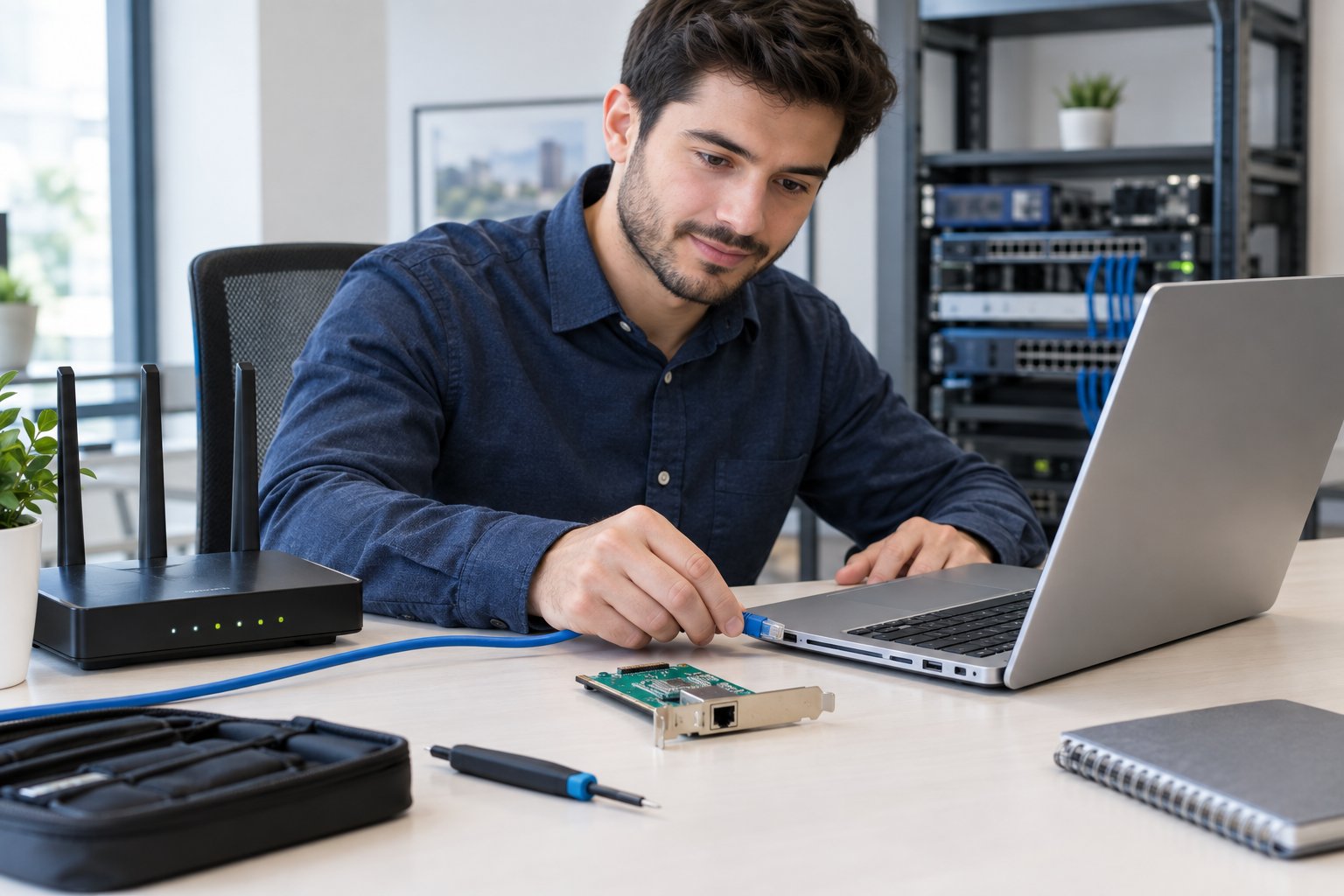
The safest way to update network drivers is through Windows Update’s Optional updates page. If that offers nothing, download the driver from your PC or adapter manufacturer and install it through Device Manager. Both methods use signed, vendor-supplied packages, so you avoid the bundled junk that comes with generic driver sites.
PacketTools is built by an engineer with over 28 years of hands-on experience in enterprise IT and network engineering. The steps below are the same sequence used on production machines: identify the exact adapter, update it from a trusted channel, then prove the fix with real diagnostics. By the end, you will know which driver you have, how to replace it even with no internet, and how to tell whether the driver was ever the problem.
Which Network Adapter Should You Update?
You should update the adapter you use to connect: the Wi-Fi driver if you’re on wireless, the Ethernet driver if you’re plugged in. Most laptops have both, plus virtual adapters from VPN clients and Hyper-V, so a few minutes of identification keeps you from installing the wrong package and saves a rollback later.
Find Your Wi-Fi or Ethernet Adapter in Device Manager
Right-click the Start button and choose Device Manager, then expand Network adapters. You’ll see several entries. The ones that matter are named after real hardware, such as:
- Wi-Fi: names containing “Wireless,” “Wi-Fi,” “AX,” or “WLAN,” for example Intel(R) Wi-Fi 6 AX201 160MHz or Realtek RTL8852BE WiFi 6 802.11ax PCIe Adapter.
- Ethernet: names containing “Ethernet,” “GbE,” or “PCIe GbE Family Controller,” such as Intel(R) Ethernet Connection I219-V or Realtek PCIe 2.5GbE Family Controller.
- Ignore for now: WAN Miniport entries, Bluetooth Device (Personal Area Network), Hyper-V Virtual Ethernet Adapter, and VPN TAP/TUN adapters.
A yellow triangle on an entry means Windows has a problem with that device. An entry listed under Other devices as “Network Controller” or “Ethernet Controller” means no driver is installed at all, and Windows can’t name the hardware.
For the full PC make and model, press Win + R, type msinfo32, and press Enter. The System Information window lists System Manufacturer and System Model. Write both down; you’ll need them on the manufacturer’s support site.
Check the Driver Version and Create a Restore Point
Double-click your adapter, open the Driver tab, and note the Driver Provider, Driver Date, and Driver Version. For Wi-Fi, running netsh wlan show drivers in Command Prompt gives the same details plus the radio types the adapter supports.
That version number is your baseline. Without it, you can’t confirm later that anything changed.
Before you touch the driver, create a system restore point:
- Search the Start menu for Create a restore point and open it.
- Select your system drive (usually C:) and click Configure if protection is off, then turn it on.
- Click Create, give it a name like “Before network driver update,” and confirm.
Device Manager’s Roll Back Driver button covers most bad updates, but it only keeps one previous version. A restore point protects you when a manufacturer installer also replaces utilities or services.
Choose a Method Based on Your Connection
Your current connection state decides which method to start with:
| Your situation | Best starting method |
|---|---|
| Internet works, problem is drops or slowness | Windows Update optional drivers |
| Internet works, Windows Update offers nothing | Manufacturer download via Device Manager |
| Wi-Fi is dead but Ethernet works (or vice versa) | Use the working link to download the driver for the broken one |
| No internet on this PC at all | Download on another computer, move it with a USB drive |
| Problem started right after a driver update | Roll back first, update second |
If your Wi-Fi shows connected but pages won’t load, read up on WiFi connected but no internet before replacing drivers. That symptom is frequently DNS or IP configuration.
How Do You Install a Driver Through Windows Update?
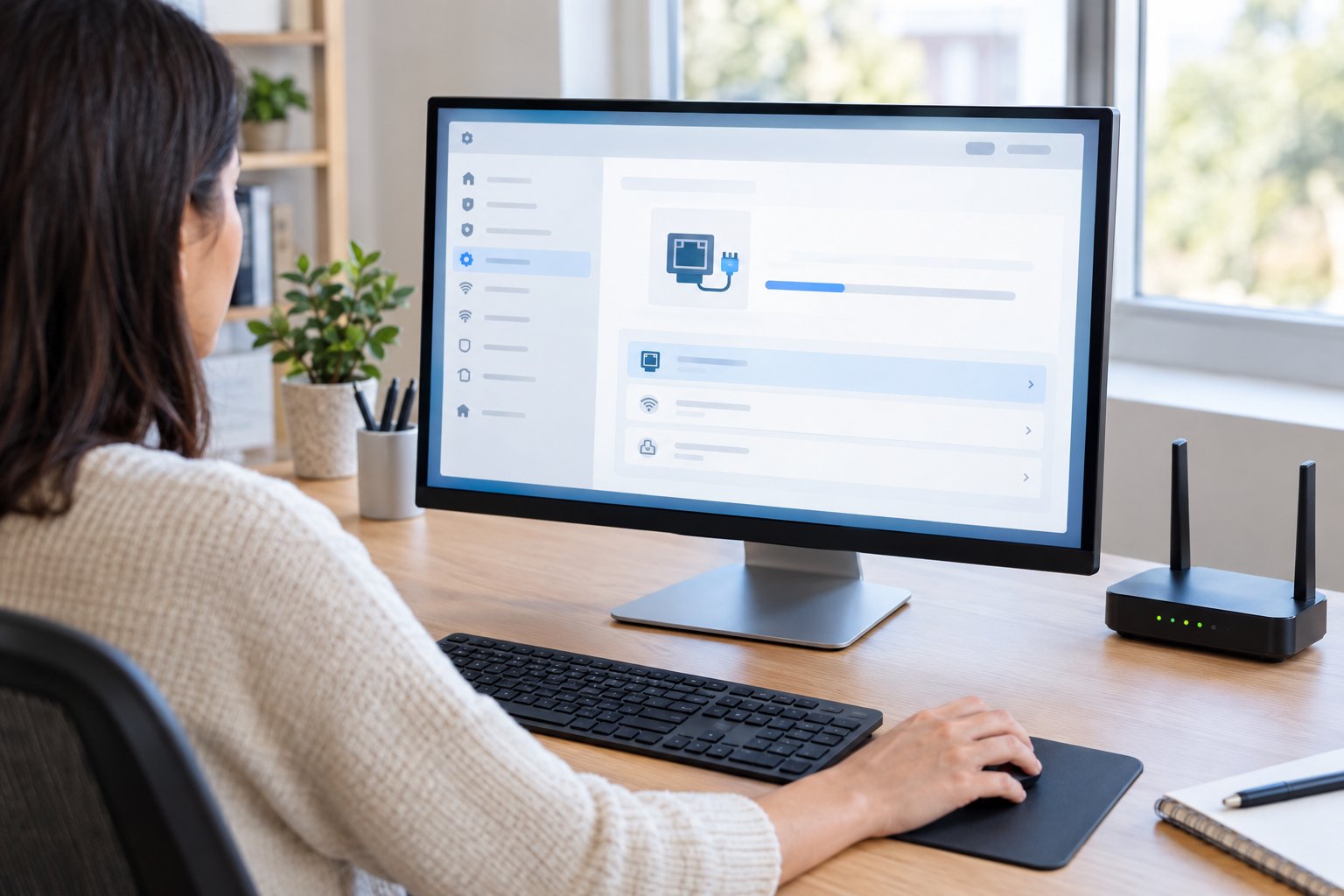
Windows Update installs recommended drivers on its own, but network driver updates frequently sit in the optional section where you have to approve them manually. Windows 11 and Windows 10 put that section in different places, and Windows 11 adds one setting that must be switched on first.
Check for Automatic and Optional Driver Updates in Windows 11
Windows 11 installs recommended drivers automatically, and optional drivers aren’t installed automatically, so a newer Wi-Fi or Ethernet driver can wait there for months. To find it:
- Press Win + I to open Settings and select Windows Update.
- Click Check for updates and install anything pending. Restart if asked.
- Go to Advanced options and make sure Receive updates for other Microsoft products is On.
- Under Additional options, select Optional updates.
- Expand Driver updates. Look for entries with your adapter vendor’s name, such as “Intel – Net” or “Realtek – Network.”
- Tick only the network driver and click Download & install.
- Restart the PC, even if Windows doesn’t ask.
Select only the driver you need. Ticking every optional entry at once makes it hard to know which one caused a new problem, and some listings are older than what you already have. Compare the version shown in the listing with the baseline you recorded; if it’s lower, skip it.
When you update network drivers in Windows 11 this way, the package has passed Microsoft’s driver validation for your hardware ID, which is why this route is the low-risk first choice.
Find Optional Driver Updates in Windows 10
Windows 10 hides optional drivers one level deeper:
- Open Settings with Win + I.
- Select Update & Security, then Windows Update.
- Click Check for updates and let pending Windows updates finish.
- Click View optional updates below the update status. This link only appears when optional items exist.
- Expand Driver updates, tick the network driver, and click Download and install.
- Restart the PC.
If View optional updates never appears, Windows has no newer driver for your hardware in its catalog. That’s common for older laptops and for adapters whose vendors publish updates only on their own sites. Move to the manufacturer route instead of waiting.
How Do You Update a Driver in Device Manager?
Device Manager updates a network driver two ways: an automatic search, or a manual install of a package you’ve already downloaded. The manual option is the one that solves most stubborn cases, because current versions of Windows search mainly local and Windows Update sources.
Search for a Compatible Driver
- Right-click Start and select Device Manager.
- Expand Network adapters.
- Right-click your Wi-Fi or Ethernet adapter and choose Update driver.
- Select Search automatically for drivers.
If Windows finds something newer, it installs it and shows the new version. More often you’ll see “The best drivers for your device are already installed.” That message only means nothing newer exists in the sources Windows checked. It says nothing about the manufacturer’s site.
From that same window, Windows also offers a link to search for updated drivers on Windows Update, which sends you back to the optional updates page covered above.
Install a Driver You Have Already Downloaded
This is the method to use with a manufacturer package, especially when the vendor ships a ZIP of .inf files and no installer:
- Extract the download to a simple folder such as
C:DriversWiFi. - In Device Manager, right-click the adapter and choose Update driver.
- Select Browse my computer for drivers.
- Click Browse, pick the extracted folder, and tick Include subfolders.
- Click Next and let Windows install the matching
.inf. - Restart, then recheck the version on the Driver tab.
If the vendor’s file is a self-extracting .exe and you want manual control, Intel’s documentation shows how to extract the files from the installation EXE with zip software and then point Device Manager at the folder, checking Include subfolders so it scans the entire driver set.
Should Windows report the driver isn’t compatible, try Let me pick from a list of available drivers on my computer at step 3 and click Have Disk. That lets you target the .inf directly, and it fails loudly if you downloaded the package for the wrong chipset, which is useful information in itself.
How Do You Get the Right Driver from the Manufacturer?
The right driver comes from either your PC maker’s support page for your exact model or the chipset vendor (Intel, Realtek, Qualcomm, MediaTek) for your exact adapter. Getting it wrong usually means a failed install or an adapter that loses vendor-specific power and roaming tuning.
Match the Download to Your PC, Adapter, and Windows Version
Check three things before you click download:
- Model: use the System Model from
msinfo32on the PC maker’s site, or the adapter name from Device Manager on the chipset vendor’s site. - Windows version: pick Windows 11 or Windows 10 packages specifically. Ethernet drivers for Windows 10 often install on 11, but Wi-Fi 6 and 6E drivers have version-specific features.
- Architecture: almost every current PC is 64-bit (x64). ARM laptops need ARM64 drivers.
Device Manager’s Details tab, with Hardware Ids selected, shows a string like PCIVEN_8086&DEV_A0F0. VEN_8086 is Intel and VEN_10EC is Realtek. When a device name is generic, that ID tells you who made the chip.
The PC maker’s driver is sometimes older than the chipset vendor’s but tuned for your board’s antennas and power settings. On a laptop, try the PC maker’s version first. On a desktop with an add-in card, go to the card or chipset vendor.
Use Official Manufacturer Tools When Appropriate
Most major brands ship update utilities that detect your hardware and pull matched drivers:
| Brand | Official tool |
|---|---|
| Intel adapters | Intel Driver & Support Assistant |
| Dell | Dell Update / SupportAssist |
| HP | HP Support Assistant |
| Lenovo | Lenovo System Update / Vantage |
| ASUS | MyASUS |
Intel Driver & Support Assistant is particularly handy for Intel Wi-Fi 6 and 6E cards, since Intel often posts new wireless builds there before they reach Windows Update.
Skip third-party driver update software that promises to fix everything at once. Those tools mix packages from unclear origins, and Microsoft’s own guidance warns against downloading drivers from any websites other than the manufacturer’s official site.
Install a Driver Offline Using a USB Drive
When the PC has no working connection at all, use a second computer:
- On the dead PC, note the System Model and adapter Hardware ID.
- On a working computer, download the matching driver from the manufacturer.
- Copy the file to a USB drive.
- Plug the drive into the dead PC and copy the file to the desktop.
- Run it if it’s an
.exe. If it’s a ZIP of.inffiles, extract it and use Browse my computer for drivers in Device Manager.
A practical habit: download your laptop’s current Wi-Fi and Ethernet drivers to a USB stick now, while things work. It turns a no-internet emergency into a five-minute fix.
How Can You Tell Whether the Update Fixed the Connection?
You can tell the update worked when the new version shows on the Driver tab and your original symptom no longer reproduces under the same conditions. If it still drops or crawls, measurement tells you whether to look past the PC or reverse the change.
Confirm the Driver Version and Test Wi-Fi or Ethernet
Reopen the adapter’s Driver tab and compare the version with your baseline. If the number didn’t change, the install didn’t take, and nothing else you test means much yet.
Then reproduce the conditions that caused trouble: wake from sleep, move to the far room, start a video call. For slow internet speeds, run a speed test on the same spot and band as before, and check WiFi speed against a wired result. A big gap between wired and wireless points at the radio link; both slow points upstream.
On Wi-Fi, netsh wlan show interfaces shows signal percentage, receive and transmit rates, and the radio type (802.11ax for Wi-Fi 6). A Wi-Fi 6 adapter that reports 802.11ac after the update has fallen back to an older mode.
Use Ping, Traceroute, and DNS Checks to Narrow Down the Fault
A driver only governs your PC’s link to the router, so test in layers:
- Ping your router (
ping 192.168.1.1or your gateway address). Loss or spikes here are local: driver, signal, or interference. - Ping a public host with a ping test. Clean local pings but lossy external ones point at your ISP.
- Trace the path with
tracert. Knowing how to trace a route shows which hop introduces delay. - Check jitter for calls and gaming with a network jitter test.
- Check name resolution. If IPs respond but sites don’t load, troubleshoot DNS issues before blaming hardware.
PacketTools runs these tools in your browser with no sign-in, and no IPs, queries, or test data are logged or stored.
Roll Back or Reinstall a Driver That Made Things Worse
If the new driver made things worse, open the adapter’s Properties, go to the Driver tab, and click Roll Back Driver. You need administrator rights, Windows asks for a reason, and a restart completes it. A grayed-out button means no previous version is stored, which is where your restore point comes in.
For a corrupted install, use Uninstall device:
- In Device Manager, right-click the adapter and choose Uninstall device.
- Tick Attempt to remove the driver for this device only if you have a replacement ready, such as on a USB drive.
- Restart. Windows reinstalls a driver automatically on boot.
When problems began right after a Windows update, Microsoft’s troubleshooting guide recommends that you compare the current driver and firmware versions with the versions recommended by the manufacturer before changing anything else.
Choose a Trusted Driver, Then Verify the Fix
Start by identifying the exact Wi-Fi or Ethernet adapter in Device Manager, record its driver version, and create a restore point. Check Windows Update’s optional drivers first, since those packages are validated for your hardware. When nothing newer appears there, take the driver from your PC maker or chipset vendor and install it through Browse my computer for drivers, using a USB drive if the PC is offline.
After installing, confirm the version changed, then ping your gateway, ping an outside host, and run a traceroute to see where any remaining delay lives. If the new driver performs worse, Roll Back Driver returns you to your baseline in under a minute.
Leave a Reply