
Your TP-Link router has two credentials that are easy to confuse. One is the admin password, which opens the router’s settings page. The other is the Wi-Fi password, which lets your devices join the network. Mixing them up is the most common reason a login attempt fails.

For the tp link default password, older TP-Link routers use “admin” as both the username and password. Newer models have no default login and ask you to create your own admin password the first time you sign in. Your default Wi-Fi name and key are printed on the label on the router. If the admin password you set is lost, recovery depends on what you configured ahead of time. Without a recovery option, you need a factory reset.
At PacketTools, we troubleshoot this kind of access problem in production networks all the time. Below, you can work out which credential applies to you, reach the login page, and try every recovery path before you wipe your configuration.
Which Credentials Does Your Router Actually Use?
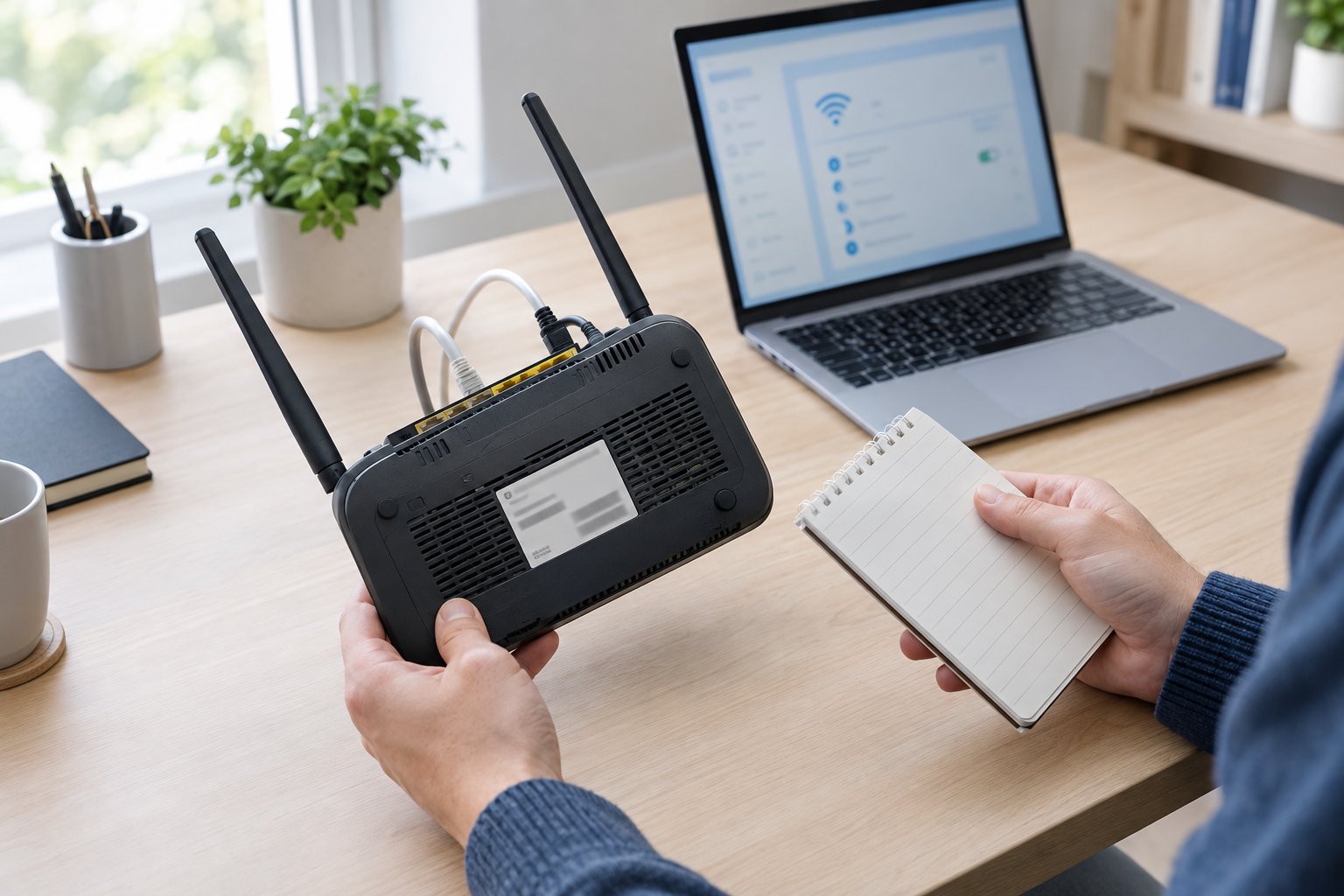
Your router’s age, your firmware, and whether you linked a TP-Link ID together decide what the login screen accepts. Some routers from internet service providers add their own credentials on top of these.
Older Models May Use admin/admin; Newer Models Require Your Own Password
Older TP-Link routers ship with admin as the username and admin as the password. On these models, the login form shows two fields, and sometimes both are pre-filled.
Newer models have no shared default. TP-Link confirms that newer router models require you to create a custom admin password on first login, while older ones keep “admin” for both fields. If your login screen shows a single password box with no username field, you have the newer style. In that case, typing “admin” will not work unless you chose it yourself.
A quick way to tell which type you have:
| Login screen shows | Likely model type | What to enter |
|---|---|---|
| Username + password fields | Older | admin / admin (unless changed) |
| Single password field | Newer | The password you created |
| “Create password” prompt | New or freshly reset | Choose a new password |
| TP-Link ID toggle | Cloud-linked | Your TP-Link ID email and password |
How Do Admin, Wi-Fi, and TP-Link ID Passwords Differ?
Three separate passwords can exist on one router:
- Admin (local management) password: opens the web interface at tplinkwifi.net or the router’s IP address.
- Wi-Fi password (wireless key): joins your devices to the network identified by its SSID.
- TP-Link ID password: your cloud account, used by the Tether and Deco apps and for remote management.
TP-Link support staff stress that the password requested on first access is the router’s management password, not your TP-Link ID password and not your Wi-Fi password. One detail catches people out. Once a cloud router is bound to a TP-Link ID, the local login password you created becomes ineffective, and you sign in with the TP-Link ID instead.
A useful test: if your phone still connects to Wi-Fi but the admin page rejects you, your problem is the admin password. If you cannot join the network at all, the problem is the wireless key.
Where Can You Find Model-Specific or ISP Login Details?
Check the router itself first. Default credentials sit on a label on the back or bottom of the device under headings such as Default Access, Default Settings, or Default Wireless Access. The same details appear in the Quick Installation Guide that came in the box.
Routers supplied by your internet provider are different. ISPs often ship TP-Link hardware with custom firmware, a different login address, or an account-specific password. If your label carries the ISP’s logo or lacks a “Default Access” block, the provider’s support documentation or help line holds the correct details. Some ISP units also lock certain settings no matter which password you use.
How Do You Open the Router’s Login Page?

Connect to the router, then type tplinkwifi.net or its local IP into the address bar. If neither address loads, look up the default gateway your computer received and use that.
Connect to the Router by Ethernet or Wi-Fi
The management page runs on the router itself, so it works without internet service. Your device does need to be on the router’s own network.
- Ethernet: plug into one of the yellow LAN ports, not the WAN/internet port. Confirm the matching LAN LED lights up.
- Wi-Fi: join the router’s SSID. On a fresh or reset unit, use the network name and key from the label.
A wired connection is the safer choice when you plan to change wireless settings. If you edit the SSID or password over Wi-Fi, your session drops the moment you save.
Open tplinkwifi.net or the Router’s Local IP Address
Use Chrome, Firefox, or Edge, and type one of these directly into the address bar:
tplinkwifi.net192.168.0.1192.168.1.1(common on older and ISP models)
If you type the address into a search box, you get search results and never reach the login page. The tplinkwifi.net name only resolves while you are connected to a TP-Link router. On a mesh system or a MiFi hotspot, the hostname differs, and the label lists the right one.
Find the Actual Gateway Address When the Defaults Fail
If someone changed the LAN subnet, neither default address works. Your computer already knows the real one, listed as the default gateway:
- Windows: run
ipconfigand read “Default Gateway.” - macOS: run
route -n get default | grep gateway, or check System Settings > Network > Details > TCP/IP. - Linux: run
ip route | grep default. - iPhone/Android: open the connected Wi-Fi network’s details and look for “Router” or “Gateway.”
Type that address into the browser. If you want to know more about how gateways are assigned, our guide to your router IP address covers the private ranges routers use and why some units hand out 10.x or 172.16.x addresses.
Where Can You Find or Change the Wi-Fi Password?
The router label holds the factory Wi-Fi key, and the wireless settings page shows whatever key is set now. MiFi hotspots use their own login address and app.
Check the Label for the Original Network Name and Wireless Key
On most TP-Link routers, the label lists the default SSID and wireless password. On many models, the default SSID is TP-Link_XXXX and is case-sensitive, with the last characters drawn from the MAC address.
The label only helps if nobody changed the settings. If the network name broadcasting near you differs from the label, the key has almost certainly changed too. Dual-band routers often list a separate “_5G” SSID that uses the same key.
View or Update the Password in Wireless Settings
After you log in to the admin page, the menu path depends on firmware. TP-Link lists Wireless > Wireless Settings or Basic > Wireless as the usual locations. Some older models split the SSID onto Basic Settings and the key onto Wireless Security.
To change it:
- Open the wireless page and select the password field (some firmware hides it behind an eye icon).
- Enter a new key of at least 12 characters, mixing letters, numbers, and symbols.
- Use WPA2-PSK or WPA2/WPA3 mixed mode if your devices support it.
- Save, then reconnect each device with the new key.
On dual-band routers, check whether each band has its own key field.
Find Mobile Wi-Fi Details Using tplinkmifi.net or the tpMiFi App
TP-Link’s portable M-series hotspots use tplinkmifi.net in place of tplinkwifi.net. Connect to the hotspot, open that address, and the wireless menu shows the SSID and key. Many units print the default key under the battery cover, and some show it on their screen.
The tpMiFi app for iOS and Android does the same job from your phone. Once connected, it shows the network name and password, along with battery level and data usage.
What Should You Check When the Login Page Will Not Load?
Most failures come down to your device sitting on the wrong network or subnet, or to something on your device blocking local traffic. Work from the network layer up before you suspect the router.
Check Local Addressing and Test Gateway Reachability
Your device needs an address from the router’s DHCP pool. Run ipconfig or ip addr and compare it with the gateway:
192.168.0.xpairs with gateway 192.168.0.1.192.168.1.xpairs with gateway 192.168.1.1.169.254.x.xmeans DHCP failed, so you have no working connection to the router.
Next, run ping 192.168.0.1 (or your gateway). Replies mean the router is alive and the problem lies in the browser or in security software. TP-Link notes that firewall or antivirus software can block access to the router. No replies point to cabling, a wrong subnet, or a static IP set on your adapter. Our IP address basics guide explains subnets and why mismatched ranges cannot talk to each other.
Rule Out Guest Network Isolation, VPN Routing, and Mobile Data
Three common traps block access even when your Wi-Fi icon looks healthy:
- Guest network: guest SSIDs block access to the admin page by design. Switch to the main network.
- VPN or proxy: a full-tunnel VPN sends 192.168.x.x traffic down the tunnel. Disconnect it, or enable your client’s local network access option.
- Mobile data: phones sometimes fall back to cellular when Wi-Fi has no internet. Turn off mobile data while you log in.
Corporate laptops with always-on VPN agents are the usual culprit. Test from a personal device first.
Troubleshoot Browser Sessions and Verify Certificate Warnings
Stale cookies and cached redirects can leave the login page blank or stuck in a loop. Open a private window, try another browser, or clear site data for tplinkwifi.net. Disable any extensions that rewrite pages.
A “Your connection isn’t private” warning is expected. The router uses a self-signed certificate, so click Advanced and proceed. Check that the address bar shows your actual gateway IP or tplinkwifi.net before you continue. A warning on any other hostname deserves suspicion.
Separate Local Router Access Problems From Internet Connectivity Faults
The admin page and your internet connection are separate paths. If the gateway answers ping but websites fail, the fault sits upstream at the WAN link, the modem, or the ISP. If the gateway does not answer, the internet is irrelevant until local access works.
Once you are online, the PacketTools What Is My IP tool confirms your public address, and Ping Test and Traceroute show whether traffic leaves your network cleanly. These run from our servers, so they test the public side and cannot reach your private 192.168 gateway. Use your computer’s own ping for that. Our network troubleshooting guides follow this same layered order through DNS and latency.
How Can You Recover Access Before Factory Resetting?
Check stored credentials, any recovery feature you enabled earlier, a linked TP-Link ID, and your ISP before you reset. A reset always works, but it costs you every setting on the router.
Check Saved Passwords and Supported Recovery Options
Start with the places a password may already be stored:
- Browser password storage: Chrome, Edge, Firefox, and Safari often saved the router login. Search for “192.168” or “tplinkwifi.”
- Password manager: search your vault for the router model or “admin.”
- Setup notes: check the Quick Installation Guide card, a photo of the label, or IT documentation.
- Logged-in devices: a tablet or the Tether app may still hold an active session.
Then look for Forgot Password? on the login page. It works only if you set up recovery beforehand. TP-Link’s feature supports recovery by email or security questions, configured under Advanced > System Tools > Administration. Email recovery is disabled when you log in with a TP-Link ID.
Try a Previously Linked TP-Link ID or Contact Your ISP
If you ever bound the router to a TP-Link ID, the login screen offers a toggle. Your cloud account credentials let you in, and you can reset the TP-Link ID password through TP-Link’s account site. Open the Tether app as well, since a linked account often lists the router there.
For ISP-supplied hardware, call the provider before you reset. ISPs can often push credentials remotely, and a reset can erase the PPPoE username, VLAN tags, or VoIP settings your service depends on.
Prepare for Lost Settings and Follow the Model’s Reset Instructions
A factory reset erases the internet connection type, Wi-Fi name and key, port forwards, DHCP reservations, and the admin password. Before you start, write down the details you will need:
- ISP login details (PPPoE username and password, or static IP data).
- SSIDs and keys, so you can reuse them and avoid reconnecting every device.
- Port forwarding and reservation rules.
With the router powered on, press and hold the Reset button for about 10 seconds until the LEDs flash, then wait for a full reboot. Some models use a pinhole button, and mesh units may need a different hold time, so check the model’s manual. Clearing settings on your computer side can also help when old profiles linger, and our guide on how to reset network settings covers Windows, macOS, and mobile devices. Router setup afterward takes approximately 5 to 10 minutes.
Set Distinct Passwords and Reconnect Devices Securely
When the setup wizard asks, give each credential its own value. The admin password, Wi-Fi key, and TP-Link ID password should never match, because anyone who joins your Wi-Fi would otherwise have router control too.
Store all three in a password manager right away. Enable Password Recovery while you are logged in, and update the firmware. If you keep the old SSID and key, most devices reconnect on their own. Smart home gear stuck on 2.4 GHz sometimes needs to be re-paired.
Restore Access Without Unnecessary Resets
Most TP-Link lockouts come down to the wrong credential. Older units accept admin/admin, newer ones expect the password you created, and the label covers only the factory Wi-Fi key.
Work through the problem in order. Confirm you are on the main network with no VPN running, and find your real gateway. Ping it locally, then try saved passwords, Forgot Password?, or your TP-Link ID. Reset only when all of those fail, and record your ISP details first. After that, the PacketTools diagnostics confirm that your public connection, DNS, and routing came back cleanly.
Leave a Reply