
Your router’s local address is the number your computer sends every off-network packet to, and on Windows it takes one command to read it: open Command Prompt, type ipconfig, and look at the Default Gateway line. On most home networks that value is 192.168.1.1, 192.168.0.1, or 10.0.0.1.
Every device you own already knows this address, so you never have to guess it from a sticker, a manufacturer’s default list, or a web search. The gateway is stored in your device’s routing table the moment DHCP hands out a lease, and reading it directly takes seconds on Windows, macOS, Linux, Android, iPhone, iPad, and Chromebook.
Confusion usually comes from mixing up three different numbers: the router’s LAN address, the public IP your ISP assigned to the WAN side, and a modem’s separate management address. They live on different networks and answer to different things.
At PacketTools, the same diagnostics that verify VPNs and analyze routing in production networks start here, with a confirmed gateway. Get that one value right and everything downstream, from a failed admin login to a dead DNS resolver, becomes much easier to isolate.
What the Default Gateway Actually Identifies
The default gateway is the router interface your device hands packets to when the destination sits outside the local subnet. Wikipedia describes it as the router of last resort chosen when no other forwarding rule in the routing table matches a packet’s destination IP address.
On a home network, that gateway address and your router’s LAN address are the same number. Your laptop resolves it to a MAC address via ARP, frames the packet to the router, and the router takes it from there.
Router LAN Address vs. Public IP Address
Your router holds at least two addresses at once. The LAN side carries a private IP address such as 192.168.4.1, and the WAN side carries the public IP your ISP assigned.
Only the private one appears as your default gateway. The public one is what websites see, and you can confirm it with a what is my ip lookup, which reports the address the internet associates with your connection.
An IP address serves two functions in the Internet Protocol: identifying an interface and locating it on a network. Your router needs both roles filled, one facing inward and one facing outward.
Dual-stack networks add an IPv6 address on top of this, and your device may list a separate IPv6 default gateway (often a link-local fe80:: address) alongside the IPv4 one.
Router, Modem, and ISP Gateway Addresses
A standalone cable or DSL modem in bridge mode usually keeps its own management interface on a separate address, commonly 192.168.100.1. That address is not your default gateway and will not show up in ipconfig.
Combo units complicate this further. An Xfinity xFi Gateway, for example, merges modem and router functions, so one device answers on the LAN address your devices already use.
When your router sits behind another ISP-supplied router, you get double NAT: your PC’s gateway points at the inner router, and the inner router’s gateway points at the ISP device.
Why Private IP Addresses and NAT Matter
Private IP addresses inside the 192.168.0.0/16, 10.0.0.0/8, and 172.16.0.0/12 ranges are not routable across the public internet. Network address translation is what lets a dozen devices on those ranges share a single public IP.
That is also why the same 192.168.1.1 appears in millions of homes without conflict. Each local area network is isolated, so the address only has meaning inside your own LAN.
Typing that address into a browser from outside your network reaches nothing, or reaches someone else’s router. Router management interfaces answer only on the local side.
Find the Active Gateway on Windows, macOS, and Linux
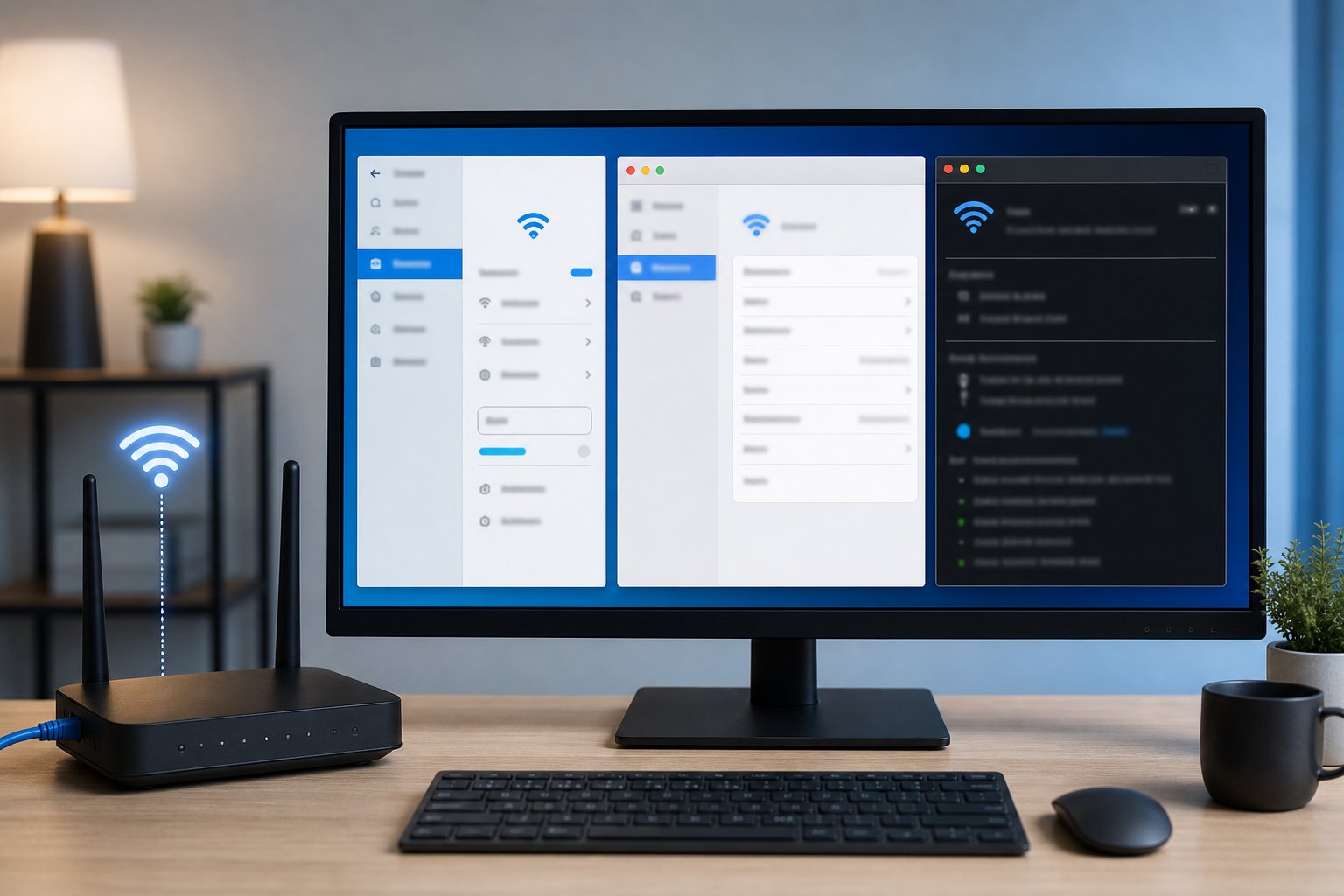
Every desktop operating system exposes the gateway through a single command or one settings panel, and the value it reports is the live one from the routing table. Read it from the adapter you are currently using, because a machine with both Wi-Fi and Ethernet connected can hold two different gateways at the same time.
Windows 10 and Windows 11: Use ipconfig in Command Prompt or Windows Terminal
- Press Windows key + R, type
cmd, and press Enter. On Windows 11, right-click Start and choose Terminal. - Type
ipconfigand press Enter. - Find the block matching your connection: Wireless LAN adapter Wi-Fi or Ethernet adapter Ethernet.
- Read the Default Gateway value, for example
192.168.1.1.
Run ipconfig /all when you also want the DHCP server, DNS servers, and physical address for the same adapter. The DHCP server address frequently matches the gateway on consumer routers.
The graphical route still exists: Control Panel > Network and Sharing Center > click your connection > Details > IPv4 Default Gateway.
Ignore any adapter block showing a blank gateway. Virtual adapters from VMware, Hyper-V, and VPN clients list their own lines and clutter the output.
macOS: Check System Settings or System Preferences
Open System Settings (System Preferences on older releases), select Network, pick your active Wi-Fi or Ethernet service, click Details, then open the TCP/IP tab. The gateway appears in the field labeled Router.
Apple’s Terminal gets there faster. Run netstat -nr | grep default and read the address in the gateway column, or use route -n get default and look at the gateway: line.
Holding Option while clicking the Wi-Fi menu bar icon also reveals the router address alongside signal strength and channel.
Linux and Ubuntu: Inspect the Default Route in Terminal
Open a terminal and run:
ip route— the gateway follows the wordsdefault via, as indefault via 192.168.1.1 dev wlan0ip route show default— filters output to the default route onlynmcli device show— on NetworkManager systems, look forIP4.GATEWAY
The older route -n and netstat -nr commands still work where net-tools is installed, though ip route is the current standard on Ubuntu and most modern distributions.
Find the Gateway on Android, iPhone, iPad, and Chromebook
Mobile platforms bury the gateway one or two taps inside the details screen for the connected Wi-Fi network, labeled Gateway on Android and Router on iOS. Confirm the Wi-Fi network name at the top of the screen first, since the value only applies to the SSID you are currently joined to.
Android: View Wi-Fi Network Details and the Gateway Field
Open Settings > Network & internet > Internet, tap the gear icon beside your connected Wi-Fi network, then expand Advanced or Network details. The Gateway field holds the address.
Samsung devices route through Settings > Connections > Wi-Fi, then the gear icon, then View more. The wording shifts between manufacturers and Android versions, so look for either “Gateway” or “Router”.
When the field is hidden entirely, a Wi-Fi analyzer app such as Wifi Analyzer or NetSpot reports the gateway along with channel and signal data. Google’s own Android builds show it without extra software.
iPhone and iPad: Locate the Router Field in Wi-Fi Settings
Go to Settings > Wi-Fi, tap the blue i in a circle next to your connected network, and scroll to the IPV4 ADDRESS block. The value beside Router is your default gateway.
That screen also lists the iPhone’s own IP address and subnet mask, which helps confirm you are on the expected subnet. If Router shows nothing, the device is on a captive portal network or holding a self-assigned 169.254.x.x address.
Chromebook: Check the Connected Network Details
Click the clock in the bottom-right corner, open the Wi-Fi section, then click the arrow beside your network name. Select Network and read the Gateway field.
ChromeOS lists the DNS servers on the same panel, useful when you are chasing a resolver problem rather than a routing one.
Use the Address to Access Router Settings Safely
Type the confirmed gateway address into your browser’s address bar with http:// in front of it, and the router admin panel loads. From there you reach the Wi-Fi password, connected devices list, parental controls, port forwarding, and firmware updates.
Connect to the Correct Wi-Fi or Ethernet Network First
The admin panel answers only on the router’s own LAN. A phone on cellular data, a guest network with client isolation enabled, or a neighbor’s Wi-Fi will never reach it.
Ethernet is the more reliable path when you are about to change wireless settings, because saving a new SSID or channel drops every Wi-Fi client mid-session.
Open the Router Admin Panel Without Searching the Web
Skip lists of default IP addresses for Linksys, Netgear, TP-Link, ASUS, D-Link, and other router manufacturers. Those tables tell you what the factory shipped, not what your network runs today, and any previous admin may have changed the LAN subnet.
Hostname shortcuts exist on some brands, like routerlogin.net on Netgear or tplinkwifi.net on TP-Link, and they depend on the router’s built-in DNS responding. The numeric gateway works regardless.
Mesh systems including eero manage settings through a phone app instead of a browser page, so the gateway address may load nothing at all by design.
Change Default Admin Credentials Before Managing Connected Devices
Factory default usernames and passwords such as admin/admin or admin/password are published for every major brand. Replace them on first login, then set a separate, unrelated Wi-Fi password.
Disable remote/WAN administration unless you have a specific reason to keep it on. When the admin page loads but the internet does not, the fault sits past the router, which is where a ping test against the gateway and then an external host draws the line.
Why the Router Address or Admin Page Will Not Open
Most failed router logins trace back to the wrong address, the wrong network interface, or a browser fighting the connection. Work through them in that order before touching the reset button.
You Are Using a Label Address Instead of the Current Gateway
The sticker on a Cisco, Motorola, Actiontec, Belkin, Buffalo, Edimax, or Sitecom unit prints the factory LAN address. Anyone who moved the subnet to 10.0.0.1 or 192.168.2.1 made that label wrong.
Re-read the live gateway from ipconfig or ip route. If your device shows a 169.254.x.x address with no gateway at all, DHCP never completed and no admin address will respond.
A VPN, Virtual Adapter, or Cellular Connection Is Taking Priority
An active VPN client installs its own default route, so traffic for 192.168.1.1 leaves through the tunnel and dies. Disconnect the VPN, then retry.
Phones fall back to cellular when Wi-Fi looks unhealthy, which silently breaks the LAN path. Virtual adapters from Hyper-V, VMware, and Docker create the same conflict on workstations, and printers occasionally hold a stale static gateway that no longer exists.
Devices stuck on a 2.4 GHz guest SSID with AP isolation also see the internet but reach nothing local.
The Browser Cannot Reach the Management Interface
Browsers now force HTTPS by default, and most router pages still serve plain HTTP on port 80. Type the full http://192.168.1.1 rather than the bare number, and test in a private window to rule out cached redirects and extensions.
Some units, including SonicWall and enterprise-grade Huawei hardware, listen on a non-standard port such as :8080 or :443. Security software and browser HTTPS-only modes block these pages regularly, so temporarily disabling the extension often restores access.
When a page loads partially or hangs, our network troubleshooting resources cover the ping and traceroute sequence that separates a local path failure from an upstream one.
The Login Credentials or ISP Management Method Have Changed
ISPs increasingly lock the admin panel behind their own account system. An Xfinity xFi Gateway, for instance, exposes limited local settings while the full controls live in the provider app.
Carrier-supplied hardware from vendors like Netopia, 2Wire, or Actiontec frequently ships with an account-specific password printed on the chassis. When nothing works, a 30-second hardware reset restores factory credentials and wipes every custom setting, including port forwards and static leases.
Confirm the Current Gateway Before Changing Settings
Read the live default gateway from the device you are working on, rather than trusting a sticker or a brand default table. On Windows that is ipconfig, on macOS netstat -nr | grep default, on Linux ip route, and on phones the Gateway or Router field inside the connected Wi-Fi network details.
Keep the three addresses separate as you work. The private IP address on the LAN side is what your browser needs, the public IP address is what the internet sees, and a bridged modem’s management address is a third number entirely.
With the correct gateway confirmed, everything else falls into sequence: ping the gateway to prove the local path, then test DNS and an external host to find where the break sits. PacketTools keeps free, no-sign-in network tools for those next steps, with no IPs, queries, or test data logged or stored.
Leave a Reply