
Every device on your network needs an address, and you get to decide whether a server hands it out automatically or you type it in yourself. Pick wrong and you get printers that vanish from the print dialog, port forwards that stop working after a reboot, or two machines fighting over the same address.
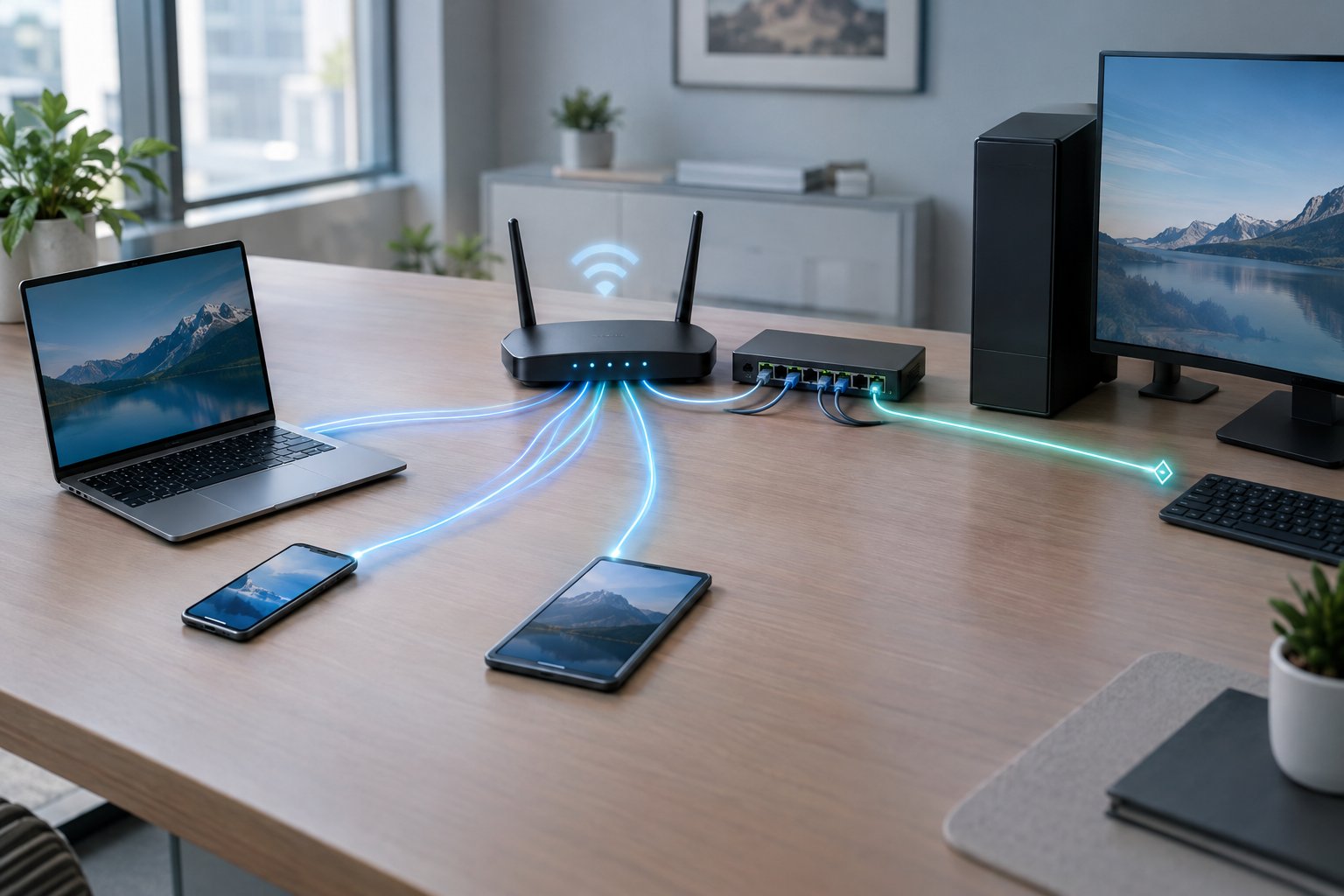
Use DHCP for laptops, phones, and most other clients, and give a fixed address (a DHCP reservation or a manual static IP) only to devices other systems must find at a known location, such as printers, NAS boxes, servers, and your router. That split keeps administration light while making the devices you depend on predictable.
PacketTools builds its guidance from nearly three decades of production IT work, and the same reasoning applies whether you run a home Wi-Fi network or a business network with hundreds of hosts. By the end, you will be able to place each device in the right category and diagnose the address problems that come up when the plan breaks.
What Changes When You Choose DHCP or a Static IP?
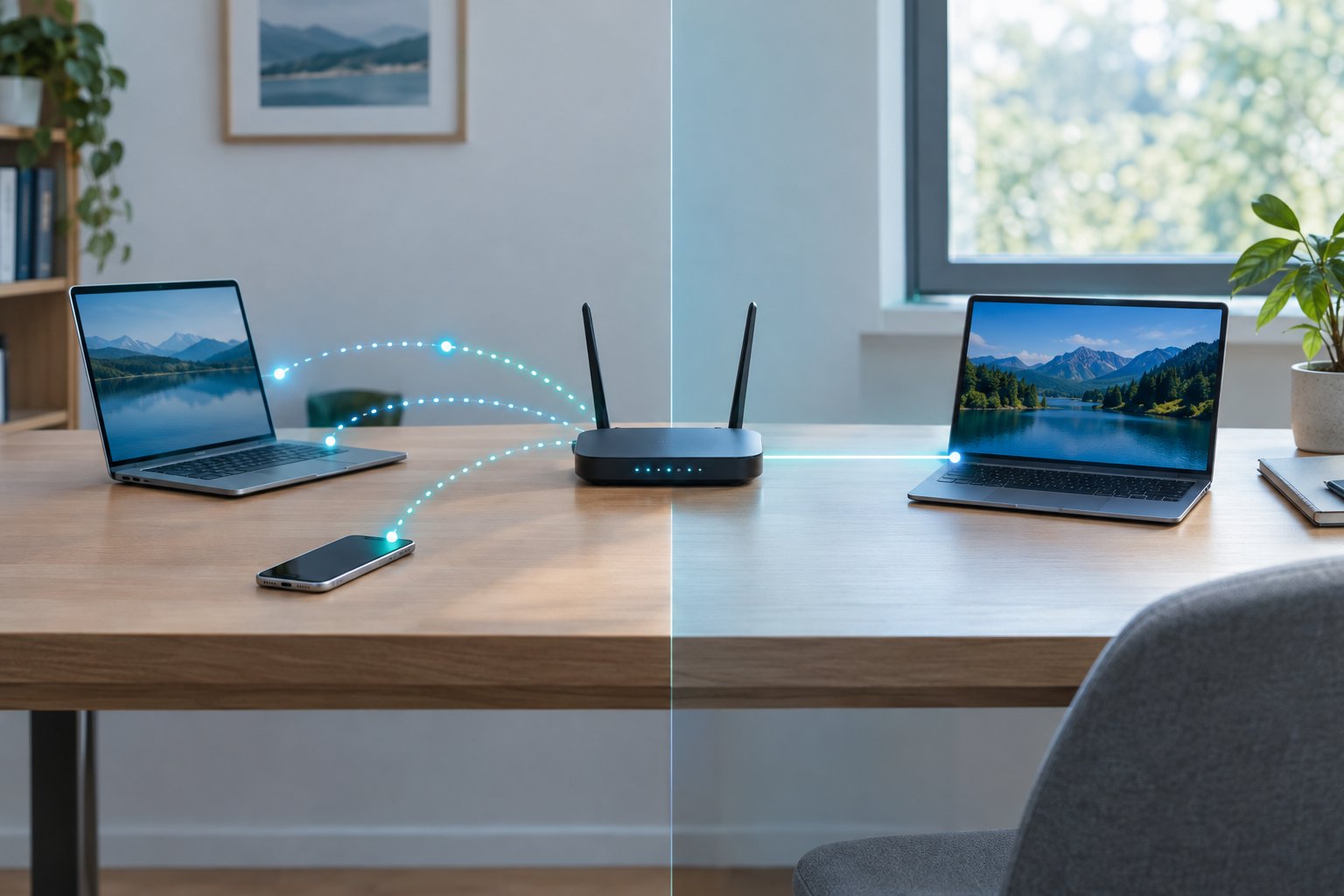
Choosing DHCP or a static IP changes who assigns the address, how long it lasts, and what breaks when something fails. DHCP leases addresses from a central server and prevents duplicates, while a static IP address stays fixed until you change it and keeps working with no server involved.
How Do Assignment, Stability, and Admin Effort Compare?
With DHCP, IP address assignment is automatic. The server hands the client an address, subnet mask, gateway, and DNS servers as a lease. With a static IP, you enter every value by hand on the device and track it yourself.
That tracking is the hidden cost. Static addressing has no built-in conflict detection, so administrators must track assignments manually to avoid duplicates. For a few devices that is fine. For fifty, you need a spreadsheet or an IPAM tool, and the spreadsheet drifts.
| Criteria | DHCP (dynamic) | Static IP (manual) |
|---|---|---|
| Who assigns | DHCP server | You, per device |
| Address stability | Stable per lease, can change | Fixed until edited |
| Admin effort | Low | High at scale |
| Conflict protection | Built in | None |
| Needs DHCP server | Yes | No |
| Best fit | Clients, guests, IoT | Routers, core servers |
Does a DHCP Address Change Every Time a Device Reconnects?
No. A dynamic IP address is assigned dynamically, but it rarely moves in practice. When a client reconnects, it asks for its previous address, and the server hands it back if the DHCP lease is still on record.
Changes happen when a device stays offline past the lease time or when the pool runs short and the address goes to someone else. Some consumer routers also forget their lease table on a power cycle, which is why a laptop that sat in a drawer over a long weekend comes back with a new address.
If you need to see what a machine currently holds, a quick look at your IP address basics and the ipconfig /all output will show whether DHCP is enabled and when the lease expires.
What Happens to Each Setup When the DHCP Server Is Unavailable?
A static device keeps running because it never talks to the DHCP server. DHCP clients with an active lease keep working too, until renewal time arrives.
New devices and clients whose lease expires during the outage fail to get an address. On Windows and most other systems, they fall back to a self-assigned 169.254.x.x address, which cannot reach the gateway. When you see that range, read it as “no lease received” before you start blaming cabling or Wi-Fi.
How Does Each Addressing Method Work?

Dynamic Host Configuration Protocol (DHCP) runs a four-message exchange that hands a client its full IP configuration, while manual IP configuration requires you to enter those same values yourself. IPv4 follows this model closely; IPv6 adds a second automatic method on top.
How Do DHCP Discover, Offer, Request, and Acknowledgment Assign an Address?
The DHCP server manages a DHCP pool (Microsoft calls the configured range a DHCP scope) and responds to client broadcasts. The exchange runs like this:
- DHCP Discover: the client, with no address yet, broadcasts a request looking for any server.
- DHCP Offer: a server replies with an available address, subnet mask, and lease duration.
- DHCP Request: the client picks one offer and broadcasts its acceptance, so other servers withdraw theirs.
- DHCP Acknowledgment: the chosen server confirms the lease and can include the default gateway and DNS servers.
When multiple DHCP servers answer, the client may receive several offers and accepts the first one it processes. That detail is why a rogue server on your LAN causes so much trouble. For a fuller walkthrough of the protocol itself, see the PacketTools explanation of DHCP meaning.
What Must You Enter for a Manual Static IP?
A manual static IP needs four values, and each must match the subnet the device lives on:
- IP address: unused, inside the subnet, and outside the DHCP pool.
- Subnet mask: the same mask the router uses, such as 255.255.255.0.
- Default gateway: your router IP address on the LAN side.
- DNS servers: the router, an internal DNS server, or a public resolver.
A single typo here isolates the device. A common exam scenario describes a laptop set to 192.168.2.50 on an office using 192.168.1.x, which cannot reach local resources. You will see the same thing in the field after someone “fixes” a laptop at home and carries it back to work.
Do the Same Rules Apply to IPv4 and IPv6?
The principles carry over, but IPv6 changes the mechanics. On IPv6 networks, hosts commonly build their own addresses through SLAAC from router advertisements, and DHCPv6 can supply addresses, DNS, or both depending on how the router flags are set.
Every IPv6 interface also holds a link-local fe80:: address automatically, so seeing one tells you little about upstream connectivity. Static IPv6 addresses still make sense for routers and servers, though DNS names matter more because the addresses are long. The IPv4 vs IPv6 guide covers the addressing differences in more depth.
Which Devices Actually Need a Fixed Address?
Devices need a fixed address when other systems connect to them; devices that only connect outward do fine on DHCP. Sorting your network devices by that one question settles most cases, and it also clears up confusion between your local addresses and the public address your provider assigns.
Use DHCP for Everyday Clients and Changing Wi-Fi Networks
Laptops, phones, tablets, smart TVs, and most IoT devices belong on DHCP. They initiate their own connections, so nobody needs to find them at a fixed location.
Mobile clients also move between networks constantly. A phone with a hand-typed address for your home Wi-Fi network will fail on the coffee shop’s network and at the office. Leave guest networks and BYOD segments fully dynamic, and shorten lease times there so departed visitors free up addresses quickly.
Keep Printers, NAS Devices, and Hosted Services Reachable
Give a stable address to anything that serves others:
- Network printers: drivers and print queues often point at an IP, so an address change breaks printing for everyone.
- NAS and Plex Media Server hosts: mapped drives, backup jobs, and client apps expect a consistent target.
- Security cameras and NVRs: recorders pull streams from specific addresses.
- Web server, email server, FTP server, and other hosting servers: firewall rules and port forwards reference them.
- VoIP gear and VPN endpoints: phones and remote access tunnels need predictable peers.
A reservation covers most of these with less effort than manual entry, which the next section explains.
Separate Local Addressing from a Public IP Supplied by Your ISP
Your LAN addresses and your public IP are two different things. Your router uses NAT to share one public address from your internet service provider among all your private 192.168.x.x or 10.x.x.x devices.
Giving your NAS 192.168.1.10 does nothing to your public address. A static public IP is usually a paid, separately configured service used for hosting or inbound remote access. If you only need outside access occasionally, dynamic DNS paired with port forwarding to a fixed LAN address handles it. You can confirm what the internet sees with PacketTools What Is My IP.
Does a Static IP Help Gaming or Network Performance?
A static IP has no effect on speed, latency, or general network performance. The address only identifies the device; it does not change the path packets take or the bandwidth available.
Where a static IP for gaming helps is reachability. If you run a game server or need open NAT on a console, the router’s port forwarding rules must point to a fixed LAN address, and a reservation keeps that rule valid. If the router supports UPnP, consoles open ports themselves and the fixed address matters less. For lag complaints, measure latency and jitter with a ping test before touching address settings.
When Is a DHCP Reservation the Better Middle Ground?
A DHCP reservation (some routers call it static DHCP) is the right choice for most devices that need a fixed address. You get a predictable address while all IP management stays in one place on the router or DHCP server.
How Does a MAC-Based Reservation Keep an Address Stable?
A reservation ties an address to the device’s MAC address on the DHCP server. The device still runs the normal discover, offer, request, and acknowledgment exchange, but the server always offers the same address.
In practice this beats static IP assignment on the device for several reasons:
- Changing the gateway or DNS server later means editing one server, not walking to every device.
- The address survives an OS reinstall or factory reset of a printer.
- Conflict protection still works because the server knows the address is taken.
- Your documentation lives in the router’s reservation list.
Watch for one trap: phones and newer laptops randomize their MAC per network by default. Disable private MAC for that specific network before you reserve, or the reservation never matches.
When Should Infrastructure Use a Manually Assigned Address Instead?
Manually assign addresses to anything that must be up before DHCP exists or that DHCP itself depends on. That covers the router or gateway, the DHCP server, internal DNS servers, domain controllers, switches, and hypervisor management interfaces.
If those components relied on reservations, a DHCP outage would take down the very services needed to recover. In a business environment, add DHCP failover with synchronized lease data so clients keep renewing if one server goes offline. Keep this manual tier small and documented, and reserve everything else.
How Do You Configure and Troubleshoot Either Setup?
Most address problems trace back to overlapping ranges or a wrong gateway or DNS entry, so plan your subnet first and verify the basics before chasing deeper faults. Security comes from controlling who can hand out addresses, and a fixed address adds none.
Plan the DHCP Pool and Static Range to Avoid IP Conflicts
Split each subnet into clear blocks before you assign anything. On a /24 home or small office network, a layout like this works:
- .1: router or gateway
- .2 to .49: manual static infrastructure and servers
- .50 to .99: reservations, if your router allows them inside or outside the pool
- .100 to .250: dynamic DHCP pool
The rule that prevents most IP conflicts: never type a static address that falls inside the dynamic pool. If you do, the router will eventually lease it to another device. Modern systems detect duplicates and only the first machine to claim the address keeps working, while the second stops communicating. Size the pool for peak device count plus guests so IP address allocation never runs dry.
Check the Address, Gateway, and DNS Before Blaming Connectivity
When a device “has Wi-Fi but no internet,” run through these checks in order:
- Run
ipconfig /all(Windows) orip addr(Linux). A 169.254.x.x address means no lease arrived. - Confirm the subnet matches your network and the gateway is your router.
- Ping the gateway. Failure points to the local link or a wrong static entry.
- Ping a public IP such as 1.1.1.1. Success there with failing names points at DNS.
- Run
ipconfig /releaseand/renewto force a fresh DHCP exchange.
If step 4 passes and names still fail, the DNS server not responding guide picks up from there. The broader wifi connected but no internet walkthrough covers the remaining cases.
Verify Public Reachability with PacketTools Diagnostics
Once your LAN addressing is right, confirm what the outside world sees. PacketTools runs these tests in your browser with no sign-in, and no IPs, queries, or test data are logged or stored.
Start with your public address to confirm whether it changed and to check geolocation. Then use the ping and traceroute tools to see whether your hosted service answers and where the path breaks, and DNS Lookup to confirm your dynamic DNS record points at the current IP. For a full domain check, SuperTool runs DNS, MX, SPF, DKIM, DMARC, blacklist, and SSL tests in one pass, which helps when a self-hosted email server sits behind your public address.
Protect Address Assignment Without Treating Static IPs as a Security Feature
A static IP does not make a device safer. Attackers scan whole subnets, so a fixed address hides nothing, and IP-based firewall rules only hold if you control who can claim that IP.
Protect address assignment itself:
- Enable DHCP snooping on managed switches so only trusted ports can send DHCP offers, which blocks a rogue DHCP server.
- Pair snooping with dynamic ARP inspection to stop spoofed address claims.
- Restrict admin access to the DHCP server and router.
- Review lease logs, since they show which device held an address at a given time during an incident.
Write firewall rules against reserved or static addresses, and treat them as one layer of network security alongside authentication.
Use DHCP by Default and Fix Addresses Where Reachability Matters
Leave clients on DHCP and fix addresses only for devices others must find. Laptops, phones, guest devices, and IoT gear gain nothing from a hand-typed address and lose portability.
For printers, NAS units, cameras, game consoles with port forwards, and hosted services, a DHCP reservation gives you a stable address while keeping changes centralized. Save manual static configuration for the bootstrap tier: the router, DHCP and DNS servers, switches, and domain controllers.
Keep the static block outside the dynamic pool, remember that a public static IP is a separate ISP service, and when something breaks, check for a 169.254 address, the gateway, and DNS in that order.
Leave a Reply