
A MAC address is the hardware-level identifier that lets devices find each other on the same local network. Every Wi-Fi radio, Ethernet port, and Bluetooth chip carries one, and your router, switch, and access points rely on it to deliver traffic to the right network device.
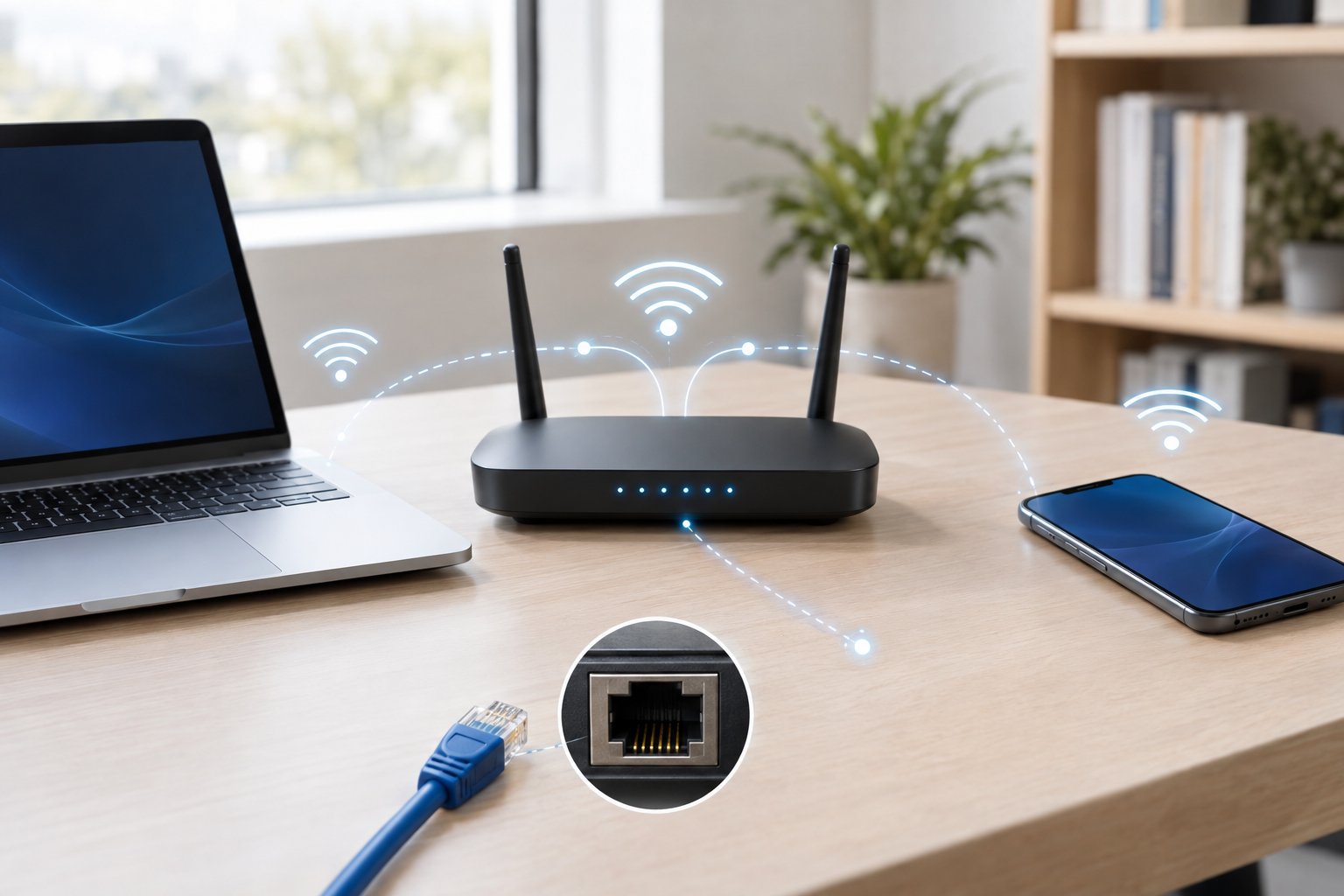
A MAC (media access control) address is a unique 48-bit identifier, written as 12 hexadecimal digits such as 2C:54:91:88:C9, that is assigned to a network interface and used to deliver data between devices on the same local network. Your IP address gets traffic across networks. Your MAC address handles the final hop inside your LAN.
You’ll need it when you set up a DHCP reservation, identify an unknown device in your router’s client list, or chase a duplicate-address problem. PacketTools builds free, privacy-first diagnostics for IT professionals, and the same Layer 2 fundamentals below are what you lean on when an IP-level test points to a problem you can’t explain.
What Does a MAC Address Identify?
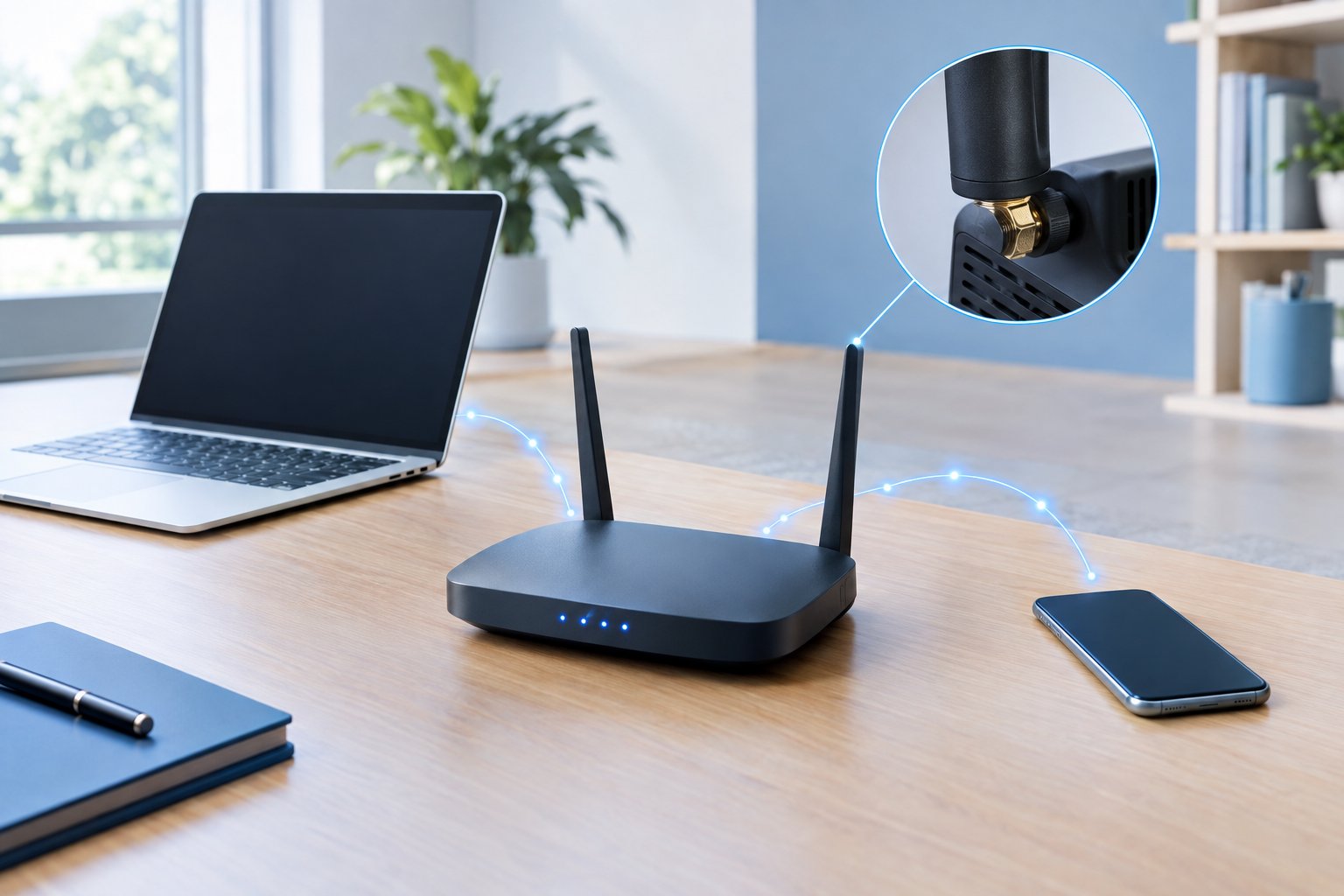
A MAC address identifies one network interface, which is not the whole device. The first half usually names the manufacturer through an IEEE-issued prefix, the second half distinguishes the individual adapter, and a single laptop or phone commonly carries several of these addresses at once.
Wikipedia defines it as a unique identifier assigned to a network interface controller for communication within a network segment. You’ll also see it labeled as:
- Physical address (the Windows term)
- Hardware address or hardware ID
- Burned-in address (BIA)
- Wi-Fi address or Ethernet MAC address
All of these refer to the same thing: the Layer 2 address of a network adapter, also called a network interface controller or network interface card (NIC).
What Does a MAC Address Look Like?
A MAC address is 48 bits long. Those bits are written as six bytes in hexadecimal, which gives you 12 digits using 0 through 9 and A through F.
The digits are identical across operating systems. Only the separators differ:
| Notation | Example | Where you’ll see it |
|---|---|---|
| Colon-separated | 2C:54:91:88:C9 | Linux, macOS, most routers |
| Hyphen-separated | 2C-54-91-88-C9-E3 | Windows ipconfig /all |
| Dotted groups of four | 2C54.9188.C9E3 | Cisco IOS |
| No separator | 2C549188C9E3 | Databases, some firmware |
Case doesn’t matter. 2c:54:91 and 2C:54:91 are the same address. When you search a switch’s MAC table or a DHCP log, normalize the format first. Mismatched separators are a common reason a lookup “finds nothing.”
Who Assigns MAC Addresses, and What Can an OUI Reveal?
The IEEE Registration Authority controls the address space. Manufacturers buy a 24-bit organizationally unique identifier (OUI), which becomes the first three bytes of every address they burn into their hardware. The vendor then fills in the last three bytes itself.
That split puts roughly 1.68 million addresses under each prefix. Once a vendor runs through that block, it can reuse values on the assumption that two identical addresses will almost never meet on the same segment.
An OUI lookup, also called a MAC address lookup, turns that prefix into a vendor name. In practice this is one of the fastest ways to identify a mystery client on your network. If an unknown device shows a printer vendor’s OUI, you’ve narrowed your search to one corner of the office.
Keep one caveat in mind. Randomized addresses (covered below) set the “locally administered” bit, the second-lowest bit of the first byte. Those addresses won’t match any registered vendor, so an empty OUI result on a phone is normal and doesn’t mean the device is suspicious.
Can One Device Have Multiple MAC Addresses?
Yes. Each interface gets its own address. A laptop with Ethernet, Wi-Fi, and Bluetooth has at least three:
- Ethernet MAC address for the wired port
- Wi-Fi MAC address for the wireless radio
- Bluetooth address for the Bluetooth controller
Ohio State’s technology services notes that a laptop with both Ethernet and Wi-Fi will show two MAC addresses in its system configuration. Virtual adapters add more. Each VM, VPN client, and Docker bridge presents its own address, and some USB docks bring one as well.
Watch for this in DHCP reservations. If you reserve an IP for a laptop’s Wi-Fi address and the user docks with Ethernet, the reservation won’t apply. The dock’s adapter is a different interface.
How Do MAC Addresses Work on a Local Network?
MAC addresses do their work at the data link layer, Layer 2 of the OSI model, where every Ethernet frame and Wi-Fi frame carries a source and a destination MAC address. Switches learn which port each address lives on. The destination address type tells the network whether a frame is meant for one device, a group, or everyone on the LAN.
How Do Switches Deliver Ethernet Frames?
A switch builds a MAC address table by reading the source address of every frame it receives. If a frame from AA:BB:CC:11:22:33 arrives on port 7, the switch records that mapping.
When a frame shows up addressed to a known destination, the switch forwards it out of the matching port only. When the destination is unknown, the switch floods the frame to every port in the VLAN and learns the location from the reply. Entries age out, commonly after about five minutes on many enterprise switches, so silent devices drop from the table.
Wireless networks follow the same logic. Your access point bridges Wi-Fi frames onto the wired LAN, and the upstream switch learns each client’s wireless MAC on the AP’s uplink port.
This table is where hands-on troubleshooting starts. On a managed switch, show mac address-table (Cisco syntax) tells you exactly which port a device is patched into. That saves you from tracing cables through a ceiling.
What Are Unicast, Multicast, and Broadcast MAC Addresses?
The lowest bit of the first byte decides whether an address targets one device or many.
| Type | First-byte bit | Example | Who receives it |
|---|---|---|---|
| Unicast | 0 | 2C:54:91:88:C9 | One specific interface |
| Multicast | 1 | 01:00:5E:00:00 | Interfaces subscribed to the group |
| Broadcast | All bits 1 | FF:FF:FF:FF:FF | Every device on the segment |
- Unicast MAC address: the normal case. Every NIC’s own address is unicast, and source addresses are always unicast.
- Multicast MAC address: IPv4 multicast maps to the
01:00:5Eprefix. IPv6 multicast uses33:33. - Broadcast address: used by ARP requests and DHCP discovery. Broadcast frames stop at the router, which is why a LAN is also called a broadcast domain.
How Is a MAC Address Different from an IP Address?
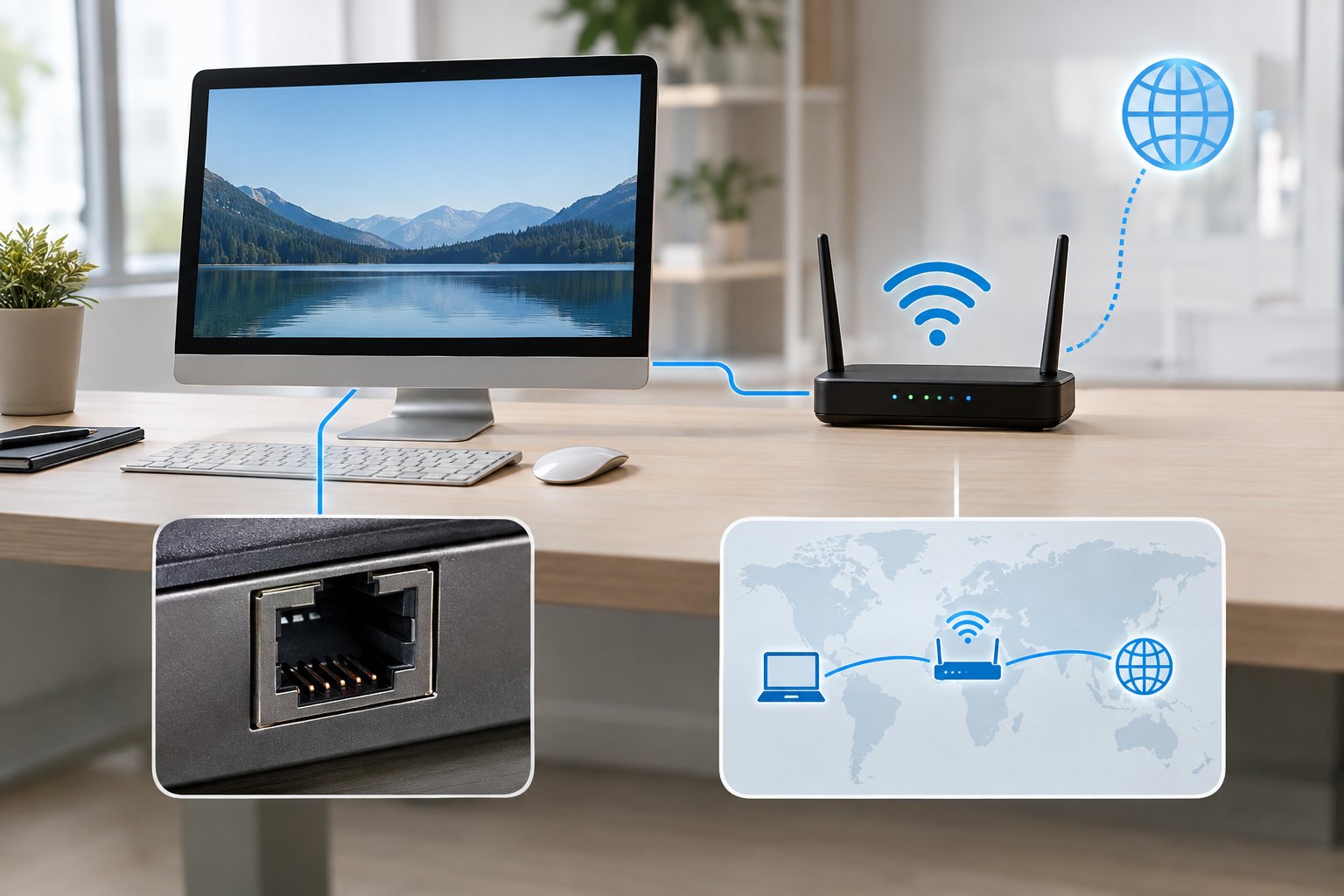
An IP address is a logical, Layer 3 address that routes traffic between networks, while a MAC address is a hardware, Layer 2 address that only has meaning on your local network. Your IP can change every time you join a new Wi-Fi network. Your factory MAC stays with the adapter unless software overrides it.
| MAC address | IP address | |
|---|---|---|
| OSI layer | Layer 2 (data link) | Layer 3 (network) |
| Length | 48 bits | 32 bits (IPv4), 128 bits (IPv6) |
| Assigned by | Manufacturer (or OS if randomized) | DHCP, admin, or ISP |
| Scope | Local segment only | Local and internet-wide |
| Crosses routers | No, rewritten each hop | Yes, stays intact end to end |
For a deeper look at the Layer 3 side, see these IP address basics.
Why Does a Device Need Both Addresses?
Each address solves a different delivery problem. In the TCP/IP model, the IP header carries the final destination across every network in the path. The Ethernet or Wi-Fi header only carries the next hop.
When your laptop reaches a website, it builds a frame with the router’s MAC as the destination and the web server’s IP inside. The router strips that frame, looks at the IP, and builds a new frame for its next hop with new MAC addresses. The IP header survives the whole trip, while the MAC headers get replaced at every router.
That’s why a remote website never learns your MAC address. It’s also why your router IP address (the default gateway) is the one IP your device most needs to resolve into a MAC.
How Does ARP Connect an IPv4 Address to a MAC Address?
The Address Resolution Protocol (ARP) finds the MAC address that belongs to an IPv4 address on your local network. The exchange works like this:
- Your device wants to send to
192.168.1.1but has no MAC for it in its ARP cache. - It broadcasts an ARP request to
FF:FF:FF:FF:FF:FF: “Who has 192.168.1.1?” - The owner replies by unicast with its MAC address.
- Your device caches the mapping and starts sending frames.
You can inspect the cache with arp -a on Windows or macOS, or ip neigh on Linux. If the gateway entry shows incomplete, you have a Layer 2 problem: a bad cable, the wrong VLAN, or a dead gateway. Two IPs mapping to the same MAC on a flat LAN is a classic sign of ARP spoofing. IPv6 replaces ARP with Neighbor Discovery, but the idea is the same.
How Can You Find a Device’s MAC Address?
Every major operating system shows the MAC address in its network settings or through a single terminal command. Check the right interface (Wi-Fi or Ethernet), and on phones check whether the address shown is the private per-network value.
Find a MAC Address on Windows
The Command Prompt method shows every adapter at once:
- Press Windows + R, type
cmd, and press Enter. - Run
ipconfig /all. - Find your adapter, such as “Wireless LAN adapter Wi-Fi” or “Ethernet adapter Ethernet.”
- Read the Physical Address line, for example
2C-54-91-88-C9-E3.
For a shorter list, run getmac /v. Through the GUI, open Settings > Network & internet > Wi-Fi (or Ethernet) > Hardware properties and read the Physical address (MAC) field.
Windows 11 can also use Random hardware addresses for Wi-Fi. If that toggle is on, the value you see belongs to the current network and differs from the adapter’s burned-in address.
Find a MAC Address on macOS
On recent versions of macOS (Ventura and later):
- Open System Settings > Network.
- Select Wi-Fi (or your Ethernet service) and click Details.
- Open the Hardware tab to see the MAC address. For Wi-Fi, it’s also listed as the Wi-Fi MAC address on the main details pane.
Older versions use System Preferences > Network > Advanced > Hardware.
From Terminal, run ifconfig en0 | grep ether. On most Macs, en0 is Wi-Fi on laptops and Ethernet on desktops. If you’re unsure which is which, run networksetup -listallhardwareports to match each interface name to its hardware.
Find a MAC Address on Linux
Modern distributions use the ip command:
ip link showEach interface block shows a line like link/ether 2c:54:91:88:c9:e3. Wireless interfaces are usually named wlan0 or wlp2s0, and wired ones eth0 or enp3s0.
On older systems with net-tools installed, ifconfig -a shows the address after the word ether. You can also read it straight from the kernel with cat /sys/class/net/<interface>/address, which is handy in scripts.
NetworkManager can clone or randomize the Wi-Fi address. If the value doesn’t match your inventory records, check nmcli connection show <name> | grep cloned.
Find a Wi-Fi MAC Address on iPhone or Android
Phones show two different values, so know which one you need.
iPhone:
- Hardware address: Settings > General > About > Wi-Fi Address
- Address used on a specific network: Settings > Wi-Fi, tap the (i) next to the network, and read Wi-Fi Address under the Private Wi-Fi Address toggle.
Android (labels vary by manufacturer):
- Hardware address: Settings > About phone > Status (or Status information) > Wi-Fi MAC address
- Per-network address: Settings > Network & internet > Internet, tap the gear next to the network, and find the MAC address under Privacy or Advanced.
For a DHCP reservation on your router, use the per-network address. That’s the value your router sees.
Find a MAC Address on PlayStation Consoles
The steps differ by generation:
PlayStation 5: Go to Settings > Network > Connection Status > View Connection Status. The Wi-Fi and LAN MAC addresses appear near the top.
PlayStation 4: Go to Settings > System > System Information. Both the LAN cable and Wi-Fi MAC addresses are listed.
PlayStation 3: Start without a disc, then go to Settings > Network Settings > Settings and Connection Status List and scroll to the MAC address.
Consoles show separate wired and wireless values. Register the one that matches how the console connects, which matters on campus and hotel networks that allow only registered devices.
Can a MAC Address Change or Be Used to Track You?
The address your device presents can change easily, even though the burned-in address in the NIC firmware stays the same. Tracking risk is local: anyone on the same Wi-Fi network, or within radio range, can see the MAC your device broadcasts, but websites on the internet cannot.
How Do Private Wi-Fi Addresses and MAC Spoofing Work?
Randomization replaces your factory MAC with a generated one. iOS 14 and later uses a private address per network by default. Android 10 and later does the same for each saved network. Windows 10 and 11 offer an opt-in “Random hardware addresses” toggle.
MAC spoofing is the manual version: you set a chosen address on the interface. A walkthrough of why a MAC address can look different notes that these changes happen at the software level while the original hardware value remains underneath, and that manual changes often reset after a reboot.
Side effects show up on your router. A phone with a new private address looks like a brand-new client, so DHCP reservations, parental controls, and captive-portal logins tied to the old address stop applying.
Can Websites See Your MAC Address?
No. MAC headers are rewritten at every router hop, so the address never leaves your local network. What a website sees is your public IP address, which you can confirm with What Is My IP. That lookup doesn’t log or store your IP or query data.
Local exposure is different. Public Wi-Fi operators, retail analytics systems, and anyone sniffing nearby wireless traffic can log the MAC in your probe requests and frames. That’s the tracking randomization is designed to break.
Is MAC Filtering a Reliable Security Control?
No. MAC filtering stops casual devices, but anyone with a packet capture tool can read an allowed address from the air and clone it within minutes. The allowed MACs travel in clear text inside frame headers, even on WPA2 and WPA3 networks.
Treat it as inventory hygiene. Rely on WPA3 or WPA2 with a strong passphrase, 802.1X for business networks, and VLAN segmentation for IoT devices. Randomized phone addresses also make allowlists painful to maintain.
Use MAC and IP Addresses Together for Better Diagnostics
Pair the two addresses to troubleshoot: the IP tells you where traffic should go, and the MAC tells you which physical interface is answering. A 48-bit MAC with its OUI prefix identifies the adapter and its vendor. Switches use it to deliver frames inside your LAN, and ARP maps it to the IPv4 address that routes across networks.
A practical workflow when a device misbehaves:
- Get the device’s IP and MAC with
ipconfig /all,ip link, or its settings screen. - Run a ping test against the gateway, then check the ARP cache for a complete entry.
- Find the MAC in the switch table to confirm the physical port.
- If local checks pass, move outward and trace a route to find where the path breaks.
When two devices fight over one IP, compare their MACs in the ARP table. When a phone “loses” its reservation, check whether a private address rotated. For broader Layer 3 checks, the network troubleshooting guides pick up where Layer 2 ends, and the Wi-Fi connected but no internet checklist covers the most common case where MAC-level connectivity works but traffic still doesn’t reach the internet.
Leave a Reply