
A Chromebook that shows “DHCP lookup failed” has joined the network but never received an IP address, so it has no route to your router or the internet. The message means the dynamic host configuration protocol exchange between your laptop and the network’s DHCP server did not finish.
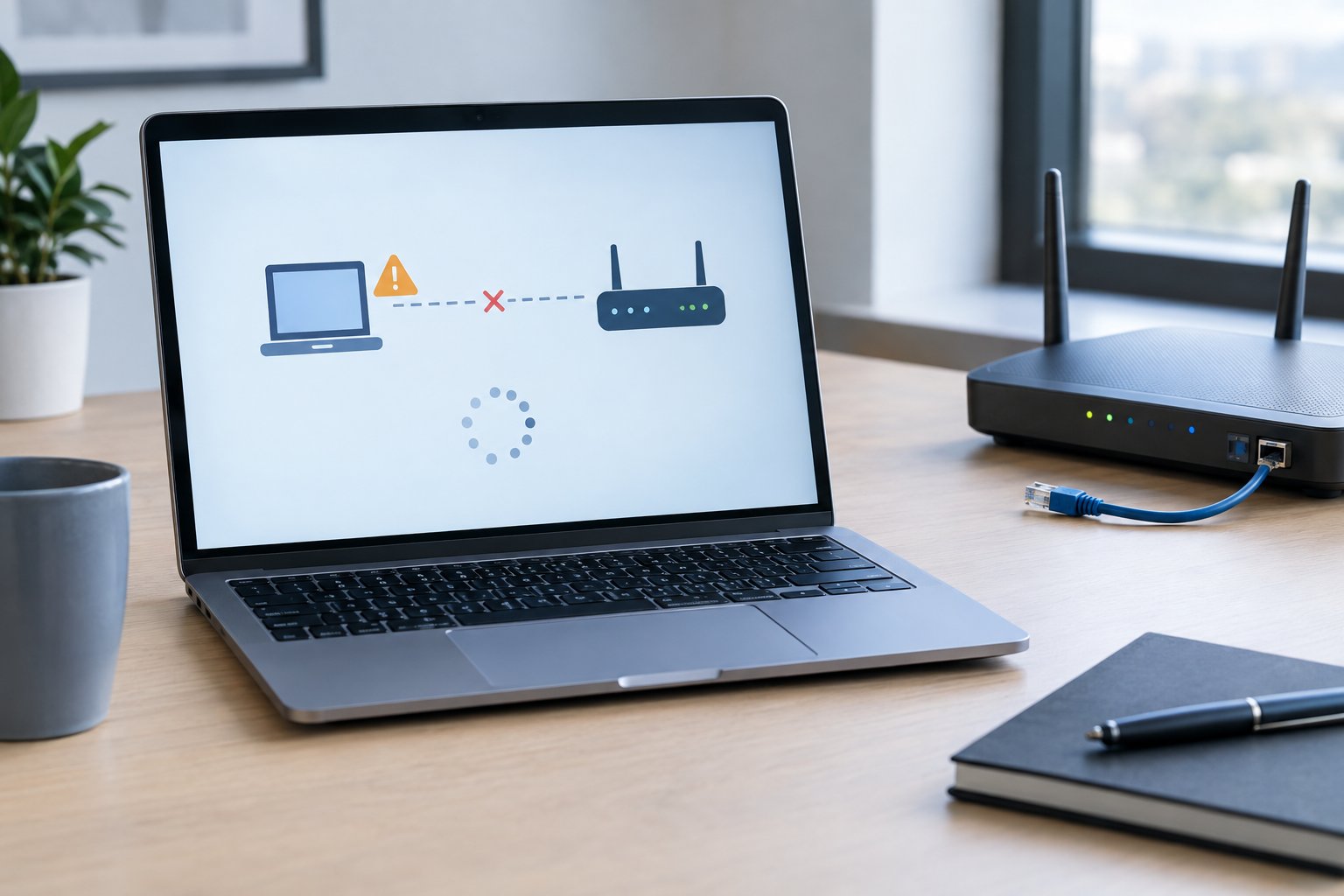
To fix a DHCP lookup failed error on a Chromebook, first find out whether other devices on the same Wi-Fi get an address: if they do, fully shut down the Chromebook and confirm it is set to configure its IP automatically; if they don’t, restart the router and check its DHCP pool. That one comparison tells you whether to work on the laptop or the network, and it keeps you away from destructive steps like Powerwash or a factory router reset.
PacketTools approaches this the way production engineers do. Isolate the failing layer, collect evidence, and change one thing at a time. If you need a refresher on what DHCP does, it hands out the address, subnet mask, gateway, and DNS servers your Chromebook needs before anything else works.
Is the Problem Your Chromebook or the Network?
You can usually tell within five minutes whether the DHCP lookup error belongs to the Chromebook or to the network. Look at what address the laptop holds, compare it against a phone or second laptop, and then remove extra hops like extenders from the path.
Check Whether Your Chromebook Received an IP Address and Default Gateway
Open Settings > Network, select your Wi-Fi or Ethernet connection, and expand the Network section. A healthy lease shows an IPv4 address in your router’s range (for example 192.168.1.x), a matching subnet mask, and a default gateway such as 192.168.1.1.
Watch for these patterns:
- No address at all: the DHCP client sent requests and nothing answered.
- A 169.254.x.x address: the device assigned itself an APIPA address after DHCP failed.
- An address with no gateway: something answered, but the configuration is incomplete or wrong.
ChromeOS also includes a built-in tool at Settings > About ChromeOS > Diagnostics. Run the connection tests, open IP Configuration, and save the test details. Record the exact failed check, because a DNS failure in that report is a different problem from address assignment.
Compare Another Device on the Same Network and Try a Trusted Hotspot
Connect a phone or another laptop to the same SSID and open a webpage. Then join the Chromebook to a phone hotspot or another trusted network.
| Chromebook on Wi-Fi | Other device on Wi-Fi | Chromebook on hotspot | Likely fault |
|---|---|---|---|
| Fails | Works | Works | Chromebook profile or policy for that network |
| Fails | Fails | Works | Router or DHCP server |
| Fails | Works | Fails | Chromebook itself |
If every new device fails while older ones keep working, suspect an exhausted address pool: devices with existing leases hold on, while newcomers get nothing.
Test Ethernet or Connect Directly Without a Wi-Fi Extender
Wi-Fi extenders and repeaters are a common culprit, especially units that run their own DHCP service or don’t pass broadcasts cleanly. Move next to the main router and join its own SSID, or plug in a USB Ethernet adapter.
A wired connection that leases an address immediately points to the wireless path: the extender, the band, or the access point. If Ethernet fails too, the problem sits at the router or upstream. Your router’s IP address is the gateway you should see once either connection succeeds.
Restore Your Chromebook’s Automatic Network Settings
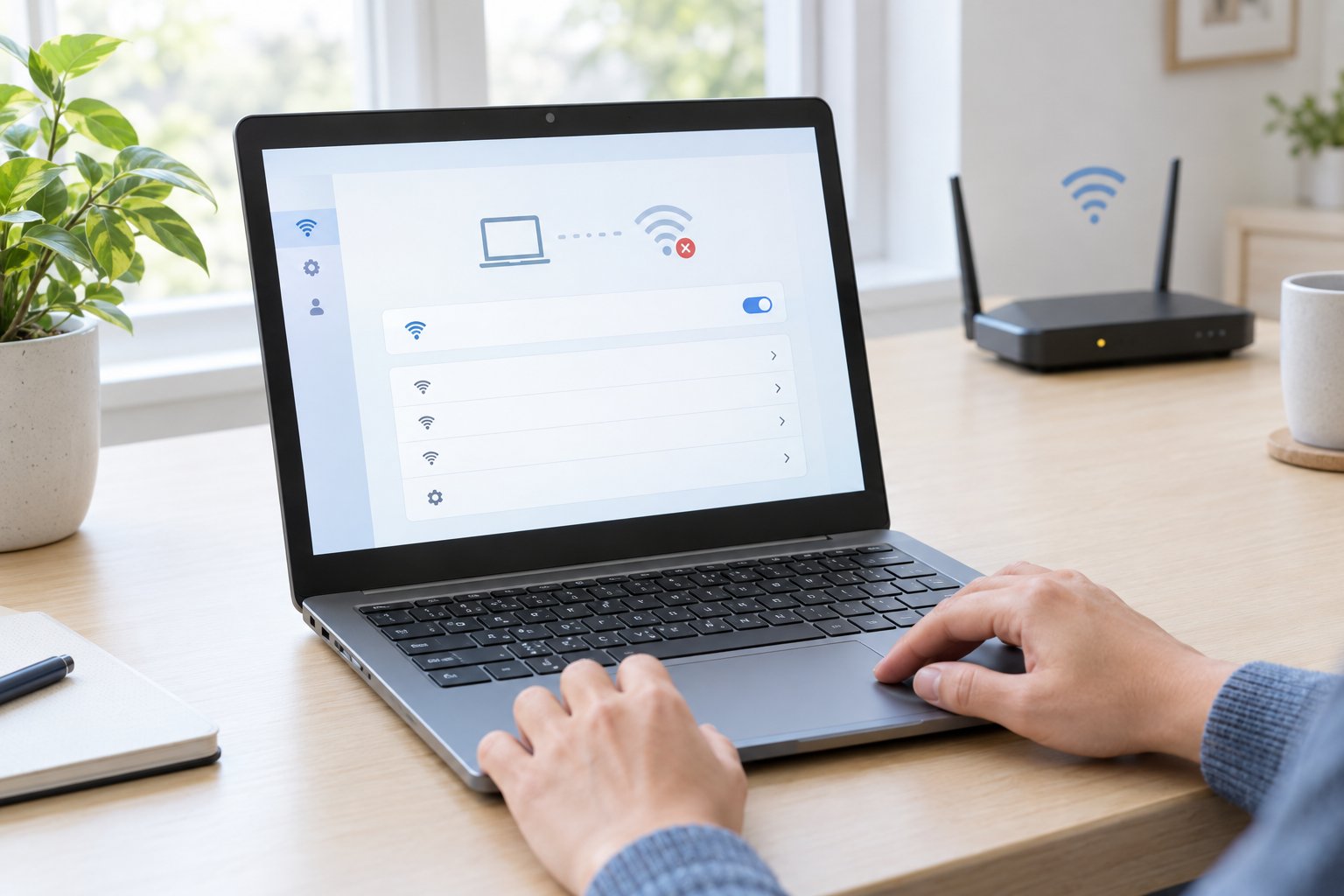
When only the Chromebook fails, a full shutdown, a clean rejoin, and automatic IP settings fix most cases. Work through them in order, because the later steps erase saved configuration.
Fully Shut Down and Restart Your Chromebook
Closing the lid only puts a Chromebook to sleep, and the network stack resumes in the same state. A true restart forces a fresh DHCP request.
- Select the clock area and choose Shut down, or hold the power key for at least 3 seconds and pick Power off.
- Wait about 30 seconds.
- Power on, sign in, and reconnect.
In practice, a laptop that fails right after waking from sleep and works after a cold boot is a strong hint the issue is client-side. Keep ChromeOS current, since sleep-related network bugs get patched in updates.
Forget and Rejoin Wi-Fi Only After Checking Credentials and Policies
Forgetting a network deletes the saved password, security type, and any manual IP or name server settings for that SSID. On school or work networks it can also remove certificate settings you cannot restore yourself.
Before you forget anything:
- Confirm you have the Wi-Fi password.
- On a managed Chromebook, check whether the network is pushed by your administrator. Policy networks reappear automatically and may not be forgettable.
- For enterprise Wi-Fi (802.1X), confirm you have the username and any required certificate.
Then go to Settings > Network > Wi-Fi > Known networks, choose More > Forget beside the network, and join it again. This differs from wiping every saved profile, which is closer to a full network settings reset and costs you every saved network.
Enable Automatic IP Configuration and Update ChromeOS
A leftover static address is a classic cause. Open the network’s details and confirm Configure IP address automatically is turned on, which is ChromeOS’s equivalent of “obtain an IP address automatically.”
A static address only works if it matches the subnet and sits outside the router’s pool; the trade-offs of DHCP versus static IP favor automatic addressing for laptops that roam. Set name servers back to Automatic name servers while you troubleshoot.
Then check Settings > About ChromeOS > Check for updates. If Wi-Fi won’t connect, use a hotspot or Ethernet to download the update, and restart afterward.
Check Router DHCP Settings, Address Pools, and Guest Networks
If several devices fail on the same Wi-Fi, the router’s DHCP service is the next stop. A frozen service, a full pool, and guest network limits account for most home cases, and each can be checked without wiping the router.
Restart Your Own Router Without Factory Resetting It
A restart clears a hung DHCP daemon and stale lease state while keeping every setting. Only do this on equipment you own or manage.
- Unplug the router (and modem, if separate).
- Wait at least 30 seconds.
- Plug the modem in first, then the router, and wait until the status lights settle, which can take a few minutes.
- Reconnect the Chromebook.
Do not press the reset pinhole. That is a factory reset, and it erases your Wi-Fi name, password, and ISP login.
Check DHCP Availability, Lease Usage, and Address Pool Limits
Log in to the router’s admin page from a working device and open the LAN or DHCP section. Confirm three things:
- DHCP server is enabled. A disabled server lets existing leases linger until they expire, then nothing new gets an address.
- The DHCP range fits your device count. A range of 192.168.1.100 to 192.168.1.150 holds only 51 clients, and phones, TVs, and smart plugs fill that fast.
- The lease table isn’t full. Count active leases against the range size.
A pool such as .10 to .253 with a 255.255.255.0 subnet mask gives you room. Keep static devices like printers outside that range to avoid an IP address conflict. Also make sure only one DHCP server runs on the network: an ISP gateway not in bridge mode or an old router used as an access point can hand out a competing gateway address.
Compare Guest and Main Networks for Subnet, Capacity, and Access Differences
Guest networks often run a separate subnet with a smaller pool, client isolation, and their own client limit. A Chromebook can fail on guest Wi-Fi while working on the main SSID for exactly that reason.
Compare both networks in the router: subnet, DHCP range, and any maximum client setting. Busy guest networks at events or shared offices suffer from network congestion and pool exhaustion together. If you control the router, widen the guest range or shorten its lease time so departed visitors free their addresses sooner. If you don’t, test on the main network and report the difference to whoever manages it.
When Should You Escalate or Consider a Reset?
Escalate as soon as the network belongs to a school, employer, or building, or when your own router keeps failing after a restart and pool check. Resets are last resorts with real costs.
Give Your Network Administrator the Error, Time, Network Name, and Test Results
Administrators fix DHCP errors faster with specifics. Send:
- The exact message (“DHCP lookup failed”)
- The time it happened and whether it repeats
- The SSID and your location or building
- Your device-and-network comparison results
- The saved ChromeOS Diagnostics report
On managed Chromebooks, the admin can also check network policies, certificate deployment, and device enrollment, none of which you can change from the laptop.
Trace DHCP Traffic Through VLANs, Relays, and Firewall Rules
On segmented networks, the DHCP server usually sits on a different subnet, so broadcasts need a relay. Microsoft’s guidance asks whether routers or VLAN switches are configured with DHCP relay agents, also called IP helpers, and flags DHCP snooping and Dynamic ARP Inspection as features known to cause problems.
A packet capture shows where the DHCP request dies. Look for all four DORA messages: DISCOVER, OFFER, REQUEST, ACK. If the client sends DISCOVER and the server never sees it, the relay, VLAN, or a firewall blocking UDP ports 67 and 68 is the suspect. If the server sends OFFER and the client never receives it, check the return path.
Back Up Settings Before Router Resets and Avoid Chromebook Powerwash as a Routine Fix
A router factory reset wipes the SSID, password, port forwards, reservations, and ISP credentials. Before resetting, export a config backup if the router supports it, and photograph the WAN, Wi-Fi, and DHCP pages. Every device in the house will need to rejoin afterward.
Powerwash returns the Chromebook to factory state and deletes local files, Linux containers, and saved networks. It rarely helps when the failure happens on one network only. Reserve it for cases where the Chromebook fails on every network, including a hotspot, after updates; at that point, the manufacturer’s support is also worth involving.
Verify Recovery and Separate DHCP from DNS Problems
Recovery is confirmed when the Chromebook holds a valid IP address, reaches its default gateway, and loads sites by name. Checking each layer separately keeps you from misreading a DNS fault as a DHCP one.
Confirm a Valid Lease, Gateway Reachability, and Internet Access
Check the network details again: the address should sit inside the router’s range, with a gateway and DNS server listed. Run ChromeOS Diagnostics and confirm the gateway and internet checks pass.
If the address looks right but pages won’t load, you’re dealing with Wi-Fi connected but no internet, which points at the gateway, upstream link, or DNS.
When Should You Change DNS Servers Instead?
Change DNS servers only after the Chromebook holds a valid lease and gateway. A public DNS resolver cannot repair a missing link, invalid client address, or absent default route.
If numeric addresses work but names fail, open the network’s Name servers setting and switch from Automatic name servers to Google name servers as a test. Google DNS answers at 8.8.8.8 and 8.8.4.4. Managed networks sometimes require internal DNS for filtering, so check policy before you change DNS settings on a work device.
Use PacketTools to Check Public Connectivity, DNS, and Routing After Reconnecting
Once you’re online, PacketTools gives you a quick external view. Use What Is My IP to check your public IP address and confirm traffic leaves through the expected connection. DNS Lookup confirms names resolve correctly, and Ping and Traceroute show whether packets reach the destination and where latency builds.
PacketTools doesn’t log IPs, queries, or test data, and needs no sign-in, so you can run these checks from a school or work Chromebook without creating an account.
Restore a Valid Lease Before Changing Unrelated Settings
A DHCP lookup failure means the DHCP client never finished getting an address, so focus there first. Compare devices and networks, cold-boot the Chromebook, confirm automatic IP configuration, and check the router’s DHCP service, pool size, and guest network limits.
Forget networks only with credentials in hand. Back up the router before any factory reset, keep Powerwash for failures that follow the Chromebook everywhere, and send managed-network problems to the administrator with your test results. Once the network connection holds a valid lease and gateway, move on to DNS.
Leave a Reply