
Your device shows an address starting with 169.254, the network icon says limited connectivity, and nothing loads. A 169.254.x.x address means your computer asked for an address over DHCP, received no answer, and assigned itself a link-local address through APIPA; you fix it by restoring the DHCP exchange between the device and the router or server. The address is a symptom. The fault sits somewhere between your adapter and the DHCP service.
That distinction shapes your whole approach to network troubleshooting. Typing in a random static address hides the clue that tells you where the failure lives. At PacketTools, built on nearly three decades of production IT work, we treat a self-assigned address as a precise signal: the client tried and nobody replied.
Once you can read that signal, you can tell a dead DHCP server from a bad cable, a wrong Wi-Fi network, or a blocked VLAN in minutes.
Why Does Windows Assign a Link-Local Address?
Windows assigns a link-local address so the adapter can keep talking to neighbors on the same segment when DHCP fails. The fallback uses a fixed IPv4 block and a fixed mask, and it never includes a gateway, which explains why local discovery sometimes works while the internet stays dark.
How Automatic Private IP Addressing Works When DHCP Is Unavailable
Automatic Private IP Addressing (APIPA) is Microsoft’s name for IPv4 link-local configuration. When an adapter set to “obtain an IP address automatically” broadcasts DHCP Discover messages and gets no Offer back, Windows picks a candidate address from the 169.254.0.0/16 range.
Before using it, the client sends an ARP probe to confirm no other host already holds that address. If the probe goes unanswered, the client claims the address with an ARP announcement. Microsoft describes this as letting the device continue to communicate with other devices on the network even though it cannot reach the router.
Windows keeps retrying DHCP in the background. When a server finally answers, the APIPA address disappears and the leased address takes over without any action from you. If you want a refresher on the protocol itself, the DHCP meaning and its four-step exchange underpin everything below.
What the Address Range, Subnet Mask, and Routing Limits Mean
The behavior is standardized in RFC 3927, so macOS and Linux land in the same block when their lease attempts fail. The key values:
| Property | APIPA value |
|---|---|
| Address block | 169.254.0.0/16 |
| Usable range | 169.254.0.1 to 169.254.255.254 |
| Subnet mask | 255.255.0.0 |
| Broadcast | 169.254.255.255 |
| Default gateway | None |
| DNS servers | None |
RFC 3927 also reserves the first and last /24 (169.254.0.0/24 and 169.254.255.0/24) from automatic selection. A 169.254 address with any mask other than 255.255.0.0 was typed in by someone, so treat it as a manual misconfiguration.
Routers do not forward link-local traffic. With no gateway and no routing beyond the local link, two APIPA hosts on the same switch can reach each other, and that is the full extent of it.
Why an IPv6 Link-Local Address Is Not the Same Warning
Every IPv6-enabled adapter carries an address in fe80::/10 at all times, healthy or broken. Seeing an fe80:: entry in your output is normal and tells you nothing about DHCP.
IPv6 uses link-local addresses for neighbor discovery and router communication by design, and stateless address autoconfiguration assigns them most often. The IPv4 169.254 address is the one that signals trouble, so focus your attention there.
How Do You Verify That DHCP Failed?
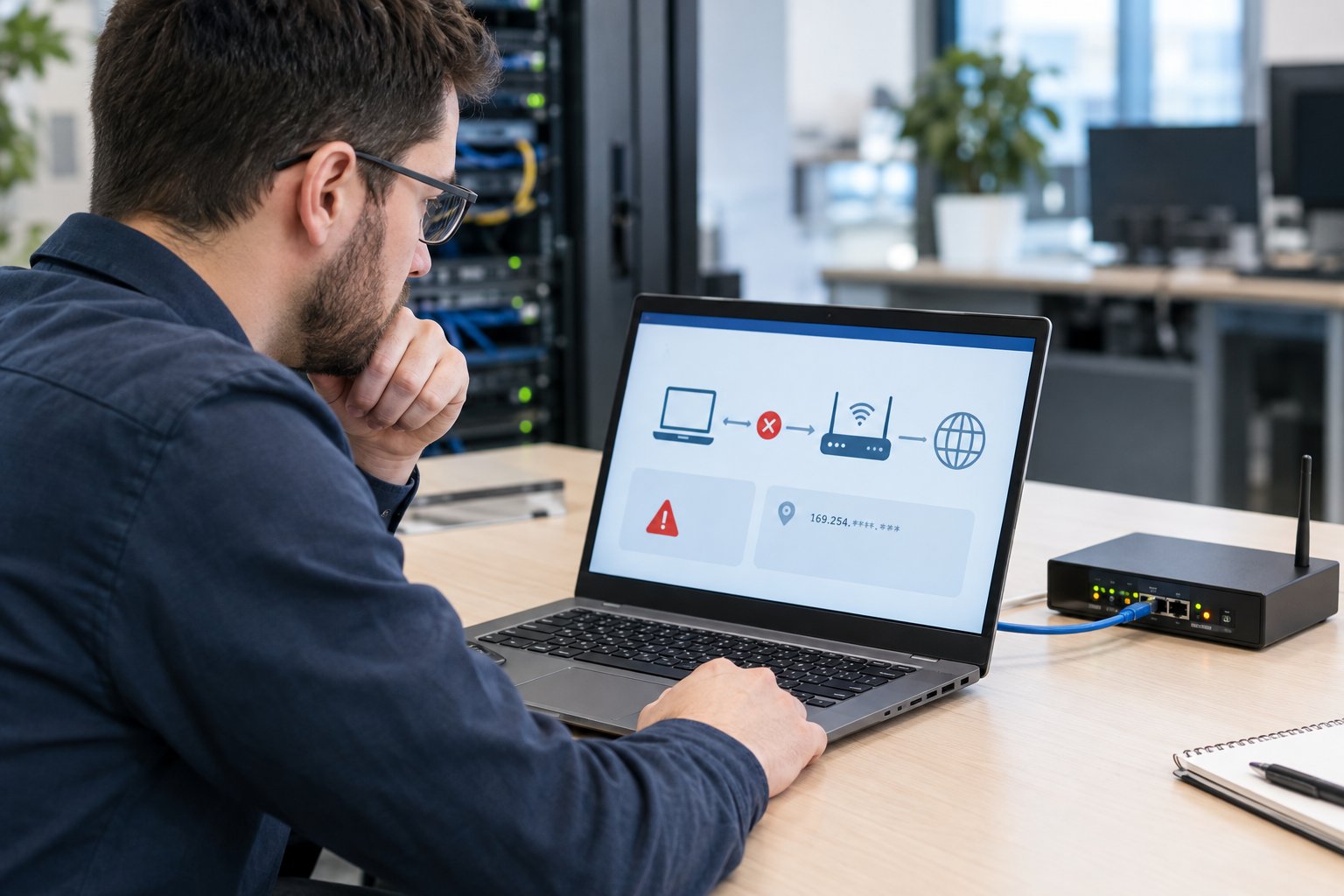
You verify a DHCP failure by reading the active adapter’s full configuration and confirming three things together: DHCP is enabled, the address sits in 169.254.x.x with a 255.255.0.0 mask, and no default gateway or lease details exist. That combination separates a failed lease from a manual setting or an address conflict.
Read the Active Adapter’s Configuration with ipconfig /all
Open Command Prompt or Windows Terminal and run:
ipconfig /all
Plain ipconfig omits the DHCP fields you need. Scroll to the network adapter you are using, since laptops list Wi-Fi, Ethernet, virtual switches, and VPN adapters together. Skip any entry marked “Media disconnected.”
On the active adapter, look for Autoconfiguration IPv4 Address followed by a 169.254.x.x value. Windows uses that label specifically for APIPA; a normal lease shows “IPv4 Address” with “(Preferred).”
Check DHCP Status, Lease Details, and the Default Gateway
Read these fields on the same adapter:
- DHCP Enabled: Yes. If it says No, the adapter never asked for a lease, and the 169.254 address was set by hand.
- Lease Obtained / Lease Expires. These lines are missing on an APIPA adapter because no DHCP lease exists.
- Default Gateway. Blank on APIPA. A real gateway here with a 169.254 address points to a manual configuration.
- DHCP Server. Absent when no server answered.
- DNS Servers. Often fec0:: placeholders or empty, which is why you see no internet access.
Microsoft’s DHCP documentation notes that all client-server communication runs over UDP ports 67 and 68, and that healthy clients renew at 50 percent of lease time. Keep those ports in mind for the firewall checks later. The same symptom pattern drives the Ethernet doesn’t have a valid IP configuration error in Windows’ troubleshooter.
Distinguish Self-Assignment from a Duplicate IP Address
A duplicate address produces different evidence. When two hosts claim the same address, Windows displays a conflict notification, and ipconfig /all shows the intended address marked (Duplicate) or a fallback flagged as such. The event log records the conflict along with the other device’s MAC address.
| Clue | APIPA (DHCP failure) | Duplicate address |
|---|---|---|
| Address | 169.254.x.x | Your normal subnet |
| Label | Autoconfiguration IPv4 | (Duplicate) |
| Gateway | None | Present |
| Fix target | DHCP path | Conflicting host or static entry |
If you see the duplicate pattern, chase the conflicting host and its MAC address, and work through the steps for an IP address conflict. Renewing DHCP alone will not resolve it.
How Do You Restore Ethernet or Wi-Fi Connectivity?
You restore connectivity by confirming the physical or wireless link first, then forcing a fresh DHCP request, then checking the Windows components that send it. Working from the cable up saves you from reinstalling drivers for a problem caused by a dead switch port.
Check the Ethernet Cable, Link Status, and Switch Port
Look at the link LEDs on both the laptop and the switch. No light means no Layer 1 link, and DHCP cannot work without one.
- Reseat the network cable at both ends, then swap in a known-good cable.
- Move to a different switch port or wall jack. Office jacks are sometimes unpatched or patched into the wrong VLAN.
- Check the adapter’s link speed in Settings > Network & internet > Ethernet. A gigabit adapter linking at 10 Mbps suggests a damaged pair.
- Remove docks and USB adapters from the chain temporarily.
If a different port gives you a lease immediately, the original port’s configuration is the problem, not your PC.
Reconnect Wi-Fi and Verify the Intended SSID
On Wi-Fi, confirm you joined the correct SSID. Guest networks, a neighbor’s open network, or an extender with its own broken DHCP all produce 169.254 addresses.
Forget the network, reconnect, and re-enter the passphrase. A wrong key on some access points lets association partially complete while DHCP never succeeds. Weak signal also drops the broadcast exchange, so test closer to the access point. If you have an address but pages still fail, the issue has moved on to the Wi-Fi connected but no internet pattern.
Request a Fresh Lease with ipconfig /release and ipconfig /renew
From an elevated prompt, run:
ipconfig /release
ipconfig /renew
The renew forces a new Discover broadcast. If it returns a normal address, you’re done. If it waits about a minute and reports an error contacting the DHCP server, the client did its job and the fault sits upstream. Rebooting tells you less than this test does, because the error message confirms the request left the machine.
Check Local Adapter Settings and the Windows DHCP Client Service
Open ncpa.cpl, right-click the adapter, choose Properties, then Internet Protocol Version 4. Both “Obtain an IP address automatically” and “Obtain DNS server address automatically” should be selected.
Next, open services.msc and confirm DHCP Client is Running with startup type Automatic. Disable and re-enable the adapter, and if VPN or security software installed filter drivers recently, test with it paused. Outdated drivers on Wi-Fi chipsets are a common culprit, so update network drivers from the vendor. As a last local step, reset network settings to rebuild the stack.
What If DHCP Still Does Not Respond?
When renewals keep failing, the problem lives on the DHCP server or in the path its broadcasts travel. Scope exhaustion, a stopped service, a missing relay, and a firewall dropping UDP 67/68 all look identical on the client, so you narrow it down by comparing devices and reading server-side evidence.
Compare Affected Devices and Check the Router’s DHCP Service
Check another device on the same network. If every client gets 169.254, the DHCP server is down. If only one fails, focus on that client or its port.
On home and small-office networks, the router runs DHCP. Log in using the router IP address and confirm the DHCP server toggle is enabled with a sensible pool. A firmware update or config restore sometimes turns it off. Power cycling the router clears hung DHCP processes, though if the fault returns, look at firmware or hardware.
Inspect DHCP Scopes, Available Leases, and Server Logs
On Windows Server, open the DHCP console and check that the scope is active, authorized, and has free addresses. A /24 scope serving a busy guest network with eight-day leases runs out fast.
On Linux, check systemctl status isc-dhcp-server and read dhcpd entries in the journal. Lines such as “no free leases” or messages showing Discovers arriving with no matching subnet declaration point straight at the fix. If the logs show nothing from the client’s MAC, the broadcast never arrived.
Trace DHCP Broadcasts Through VLANs, Relays, and Firewall Rules
DHCP Discover is a broadcast, and broadcasts stop at the router boundary. When clients and server sit on different subnets, a relay agent (IP helper) must forward them.
- Confirm the switch port’s access VLAN matches the intended network.
- Verify the IP helper address on the VLAN interface points to the correct server.
- Check for a firewall blocking DHCP on UDP 67 and 68 between relay and server.
- Review DHCP snooping: an untrusted uplink port silently drops Offers.
A packet capture on the client settles it fast. Discovers leaving with no Offer returning proves the client is fine.
Why Disabling APIPA or Guessing a Static Address Is Not a Fix
You can disable APIPA through the IPAutoConfigurationEnabled registry value, but that only leaves the adapter with no address, and the DHCP failure remains. A guessed static address is worse: it risks colliding with a leased address, carries wrong DNS or gateway values, and breaks again when the network changes. Static assignments belong in planned reservations, as covered in DHCP vs static IP.
How Do You Confirm That Connectivity Is Restored?
You confirm recovery by checking for a valid leased address, proving the gateway answers, and then testing DNS and external reachability in that order. Each layer depends on the one below it, so testing in sequence pinpoints any remaining fault.
Verify the Expected Address, Gateway, and DHCP Lease
Run ipconfig /all again. You should now see:
- An address in your expected range, such as 192.168.x.x or 10.x.x.x
- A subnet mask matching your network, commonly 255.255.255.0
- A populated default gateway and DHCP Server field
- Lease Obtained and Lease Expires timestamps
Confirm the gateway and DNS servers are ones you recognize. An unfamiliar value suggests a rogue DHCP server answered your request.
Test the Local Gateway Before Checking External Connectivity
Ping the default gateway first, for example ping 192.168.1.1. Replies prove the local link and lease work. Then ping a public IP such as 1.1.1.1 to test routing, and only then ping a hostname to test name resolution.
If the IP ping works and the hostname fails, you’re looking at a DNS problem, and you should troubleshoot DNS issues separately. Packet loss on the gateway ping points back to Wi-Fi signal or cabling.
Use PacketTools to Check Public IP, DNS, and External Reachability
From the restored machine, open PacketTools’ What Is My IP tool to confirm traffic exits through your expected public address. The DNS Lookup tool verifies records resolve correctly, and a ping test from outside checks reachability. No IPs, queries, or test data are logged or stored, and no sign-in is required, so you can run these checks on production systems without leaving a trail.
Restore DHCP Rather Than Hide the Symptom
A 169.254 address tells you exactly one thing: your client asked for a DHCP lease and got silence. APIPA keeps the adapter alive on the local link, and the real repair is reopening the path to a working DHCP server.
Work in order. Confirm the failure with ipconfig /all, rule out a duplicate address, check the cable or SSID, and force a renew. If the renew errors out, move upstream to the router’s DHCP setting, scope availability, server logs, VLAN assignment, relay configuration, and UDP 67/68 firewall rules.
Once a valid DHCP lease returns, verify the gateway with a ping, then test DNS and your public IP before closing the ticket.
Leave a Reply