
When Windows reports that your Ethernet connection has no valid IP configuration, the adapter detected a wired network but never finished getting a usable IPv4 address, subnet mask, and gateway. On Windows 10 and Windows 11 the cause sits at one of a few layers: the physical link, the DHCP exchange, the gateway path, or the Windows network stack.
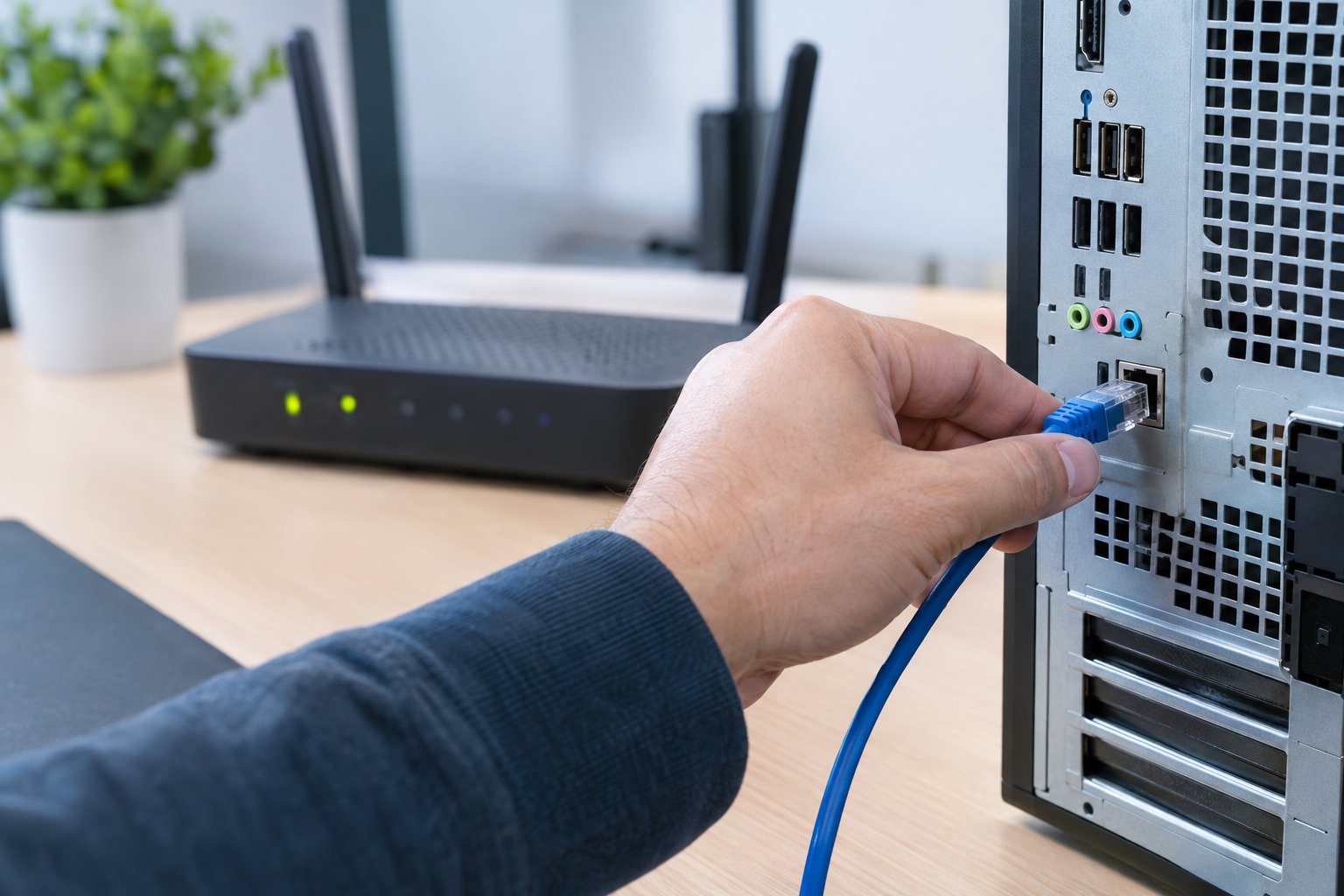
To fix “ethernet doesn’t have a valid ip configuration,” run ipconfig /all first and let the output pick the repair: “Media disconnected” means a cable, port, or adapter problem; a 169.254.x.x address means DHCP failed; a valid address with an unreachable gateway means a subnet, conflict, or VLAN problem. Resets come last, and only when the evidence points at Windows itself.
PacketTools is built by an engineer with over 28 years of hands-on network and security work, and the same logic used on production networks applies to a single desktop. Read the evidence, fix the layer that failed, and confirm the result before you touch anything else.
What Does Your Ethernet Configuration Tell You?
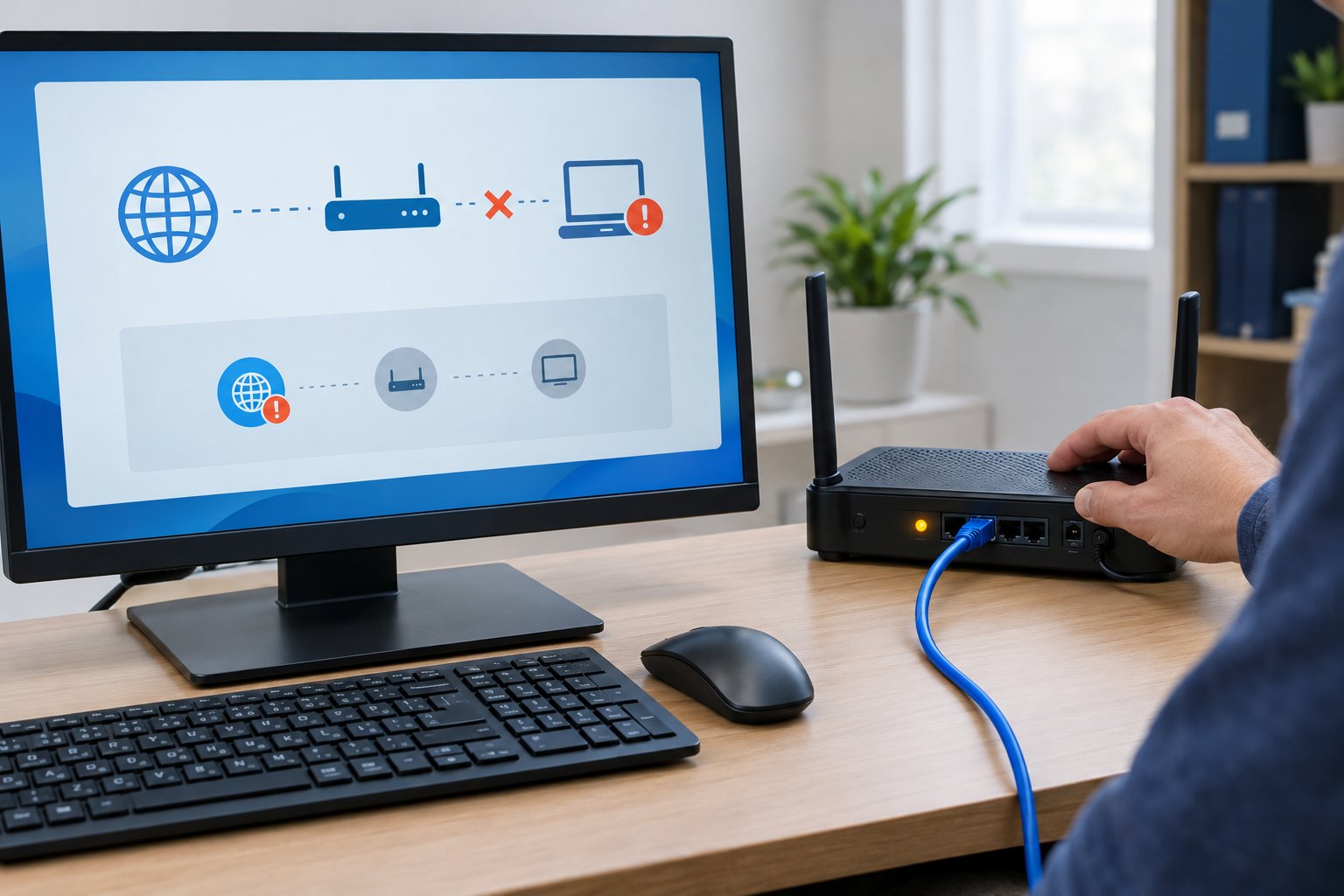
Your ipconfig /all output tells you which layer failed before you change a single setting. Four readings drive every decision below: the media state, the IPv4 address, the DHCP lease details, and whether the default gateway answers a ping.
Start with Link Status and ipconfig /all
Open Command Prompt as administrator and run ipconfig /all. Scroll to the block labeled Ethernet adapter Ethernet, or whatever name your wired adapter carries. USB docks often show up as “Ethernet 2” or “Ethernet 3.”
Write down these lines before doing anything else:
- Media State
- DHCP Enabled
- IPv4 Address and Subnet Mask
- Lease Obtained and Lease Expires
- Default Gateway
- DHCP Server and DNS Servers
This snapshot is your baseline. Every later step gets compared against it, which keeps a structured approach to network troubleshooting from turning into random clicking.
What Do Media Disconnected and a 169.254 Address Mean?
These two results point to different layers, so treat them as separate branches of the tree.
| Output | What it means | Where to go next |
|---|---|---|
| Media State: Media disconnected | No electrical link between the NIC and the switch or router | Physical link checks |
| IPv4 Address: 169.254.x.x | Link is up, DHCP enabled, but no lease arrived (APIPA) | DHCP renewal and server checks |
| No IPv4 line at all | Adapter disabled, protocol unbound, or driver fault | Adapter and driver checks |
| Valid private address, no gateway | Lease is incomplete or the address was set manually | TCP/IPv4 settings |
A 169.254 address is Windows assigning itself an Automatic Private IP Address after DHCP went unanswered. It lets the PC talk to other self-assigned hosts on the same wire and nothing more. Seeing it tells you the cable probably works and the problem is the DHCP exchange.
Check the IPv4 Address, Subnet Mask, DHCP Lease, and Default Gateway
A healthy home or office result shows a private address such as 192.168.x.x, 10.x.x.x, or 172.16.x.x through 172.31.x.x. If those ranges are unfamiliar, the basics of IP addressing explain why they never route on the public internet.
Check that the subnet mask matches the rest of your network, commonly 255.255.255.0 on home routers. The default gateway should fall inside the same subnet as your address. If DHCP Enabled reads Yes and you see a Lease Obtained timestamp from a minute ago, the DHCP server answered.
If DHCP Enabled reads No, someone set a static address. Note every field before changing it; a corporate machine may need that configuration.
Can You Reach the Gateway, an External IP Address, and a Hostname?
A valid-looking address still needs proof. Run three pings in order:
ping <your default gateway>tests the local segment.ping 1.1.1.1tests routing beyond your router.ping cloudflare.comtests DNS resolution.
If step 1 fails, the problem is local: subnet, conflict, or VLAN. If step 1 passes and step 2 fails, look at the router’s WAN side or the modem. If only step 3 fails, your address is fine and DNS needs attention.
Restore the Physical Link When Ethernet Is Disconnected
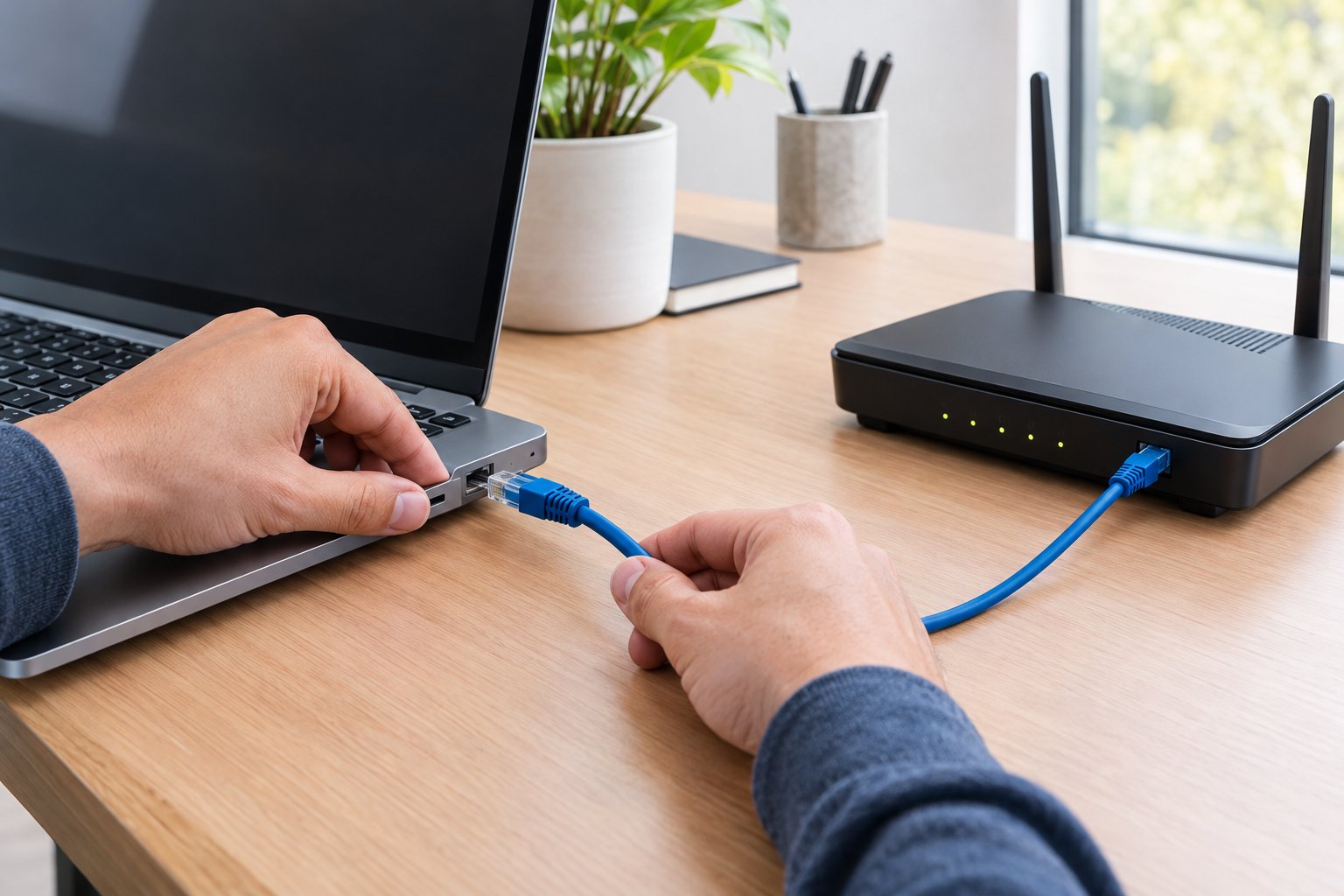
“Media disconnected” means Windows sees no link, so no amount of DHCP or stack repair will help until the cable, port, or network interface card (NIC) produces one. Swap tests isolate the faulty component faster than repeated restarts do.
Check the Ethernet Cable, Link Lights, and Router or Switch Port
Reseat the Ethernet cable at both ends until the latch clicks. Look at the port LEDs on the NIC and on the router or switch; a dark port on both sides confirms no link.
Then swap one variable at a time:
- Use a known-good cable on the same port.
- Move the original cable to a different router or switch port.
- Plug a laptop or console into the suspect cable and port.
If another device also gets nothing, the PC is not the cause. Lit LEDs prove an electrical link only. They don’t prove frames are passing, so a lit port with a 169.254 address still belongs in the DHCP branch.
Enable the Ethernet Adapter and Compare a Known-Good Connection
Press Win + R, type ncpa.cpl, and check whether the Ethernet adapter shows Disabled. Right-click and choose Enable if so. In Device Manager, confirm the network adapter has no warning icon and isn’t hidden under “Other devices.”
Compare against a connection you know works. If your Wi-Fi gets a normal address from the same router, the router’s DHCP service is running, and the fault narrows to the wired path or this NIC. For USB Ethernet dongles, try a different USB port and skip unpowered hubs during testing.
When Should You Restart the PC, Router, or Modem?
Restart equipment once you’ve confirmed which device is suspect, so the reboot tests something specific.
- Restart the PC when the adapter shows no link but the cable and port work for other devices. A stuck NIC driver state clears on reboot.
- Restart the router when no wired device gets a link or a lease. Unplug power for about 30 seconds.
- Restart the modem when the gateway answers pings but external addresses don’t. Power the modem up first, then the router.
If the link light returns after a reboot and drops again later, suspect a failing cable or port before blaming Windows.
Fix Address Assignment Based on Your DHCP Results
Once the link is up, your next move depends on whether DHCP handed out a lease. Confirm the adapter is set to automatic, renew deliberately, and read the renewal result, because a failed renewal and a successful renewal with no gateway lead to very different fixes.
Should TCP/IPv4 Use Automatic or Static Addressing?
On nearly every home network and most office desktops, TCP/IPv4 belongs on automatic. Open ncpa.cpl, right-click Ethernet, choose Properties, select Internet Protocol Version 4 (TCP/IPv4), and check that both Obtain an IP address automatically and Obtain DNS server address automatically are selected.
A leftover static IP address from an old network is a common cause of this error after moving a PC. The trade-offs between DHCP and static IP matter for servers and printers, not typical workstations. On a managed corporate network, record the existing static values and ask the administrator before switching.
While you’re in network adapter settings, leave IPv6 checked. Disabling it removes a protocol Windows expects and fixes nothing in an IPv4 lease failure.
Release and Renew the DHCP Lease, Then Interpret the Result
Run these as administrator, targeting the wired adapter by its exact name:
ipconfig /release "Ethernet"
ipconfig /renew "Ethernet"
Then read what comes back:
- New private address, gateway, and DNS servers: DHCP works. Re-run the pings from earlier.
- “An error occurred while renewing interface Ethernet: unable to contact your DHCP server”: requests are leaving the PC and no answer is arriving. Move to the next subsection.
- “No adapter is in the state permissible for this operation”: the adapter is static or disconnected. Revisit the TCP/IPv4 settings or the physical link.
- 169.254 address returns: same meaning as the timeout.
Avoid releasing over Remote Desktop or a VPN; you will cut your own session.
If Renewal Fails, Check the DHCP Client and Server
On the PC, press Win + R, type services.msc, and confirm DHCP Client is Running with startup type Automatic. A stopped client means no requests ever leave the machine.
On the network side, the Dynamic Host Configuration Protocol depends on a four-step exchange (discover, offer, request, acknowledgment), and how DHCP works explains where each step fails. Log in to your router and check:
- DHCP server is enabled.
- The address pool isn’t exhausted by stale leases.
- No MAC filtering or access control blocks this PC.
- Any DHCP reservation matches this NIC’s MAC address.
Your router’s admin page sits at its LAN address; finding your router IP address takes one look at the Default Gateway line from a working device.
If the Gateway Is Unreachable, Check Subnet Settings, Conflicts, and VLAN Access
A lease that arrives but leaves the gateway silent points to addressing or segmentation. Compare your address, mask, and gateway; an IP subnet calculator confirms whether the gateway falls inside your subnet.
Windows logs a duplicate address warning in Event Viewer when two hosts claim the same IP. An IP address conflict usually traces back to a device with a hard-coded address inside the DHCP pool.
On managed switches, a port assigned to the wrong VLAN hands you a lease from a different scope or none at all. If one port works and another doesn’t for the same PC, hand the port number to whoever manages the switch.
Repair Windows Components Only When the Evidence Points There
Windows repairs belong at the end of the tree: when the cable, port, and DHCP server all work for other devices but this PC still fails. Each tool below fits a specific symptom, from driver faults after an update to a stack that misbehaves only after shutdown.
Use the Network Troubleshooter to Gather Additional Evidence
The built-in network troubleshooter is where most people first see this error message, and it works better as an evidence collector than a fixer. In ncpa.cpl, select Ethernet and click Diagnose this connection.
Read the detail text. Messages about a driver or a disabled adapter confirm a local fault. If it repeats the IP configuration error after your renewal test failed, it adds nothing new, and you can move on. Save a screenshot for escalation.
Update, Roll Back, or Reinstall the Network Adapter Driver
Choose the driver action from the timeline of the failure:
- Started right after a Windows update or driver push: in Device Manager, open the adapter’s properties, go to the Driver tab, and choose Roll Back Driver.
- Adapter shows a warning icon or code 10: uninstall the device, reboot, and let Windows reload it.
- Old driver on a new Windows build: install the current package from the PC or motherboard vendor.
Download the vendor driver on another machine first, since this PC has no network. If you want to update network drivers safely, keep the old package handy for rollback.
Disable Fast Startup if the Fault Returns After Shutdown
Fast Startup saves part of the kernel and driver state to disk at shutdown. If Ethernet fails after a cold boot but works after a Restart (which skips Fast Startup), that pattern points straight at it.
Open Control Panel > Power Options > Choose what the power buttons do, click Change settings that are currently unavailable, uncheck Turn on fast startup, and save. Also check the adapter’s Power Management tab and clear Allow the computer to turn off this device to save power if the link drops after sleep.
When to Reset TCP/IP, Reset Winsock, or Reset Network Settings
Use these only when another device works on the same cable and port, the DHCP Client runs, the driver is current, and this PC still can’t renew.
netsh int ip resetrewrites TCP/IP registry settings.netsh winsock resetrebuilds the socket catalog that VPN and security software sometimes corrupts.- Restart the PC.
A full Windows Network reset removes and reinstalls every adapter and clears saved Wi-Fi profiles, VPN entries, and custom DNS settings. Before using it, read what a network settings reset wipes so you can rebuild afterward.
Verify Recovery with Local Checks and PacketTools
Recovery is confirmed when the lease, the gateway, DNS, and the outside world all check out from this PC. Repeat the same tests you used to diagnose so the before and after compare cleanly.
Confirm the Lease, Gateway Access, and DNS Resolution Again
Run ipconfig /all and check for a fresh Lease Obtained timestamp, a private address in the right subnet, and a populated gateway and DNS server list. Repeat the three-step ping: gateway, then 1.1.1.1, then a hostname. If hostnames fail while raw addresses work, the fix has moved to name resolution, and you can troubleshoot DNS issues from there.
Use PacketTools to Check Your Public IP, DNS, and External Reachability
PacketTools’ What Is My IP tool confirms your router’s public address and that traffic leaves your network. The DNS Lookup tool verifies that records resolve as expected, and the online ping test checks external reachability from outside your LAN. No IPs, queries, or test data are logged or stored, and no sign-in is required.
If the Error Persists, Compare Devices and Escalate with Evidence
If Wi-Fi works and Ethernet doesn’t, the wired path is still suspect; if the Wi-Fi adapter shows the same “Wi-Fi doesn’t have a valid IP configuration” message, the router’s DHCP service is the common factor. When escalating to your ISP or IT team, hand over:
ipconfig /alloutput before and after renewal- The exact renew error text
- Which cables, ports, and devices you swapped
- Ping results for gateway, external IP, and hostname
Restore Connectivity by Fixing the Failing Layer
A valid IP address comes from a working chain: link, lease, gateway, then DNS. Read ipconfig /all first, follow “Media disconnected” to the cable and port, follow 169.254 to the DHCP client and server, and follow an unreachable gateway to subnet, conflict, or VLAN settings.
Save driver work, Fast Startup changes, and stack resets for when swap tests prove the fault stays with this one PC. Then re-check the IP configuration, the gateway ping, and external reachability so you know the repair held before you close the case.
Leave a Reply