
Every device hooked up to the internet needs some way to be found—sort of like your house needs an address for mail to show up. An IP address is a unique numerical label assigned to each device on a network that uses the Internet Protocol, serving two main functions: identifying your device and providing its location within the network.
Your internet service provider (ISP) automatically hands out this address, letting other devices send info and talk to your computer, phone, or tablet. Without it, you’d be basically invisible online (which, okay, sometimes sounds tempting).
The most common version you’ll see is IPv4. It looks like four numbers separated by dots—think 192.0.2.1.
As the internet exploded, we started running out of IPv4 addresses. Enter IPv6, which uses a much longer format (letters and numbers mixed in) and offers, well, more addresses than you could ever actually count. Both types are still floating around out there.
Getting a handle on IP addresses can help with troubleshooting, privacy, and just understanding how the internet keeps everything running. Maybe you’re curious about what your IP reveals, or maybe you just want to tweak your network settings—either way, knowing the basics is more useful than you might expect.
Key Takeaways
- IP addresses are unique numerical labels that identify and locate your device on a network, automatically assigned by your internet service provider
- IPv4 uses 32-bit addresses while IPv6 uses 128-bit addresses to accommodate the growing number of internet-connected devices
- Your IP address can reveal your approximate geographic location and is essential for routing internet traffic to and from your device
Understanding IP Addresses
An IP address is a unique numerical identifier for every device connected to a network. It lets data travel from point A to point B using the Internet Protocol system.
This whole addressing thing works inside a bigger setup called the TCP/IP framework. That’s what keeps your messages and connections reliable, even when the internet feels like a mess.
Definition of an IP Address
An IP address is a unique numerical label assigned to each device on a network that uses the Internet Protocol for communication. It’s just a string of numbers that identifies your device and where it sits in the network maze.
Your IP address does two main jobs: host identification and location addressing. Think of it as your device’s digital postal address, letting information find its way to you out of billions of connected gadgets out there.
IPv4 addresses show up as four numbers separated by periods, like 192.168.1.1. Each number ranges from 0 to 255.
IPv6, on the other hand, uses a longer hexadecimal format—something like 2001:0db8:85a3:0000:0000:8a2e:0370:7334. That gives us way more addresses for all our shiny new devices.
Your ISP hands your network a public IP address. Inside your home or office, your router splits things up further, giving private IP addresses to each device.
How IP Addresses Work
When you visit a site or send data, your device chops the info into small packets. Each packet includes your IP as the return address and the destination IP for wherever it’s headed.
Routers are like traffic cops—they check each packet’s destination IP and send it along the best path through the network jungle. This keeps happening until the packet lands where it should.
The server on the other end reads your return IP and sends back what you asked for, using the same kind of relay system. It’s a bit wild that it works at all, honestly.
Your router also manages communication between your private network and the big, public internet using Network Address Translation (NAT). Thanks to NAT, all your devices can share one public IP address when talking to the outside world.
Internet Protocol and TCP/IP
The Internet Protocol sets the rules for how packets get addressed and routed. It’s part of the TCP/IP suite, which is basically the internet’s backbone.
TCP/IP is just two protocols working together: Transmission Control Protocol (TCP) and Internet Protocol (IP). IP does the addressing and routing. TCP double-checks that all your packets show up and get put back in the right order.
Your data gets broken up into packets, each with addressing info tacked on. Each packet might take a different route to the destination, and then TCP pieces them all back together at the end.
Types of IP Addresses
IP addresses come in a few flavors, depending on how they’re assigned and how reachable they are. Some are public, some are private. Some change all the time, others never budge.
Public IP Addresses
Your public IP address gets assigned by your ISP and acts as your network’s “face” to the wider internet. It’s what servers and websites see when you connect.
Your router uses this public IP to talk to web servers, email, and all that jazz. When you hit a website, your public IP gets logged by their server—just the way it is.
Multiple devices in your house or office all share the same public IP, thanks to NAT. Public IPs are unique globally; nobody else can have the same one at the same time.
ISPs manage these addresses and sometimes charge extra for a dedicated public IP, especially if you’re running a business or need something super consistent.
Private IP Addresses
Private IP addresses are for your devices inside your local network. They’re not visible from the internet at large—think of them as your network’s internal phone extension numbers.
Your router assigns these addresses to everything: laptops, phones, printers, you name it. It usually does this using DHCP (Dynamic Host Configuration Protocol).
There are three main private IP ranges:
- 10.0.0.0 to 10.255.255.255 (Class A)
- 172.16.0.0 to 172.31.255.255 (Class B)
- 192.168.0.0 to 192.168.255.255 (Class C)
Most home networks use the 192.168.x.x range. These let your devices talk to each other while staying hidden from the outside world. Private IPs can be reused on different networks, so they’re not globally unique.
Static vs Dynamic IP Addresses
Static IP addresses stay the same once assigned. You set them up manually or ask your ISP for one. They’re super useful for things like servers or remote access, where the address needs to be predictable.
Dynamic IP addresses, on the other hand, change from time to time. DHCP servers hand them out automatically. Most ISPs give residential customers dynamic IPs, which get reassigned as needed.
Most homes use dynamic public IPs plus dynamic private IPs for each device. Businesses might spring for static IPs for reliability or easier DNS setup. Dynamic addresses might change when you reboot your router or after some set period, but sometimes they stick around for months.
IPv4 and IPv6 Explained
IPv4 uses 32-bit addresses, which gives us about 4.3 billion unique addresses. IPv6, though, uses 128 bits, so we’re talking trillions upon trillions of possibilities—enough for every smart toaster and fridge you could ever own.
Overview of IPv4
IPv4 is the fourth version of the Internet Protocol and has been the backbone of the internet since the early 1980s. An IPv4 address is a 32-bit number, shown as four decimals separated by dots—like 192.168.0.1 or 66.94.29.13.
Each IPv4 address is split into four “octets,” each ranging from 0 to 255. The old system used address classes (A, B, C, and so on), but now we mostly use Variable Length Subnet Masking (VLSM) for flexibility.
IPv4 headers usually run between 20 and 60 bytes and include a checksum for error checking. Your network probably uses NAT to let multiple devices share one public IP, though that can complicate things for certain apps. The protocol supports broadcast communication and can use either manual setup or DHCP for assigning addresses.
Overview of IPv6
IPv6 is the latest version, built to fix IPv4’s limits. An IPv6 address is a 128-bit number, displayed as eight groups of hexadecimal digits separated by colons—like 2001:db8::1.
IPv6 has a fixed 40-byte header, which is simpler than IPv4’s and skips unnecessary stuff like the header checksum. It also bakes in IPsec for security, so you get authentication and encryption out of the box.
IPv6 supports several ways to assign addresses: Stateless Address Autoconfiguration (SLAAC), DHCPv6, or good old manual setup. It ditches broadcast traffic for multicast and anycast, which helps keep network noise down.
The protocol adds a Flow Label field, which helps with Quality of Service for streaming and calls. Fragmentation only happens at the sender, not at every router along the way—so things move a bit smoother.
Address Exhaustion and the Need for IPv6
IPv4’s 32-bit space only offers 4.3 billion unique addresses. With everything from phones to smart lightbulbs needing an address, we hit the wall pretty fast.
The Internet Assigned Numbers Authority (IANA) ran out of unallocated IPv4 addresses back in 2011. Regional registries have burned through their stockpiles since then.
NAT has stretched IPv4 further by letting multiple devices share one public IP, but it complicates things for peer-to-peer apps and makes true end-to-end connections trickier.
IPv6’s 128-bit address space? It gives us about 340 undecillion addresses (that’s 340 with 36 zeros). Basically, we’re not running out anytime soon. Transitioning to IPv6 can mean running both protocols side-by-side (dual-stack), tunneling IPv6 traffic through IPv4 networks, or using translation tools to bridge the gap.
How IP Addresses Are Assigned
IP addresses get to your devices through a pretty organized hierarchy, managed by ISPs and automated protocols. Usually, it’s either handed out dynamically by a DHCP server or set manually if you need a static address.
Role of ISPs in IP Allocation
Your Internet Service Provider (ISP) is the one actually assigning your IP address when you connect. ISPs get big blocks of addresses from Regional Internet Registries (RIRs), which in turn get theirs from the Internet Assigned Numbers Authority (IANA).
When you sign up for service, your ISP gives you an address from their pool. Most home users get dynamic addresses that change now and then, while businesses might ask for static IPs for things like servers or remote work. ISPs keep track of who’s using what, making sure there aren’t any messy overlaps.
DHCP and Automatic Address Assignment
Dynamic Host Configuration Protocol (DHCP) automatically assigns IP addresses to devices, so you don’t need to mess with manual settings. When you connect a device, it sends out a broadcast, sort of shouting, “Hey, is there a DHCP server out there?”
The DHCP server answers back, offering up an available IP address from its stash, plus some extras like subnet masks and gateway info. Your device takes the offer and gets a lease on that IP, which usually lasts for hours or days.
Before the lease runs out, your device will try to renew it—usually, you don’t even notice. If you disconnect, that IP goes back into the pool for someone else. It’s a pretty tidy way to handle limited address space and saves you from having to configure every device by hand.
Static IP Assignment Process
Static IP assignment is a different beast: you have to manually key in the IP address, subnet mask, gateway, and DNS info on your device or router. That address just sits there, unchanging, unless you decide to update it yourself.
Static IPs are popular for servers, printers, or gear that need a reliable address for remote access or DNS records. If you want a static IP from your ISP, expect to pay a bit extra and get the details you need to plug in.
One thing to watch out for—make sure your chosen static IP doesn’t overlap with the DHCP server’s range, or you’ll have a headache on your hands.
IP Address Structure and Notation
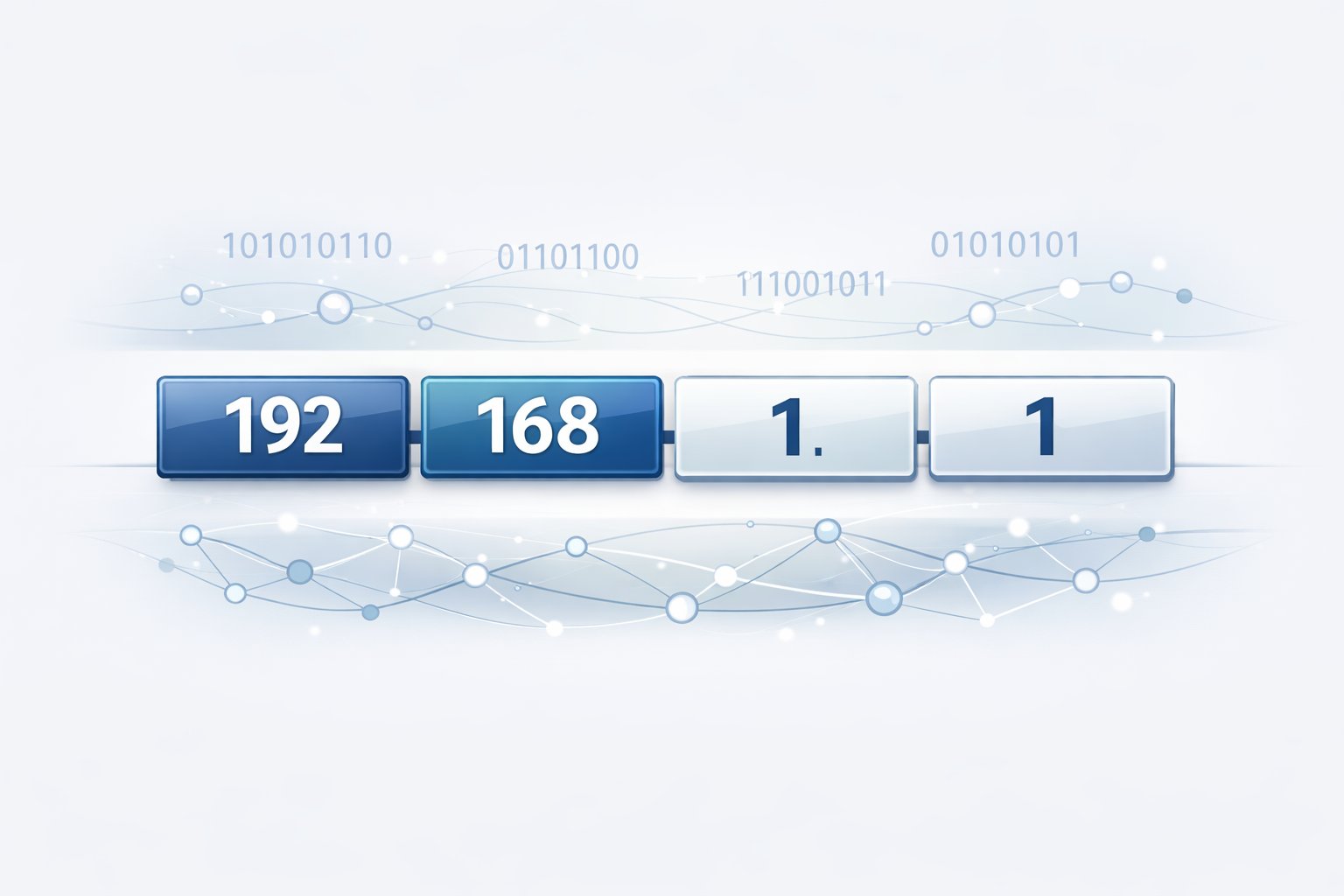
IP addresses have set formats that make them readable for both humans and machines. The structure is different for IPv4 and IPv6, but both use specific notations to split up network and host info.
Dot-Decimal Notation
IPv4 addresses use dot-decimal notation—four octets, separated by periods. Each octet is 8 bits, so you’ll see numbers from 0 to 255. For example, 192.168.1.1 breaks down into four octets, which in binary is 11000000.10101000.00000001.00000001.
This style makes IPs way easier to read than a string of ones and zeros. Each number is called an octet because it’s exactly one byte. The dot-decimal format’s been the standard since IPv4 rolled out in 1983.
IPv6, on the other hand, uses hexadecimal numbers and colons, like 2001:0db8:85a3:0000:0000:8a2e:0370:7334. It’s longer to handle the huge address space.
CIDR and Subnet Mask
Classless Inter-Domain Routing (CIDR) notation is a shortcut for showing IP addresses and their network bits. You just tack on a slash and a number, like 192.168.1.0/24—the number tells you how many bits are for the network.
The subnet mask does the same job but in dot-decimal, so /24 equals 255.255.255.0. That means the first 24 bits are for the network, the last 8 for hosts. CIDR replaced the old class-based system in the ‘90s and made network sizing more flexible.
| CIDR Notation | Subnet Mask | Network Bits | Host Bits | Available Hosts |
|---|---|---|---|---|
| /24 | 255.255.255.0 | 24 | 8 | 254 |
| /16 | 255.255.0.0 | 16 | 16 | 65,534 |
| /8 | 255.0.0.0 | 8 | 24 | 16,777,214 |
MAC Address and ARP
A MAC address (Media Access Control address) is a hardware tag burned into your network card—it’s totally different from an IP, and works at a lower layer. MACs are 48 bits, written as six pairs of hex digits, like 00:1A:2B:3C:4D:5E.
The Address Resolution Protocol (ARP) is how your device figures out which MAC address matches a local IP. When you want to talk to another device on your network, ARP sends out a broadcast asking, “Who has this IP?” The device with that IP answers with its MAC address so your device can talk directly at the data link layer.
ARP keeps a cache of recent matches, so it doesn’t have to keep asking. But it only works within a single network segment—routers won’t pass ARP broadcasts along to other networks.
Network Address Translation and Routing
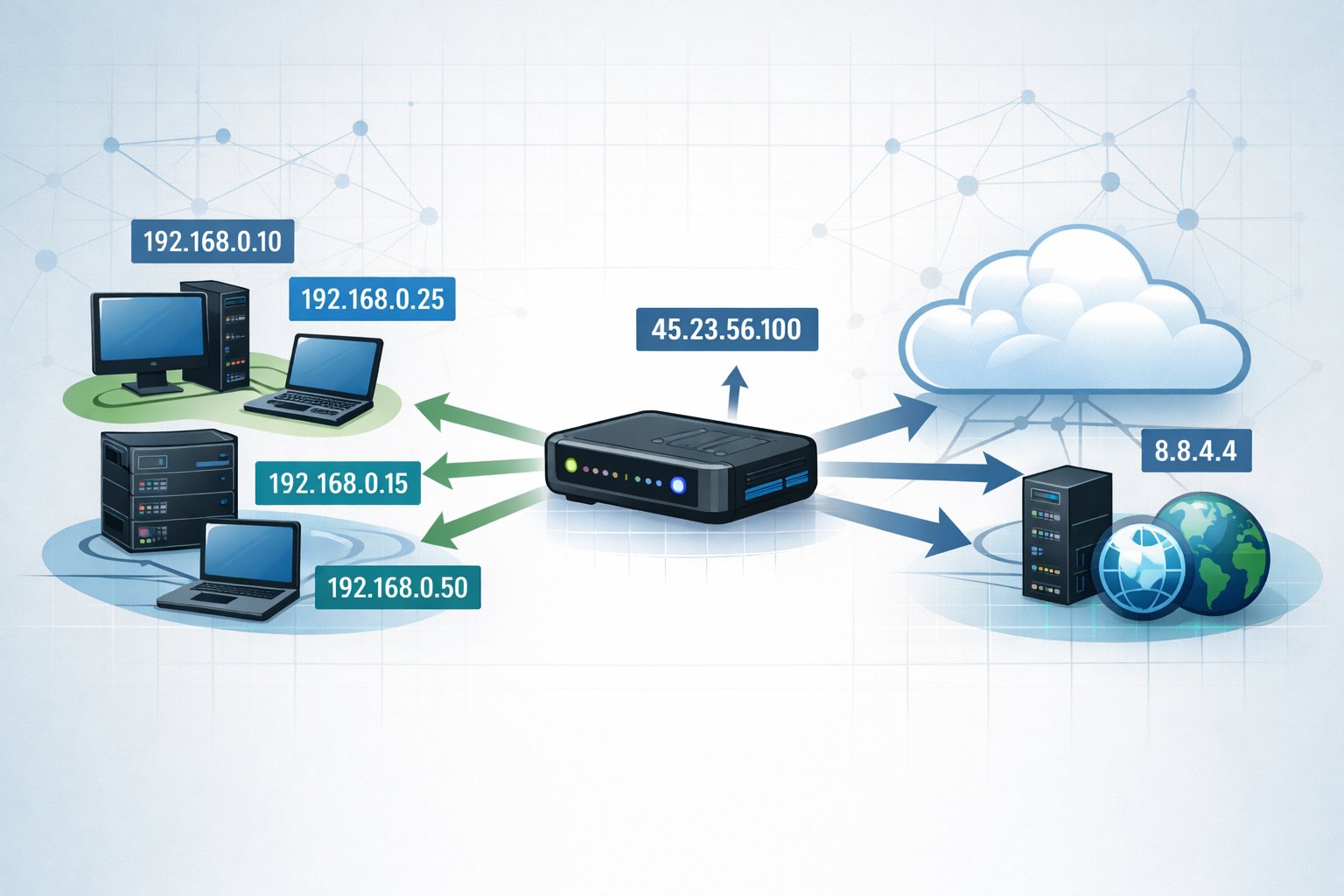
NAT changes IP info in packet headers so private networks can talk to the outside world using shared public addresses. Routing tables decide where packets go, and broadcast/multicast let you send data to lots of devices at once.
How NAT Works
Network Address Translation swaps out IP addresses in packet headers as they move through your router. So when your device sends something out to the internet, NAT replaces your private IP with the router’s public IP.
The most common flavor is Network Address and Port Translation (NAPT), which also changes port numbers. Your router keeps a table of all active connections—tracking internal IPs, source ports, and the translated ports. When a reply comes back, the router checks the table and knows exactly where to send it.
NAT lets a whole network share one public IP, which is a lifesaver with IPv4 running short. It works great for outgoing connections, but if you want to let someone connect in from the outside, you’ll need to set up port forwarding.
Routing Tables and Packet Delivery
Routing tables are the cheat sheet routers use to figure out where to send packets next. Each entry lists a destination network, next hop, interface, and a metric that ranks the best path.
Your router checks the destination IP in each packet and matches it against the table. The most specific match wins—so a route to 192.168.1.0/24 beats a generic 0.0.0.0/0 default route. If there’s a tie, the router picks the one with the lower metric.
Dynamic routing protocols like OSPF and BGP update tables automatically as the network changes. If you use static routes, you have to set them by hand, but you get more control.
Broadcast and Multicast Mechanisms
Broadcasts send packets to every device on a network segment using the broadcast address (all host bits set to 1). Your device uses broadcasts for stuff like ARP and DHCP discovery. Routers block broadcasts from going beyond the local subnet to avoid clogging up the network.
Multicast is more efficient for one-to-many communication. It sends packets to a group, not everyone, using special IPs from 224.0.0.0 to 239.255.255.255. Devices join a multicast group if they want that traffic, which saves bandwidth compared to sending individual copies.
Routers use IGMP to keep track of who’s in which multicast group and which interfaces should get the traffic. NAT and multicast together can get tricky, since multiple devices inside might want the same group.
Finding and Checking Your IP Address
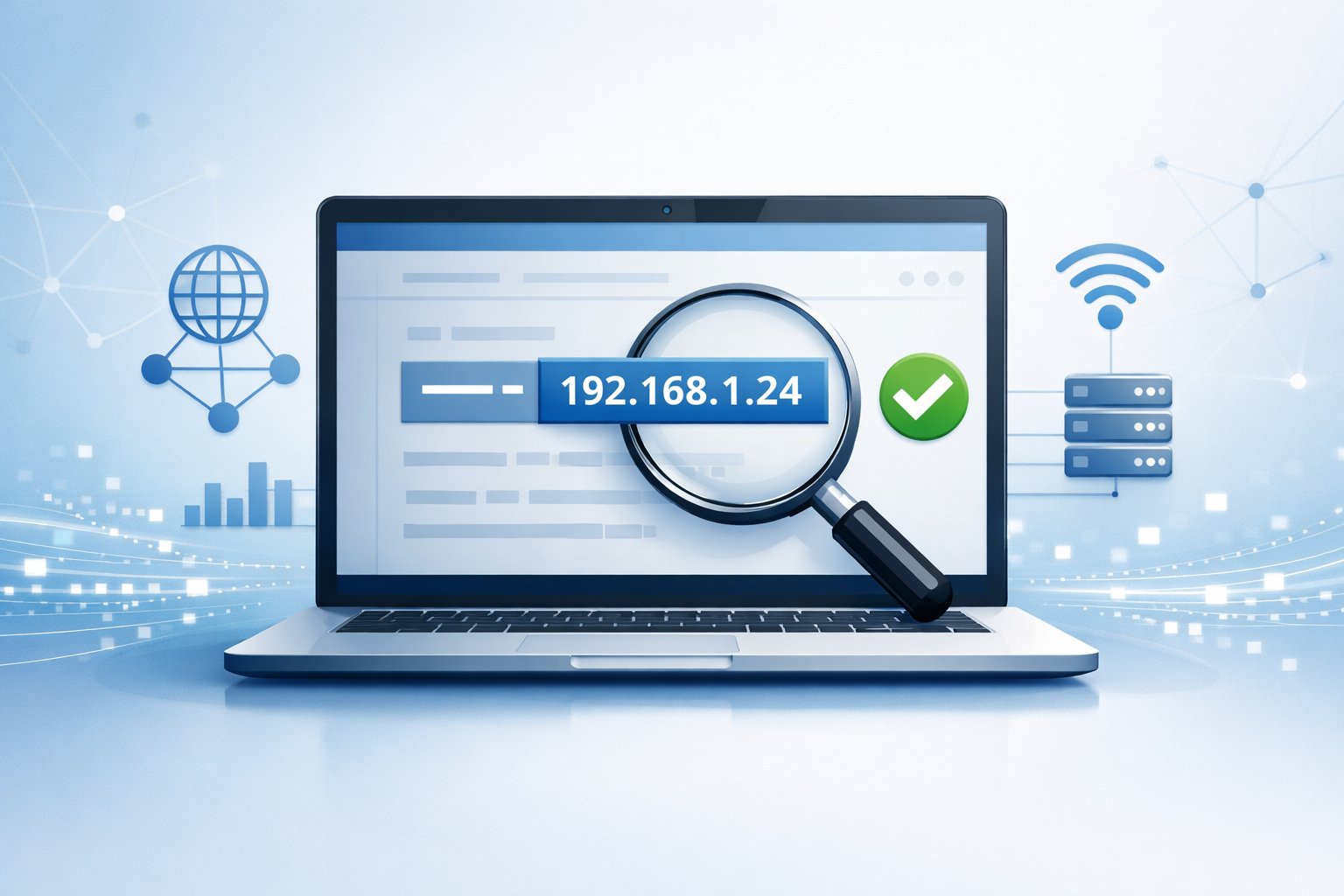
How you find your IP address depends on whether you want your public or private one, and what device you’re using. Sometimes it’s a quick Google search, other times you’ll need to poke around in settings or use a terminal.
What Is My IP
The quickest way to see your public IP? Just type “what is my IP” into Google, or hit up a site like https://packettools.com/network-tools/what-is-my-ip/. Your public IP pops right up—no tech skills required.
This is the address your ISP assigns to your router, and it’s what the rest of the internet sees. Every device on your network shares this public IP when talking to the outside world. Sites like canyouseeme.org can also show your public IP instantly.
Private IPs are different—they identify devices inside your home or office network and aren’t visible to the public internet. They usually look like 192.168.1.1 for IPv4, or something much longer and weirder for IPv6.
Finding IP on Different Devices
Windows users: open Settings, go to Network & Internet, then Properties. You’ll see both IPv4 and IPv6 addresses. Or, open Command Prompt and type ipconfig /all—your IP will be listed next to “IPv4 Address” or “IPv6 Address.”
Mac folks: open System Settings, select Network, pick your connection (Wi-Fi or Ethernet), and click Details for your IP. Or, in Terminal, use ipconfig getifaddr en0 for Wi-Fi or ipconfig getifaddr en1 for wired.
Android users can check under Settings, usually in About Phone or Network settings, but it varies by phone. iPhone users: go to Settings > Wi-Fi, tap the info icon next to your network, and you’ll see your local IP there.
Network Tools for IP Lookup
If you want more details, command-line tools are your friend. Windows has ipconfig for adapter settings, default gateway, and subnet mask. On Linux or older Macs, try ifconfig—though you might need to install net-tools first.
Need your public IP from Terminal? curl ifconfig.me works on Mac and Linux. Windows users can do something similar in PowerShell or with third-party apps.
Network diagnostic tools worth knowing:
- ping checks if a device is reachable
- traceroute (or tracert on Windows) shows the path your data takes
- nslookup looks up DNS records for domains
Your router’s admin panel also lists all connected devices and their local IPs. Just enter your default gateway (often 192.168.1.1 or 192.168.0.1) in your browser to log in.
Geolocation and IP-Based Tracking

IP addresses can give away your general location—sometimes down to the city—because services use big databases to map addresses to physical places. It’s not always super accurate, but it’s good enough for things like regional content or targeted ads.
How IP Geolocation Works
IP geolocation maps your IP address to a physical location by matching it against databases maintained by specialized services. These databases compile information from internet service providers, regional internet registries, and user-submitted data to create associations between IP ranges and geographic coordinates.
When you visit a website, geolocation services query their databases using your IP address to retrieve location details. The process returns information such as country, state, city, postal code, latitude, longitude, time zone, and ISP details.
Most commercial services update their databases monthly or quarterly to maintain accuracy as IP assignments change. The technology relies on multiple data sources to improve precision.
Regional internet registries allocate IP blocks to organizations in specific locations, providing the foundation for country-level accuracy. ISPs further assign these addresses to customers in particular cities or regions, enabling more granular location detection.
Accuracy and Limitations
IP geolocation accuracy varies significantly based on the detection level you need. Country-level identification typically achieves 95-99% accuracy, while city-level detection ranges from 50-80% accuracy depending on the service and region.
Several factors limit precision. Mobile devices using cellular networks often show locations tied to the carrier’s infrastructure rather than your actual position.
VPNs, proxies, and privacy tools deliberately mask real locations by routing traffic through different servers. Shared networks and corporate connections may display the location of network hubs instead of individual users.
Database quality directly impacts results. Premium services like MaxMind and IPinfo offer 90-95% accuracy for most use cases, while free services typically achieve 85-90% accuracy.
Rural areas and regions with limited internet infrastructure generally produce less accurate results than urban centers with dense network coverage.
IP WHOIS Lookup and DNS Lookup
WHOIS lookup provides registration details about IP addresses and domain names through publicly accessible databases. When you perform a WHOIS lookup on an IP address, you receive information about the organization that owns the IP block, registration dates, and contact details for network administrators.
DNS lookup translates domain names into IP addresses, functioning as the internet’s addressing system. You can perform reverse DNS lookups to identify domain names associated with specific IP addresses.
This process helps verify server identities and troubleshoot network issues. Both tools serve distinct purposes in IP tracking.
WHOIS lookup reveals ownership and administrative information, while DNS lookup focuses on name-to-address resolution. You can access these services through command-line tools, web-based interfaces, or API integrations depending on your technical requirements.
Privacy, Security, and Hiding Your IP Address

Your IP address reveals your location and browsing activity to websites, advertisers, and potentially malicious actors. Several tools exist to mask your digital identity, each offering different levels of protection and anonymity.
Why Hide Your IP Address
Hiding your IP address protects your online privacy by preventing websites, Internet Service Providers, and third parties from tracking your browsing habits. Your IP address functions as a digital fingerprint that reveals your geographical location and can be used to build profiles of your online behavior.
When you hide your IP address, you gain access to geo-restricted content that may be blocked in your region. This includes streaming services, news websites, and other platforms that implement location-based restrictions.
Cybercriminals can use your IP address to launch targeted attacks or intercept your communications. By masking it, you reduce your vulnerability to these threats.
Government surveillance programs also rely on IP addresses to monitor citizens’ online activities in certain countries.
VPNs and Proxy Servers
A Virtual Private Network (VPN) creates an encrypted tunnel between your device and a remote server, replacing your real IP address with the server’s address. This encryption protects your data from interception and makes your online activities invisible to your ISP.
VPN services typically offer servers in multiple countries, allowing you to choose which location’s IP address you want to use. Proxy servers act as intermediaries between your device and the internet, showing their IP address instead of yours.
Unlike VPNs, most proxy servers don’t encrypt your traffic, which makes them less secure but faster for simple tasks like accessing geo-blocked websites. Free VPNs often lack robust security features and may collect or sell your data to third parties.
Premium VPN services provide stronger encryption, no-logs policies, and protection against DNS leaks. When selecting between a VPN and proxy server, consider whether you need full encryption or just IP masking.
Tor and Advanced Anonymity Tools
The Tor browser routes your internet traffic through multiple volunteer-operated nodes worldwide, encrypting your data at each layer. This process makes it extremely difficult for anyone to trace your online activity back to your actual IP address.
Tor automatically clears cookies and browsing history when you close the browser. Tor provides stronger anonymity than VPNs but operates significantly slower due to multi-node routing.
The browser is unsuitable for streaming video or downloading large files. Some websites block Tor connections because the network is associated with darknet access.
You can combine Tor with a VPN for additional protection, though this configuration requires technical knowledge. Unplugging your modem for extended periods may assign you a new IP address if your ISP uses dynamic addressing.
Public WiFi networks temporarily mask your home IP address but expose you to security risks from unencrypted connections and potential hackers monitoring the network.
Managing and Changing Your IP Address
You have several options for managing and changing your IP address, whether for privacy, security, or troubleshooting purposes. Understanding when to change your IP and which method suits your needs helps you make informed decisions about your online presence.
Should I Change My IP Address
Changing your IP address offers multiple benefits depending on your specific situation. Privacy concerns rank among the top reasons to change your IP, as it limits how easily websites, advertisers, and online services can track your activity across the internet.
Security improvements come into play when you connect to unsecured networks like public WiFi. A changed IP reduces how easily malicious actors can target your device on shared networks.
You might need to change your IP address to access geo-restricted content or bypass certain network restrictions. Some streaming platforms provide different content libraries based on your location, and a different IP can unlock these alternatives.
Network troubleshooting sometimes requires an IP change. If you experience connectivity issues or find your IP on a blacklist, obtaining a new address can resolve these problems.
Most websites track banned users by IP address, so a new assignment may restore access in certain situations.
Methods to Change Your IP
Virtual Private Networks (VPNs) provide the most secure method to change your IP address. VPNs use encrypted tunneling to route your traffic through remote servers, replacing your IP with the VPN server’s address.
Choose paid VPN services over free options, as free providers may collect your data or have security vulnerabilities. Proxy servers offer a simpler alternative.
Your traffic passes through a proxy before reaching its destination, masking your real IP without encryption. Proxies require minimal setup and work well for basic IP masking needs.
Router resets can trigger a new IP assignment from your ISP. Unplug your router for several minutes to hours, depending on your DHCP lease time.
When you reconnect, your ISP may assign a different IP address, though this isn’t guaranteed with dynamic IP systems. Manual configuration through your device settings lets you set a static IP within your local network.
This method works differently on each operating system but typically involves accessing network settings and switching from DHCP to manual IP assignment.
Dedicated IP Addresses
A dedicated IP address remains exclusively assigned to your account or device, unlike shared IPs that multiple users access simultaneously. Internet service providers and VPN services offer dedicated IPs for users who need consistent identification or specific server requirements.
Dedicated IPs benefit users running servers, hosting websites, or requiring reliable remote access to their systems. Banking and financial platforms sometimes flag shared VPN IPs as suspicious, making dedicated IPs useful for secure transactions.
The main drawback involves reduced anonymity since the same IP consistently links to your activity. Dedicated IPs also cost more than standard dynamic or shared IP options.
You’ll typically pay an additional monthly fee through your VPN provider or ISP for this service.
IP Address Allocation and Standards Organizations

The distribution and management of IP addresses operates through a hierarchical system coordinated by international standards organizations. IANA serves as the top-level authority for global IP address allocation, while specific address ranges are reserved for particular purposes including private networks and unique local addressing.
Role of IANA
The Internet Assigned Numbers Authority (IANA) coordinates the global allocation of IP addresses and Autonomous System Numbers (ASNs) used for routing internet traffic. IANA allocates large blocks of unallocated IP addresses to five Regional Internet Registries (RIRs) based on their regional needs and global policies.
The five RIRs manage IP resources for specific geographical areas: AFRINIC (Africa), APNIC (Asia-Pacific), ARIN (North America and Caribbean), LACNIC (Latin America and Caribbean), and RIPE NCC (Europe, Middle East, and Central Asia).
Each RIR then distributes addresses to local internet registries, national registries, and internet service providers within their regions. IANA does not typically allocate addresses directly to end users or ISPs except for specific circumstances such as multicast addresses or protocol-specific requirements.
When you receive an IP address from your ISP, that address originated from this hierarchical distribution system starting at IANA.
Reserved Addresses and ULA
Certain IP address ranges are reserved for special purposes rather than public internet use. RFC 1918 defines private IPv4 address spaces (10.0.0.0/8, 172.16.0.0/12, and 192.168.0.0/16) that you can use within your internal networks without coordination from any registry.
IPv6 introduces Unique Local Addresses (ULA) in the fc00::/7 range as the equivalent to private IPv4 addresses. ULA addresses allow you to create private IPv6 networks that are not routable on the global internet.
The fd00::/8 subset of ULA addresses is available for local assignment without registration. Additional reserved ranges include loopback addresses (127.0.0.0/8 for IPv4, ::1/128 for IPv6), link-local addresses (169.254.0.0/16 for IPv4, fe80::/10 for IPv6), and documentation addresses specified in RFC 5737.
Future of IP Addressing
IPv4 address exhaustion became reality when IANA allocated its last remaining IPv4 blocks to RIRs in 2011. This depletion drives the ongoing transition to IPv6, which provides 340 undecillion addresses through its 128-bit addressing system compared to IPv4’s 4.3 billion addresses.
Your network infrastructure increasingly requires IPv6 support as major RIRs have exhausted their IPv4 pools. Organizations now obtain IPv4 addresses primarily through transfers in secondary markets or by sharing addresses using technologies like Carrier-Grade NAT (CGN).
The Internet Engineering Task Force (IETF) continues developing standards to facilitate IPv6 adoption and address management. You should plan for dual-stack implementations that support both IPv4 and IPv6 during the transition period, as complete migration to IPv6-only networks remains years away for most regions.
Frequently Asked Questions

IP addresses can raise many practical questions about location tracking, configuration changes, identification methods, and technical structure. The following answers address common concerns about finding, modifying, and understanding IP addresses in everyday networking situations.
How can I determine the location of an IP address?
You can figure out the rough location of an IP address using online IP geolocation tools. These sites rely on big databases that link IP ranges to regions, with info pulled from ISPs and internet registries.
Accuracy is all over the place—it depends on the IP type and what data’s available. Most of the time, you might get a city-level result for public IPs, but don’t expect a street address or anything close.
Lots of free websites let you look up an IP address for its location. Just type it in and see what comes up.
Remember, VPNs, proxies, and mobile networks can throw things off, so the location shown might not match the actual spot of the device.
What are the steps to change my current IP address?
If you want to change your public IP, try restarting your modem or router. Sometimes that makes your ISP give you a new dynamic IP, but honestly, it doesn’t always work right away.
On Windows, you can change your private IP by going to Network and Sharing Center, picking your connection, hitting Properties, and selecting Internet Protocol Version 4 (TCP/IPv4). From there, you can enter a new IP or just switch between manual and automatic assignment.
For MacOS, head to System Preferences, then Network, and pick your connection. Click Advanced to mess with IP settings—set a static IP if you want, or let DHCP handle it automatically.
How do I find out what my IPv4 address is?
To see your public IPv4 address, just search “what is my IP” and Google (or any search engine) will show it right at the top. That’s the address websites see when you visit them.
For your private IPv4 on Windows, open Command Prompt and type ipconfig. Look for the IPv4 address under your active network adapter—usually starts with 192.168, 10.0, or 172.16.
On MacOS, fire up Terminal and type ifconfig. Your IPv4 address is listed next to “inet” under your main network interface, like en0 for Wi-Fi.
What is the meaning of a 192.168.1.1 or 192.168.0.1 IP address?
Those addresses—192.168.1.1 and 192.168.0.1—are default gateways most routers use for their admin login pages. Pop one into your browser, and you’re usually at your router’s setup screen.
They’re part of the private IP range set aside for local networks. The 192.168.0.0 to 192.168.255.255 block is reserved, so you won’t see those on the public internet.
Your router picks one of these as its own local IP, handing out others in the same range to devices on your network. Some brands go with 192.168.1.1, others prefer 192.168.0.1, and a few use something like 10.0.0.1—it’s all over the map.
How can I check my IP address using command prompt?
On Windows, just open Command Prompt—type “cmd” in search and hit Enter. Then type ipconfig and you’ll see your IPv4 address, subnet mask, and default gateway.
If you want more details, use ipconfig /all for extra info like MAC addresses, DHCP, and DNS servers. It’s handy when you’re troubleshooting network problems.
You can also use ping to check if you can reach another IP, or tracert plus a domain name to see the path your packets take. Both are solid for figuring out where your connection’s getting stuck.
Can you explain the structure of an IP address?
An IPv4 address is made up of four numbers, separated by periods. Each number falls somewhere between 0 and 255.
These sections are called octets, and each one stands for 8 bits. Altogether, you get a 32-bit address, which is kind of neat if you’re into numbers.
Each octet isn’t just random—it helps pinpoint networks and specific devices. The first chunk usually identifies the network itself.
The rest? That part singles out the particular device or host within that network. Simple, but surprisingly clever.
How you split up the network and host parts depends on something called a subnet mask. For example, a mask like 255.255.255.0 usually means the first three octets are for the network, and the last one’s for the device.
IPv6 addresses, though, change things up. They use eight groups of hexadecimal digits separated by colons.
This structure forms a 128-bit address—way more room than IPv4 ever had. It’s a response to the explosion of internet-connected devices, and honestly, we needed it.